COMPRESS VIDEO
Compress video to a target size MP4/WebM
Set a target size, and the video is shrunk to fit.
Enter the size (MB) your upload field accepts. Dimensions and quality are adjusted to fit, and you can keep the sound or remove it.
Checked · v0.1.11

In short Compress video is a web tool that re-encodes a video to a target size you set, adjusting dimensions and quality, and saves it as MP4 or WebM. You can keep or remove the sound. One MP4, MOV, MKV or WebM video up to 300MB, 5 minutes, 4K and 120fps; targets from 0.03 to 100MB. MP4 is the default output and HDR video is not supported. If the video already fits, the original is kept as is.
BEFORE → AFTER
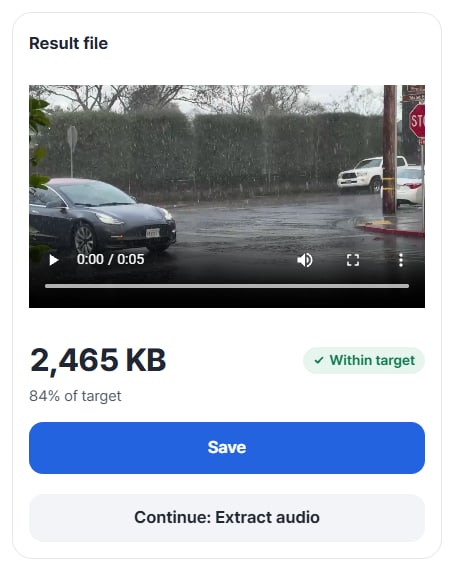
A 9,812 KB rainy-street video, to a 2,463 KB MP4 for a 3MB target
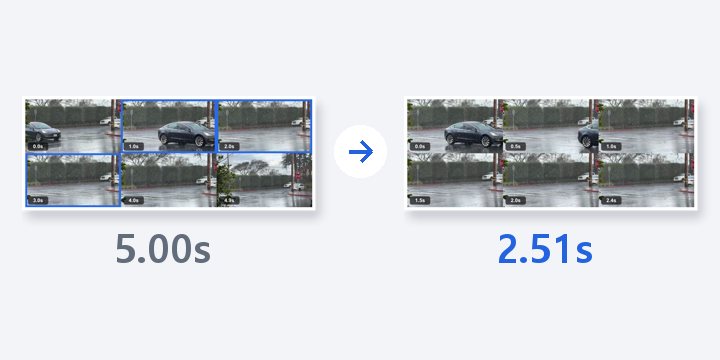
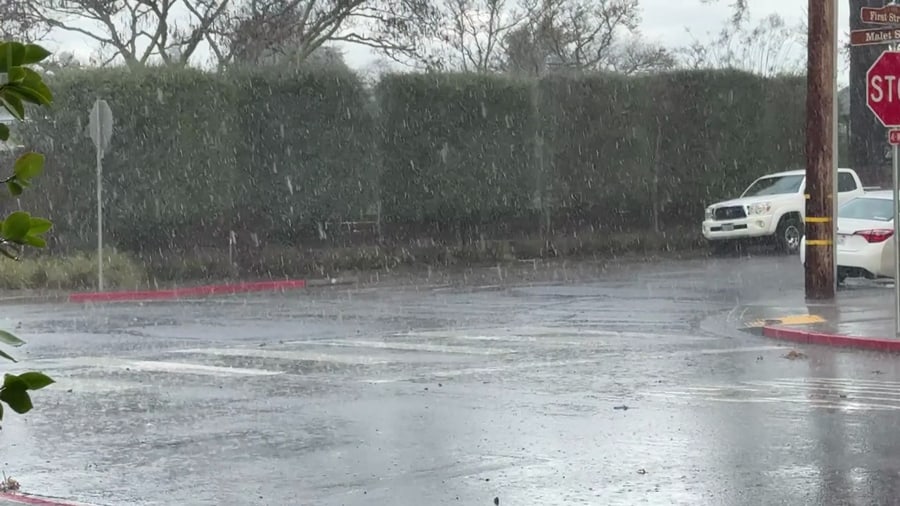
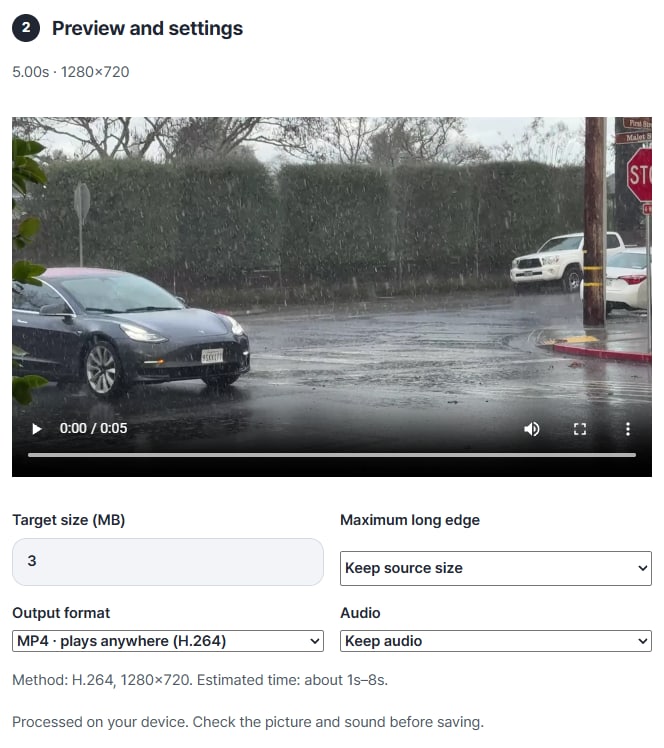
We added a 5-second video of a rainy street (1280×720, 9,812 KB), set the target size to 3 and pressed “Reduce size”. The saved rainy-street_compress.mp4 was 2,523,491 bytes, 74.9% smaller than the original. Reopened, it was still 1280×720 and had its sound.
A real CC0 video from Wikimedia Commons (filmed by Missvain), processed with Compress video v0.1.11. Both pictures are the same moment (2 s) of the original and the saved file.
HOW TO
Done in three steps
Choose a video
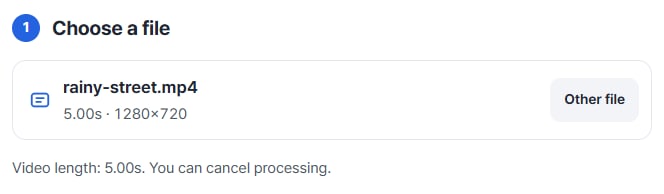
Pick one MP4, MOV, MKV or WebM video and its length and frame size appear right away.
Set the target size
Enter the size your upload field accepts under “Target size (MB)”. MP4 is the default output and you can pick WebM. Keep or remove the audio, and check the video in the preview above.
Check the result and save
Press “Reduce size” to get the result file. Check its size, play it, then press “Save”.
WHEN
Perfect for
- When an upload field has a size limit
Shrink the video to the size it accepts.
- Before attaching a video to an email
Make a large video lighter first.
- When the video doesn’t need sound
Removing the audio leaves more of the size for picture quality.
GOOD TO KNOW
Good to know
- Videos you can add: one MP4, MOV, MKV or WebM, up to 300MB, 5 minutes, 4K and 120fps. The file must have one video track and at most one audio track.
- The target size is 0.03 to 100MB. If the target is too small to keep the sound and a minimum picture size, you get a notice.
- The video is re-encoded, so quality differs from the original. Always check the picture and sound before saving.
- Encrypted or protected videos, videos with subtitles or several tracks, and HDR videos are not supported.
FAQ
Frequently asked questions
Where do my files get uploaded?
Nowhere. Everything is processed in this device's browser, so there is nothing on a server to delete. Results you haven't saved are cleared when you close the window.
The result came out larger than the original.
If the original is already under the target, re-encoding can make it larger. If you don’t need to change the sound or format, use the original.
It says the target can’t be met.
Raise the target size, choose Remove audio or WebM, or shorten the video first.
A video from my iPhone won’t open.
HDR video is not supported yet. Choose a file exported as standard (SDR) video.
Which devices has it been checked on?
We confirmed it in Edge on Windows. Phones were tested by simulating a phone screen on a PC; Safari-based browsers and real Mac, iPhone and Android devices are still to come.
NEXT