TRIM VIDEO
Trim video online cut a clip from MP4/WebM
Cut just the part you need, with its sound.
Set the start and end in seconds, play only that part, then save it as MP4 or WebM. If the source has sound, the sound comes along.
In short Trim video is a web tool that lets you set a start and end by number or slider, preview the selected part, and save it with sound as MP4 or WebM. One MP4 or WebM video up to 100MB, 2 minutes, 1080p-equivalent and 60fps. Exact cut re-encodes the clip, so a clip from a small, low-bitrate video can end up larger than the original. Keep original copies the data without re-encoding, but the end may extend to the next scene boundary. Earlier decode frames also remain in the file, so use Exact cut to remove sensitive scenes.
BEFORE → AFTER
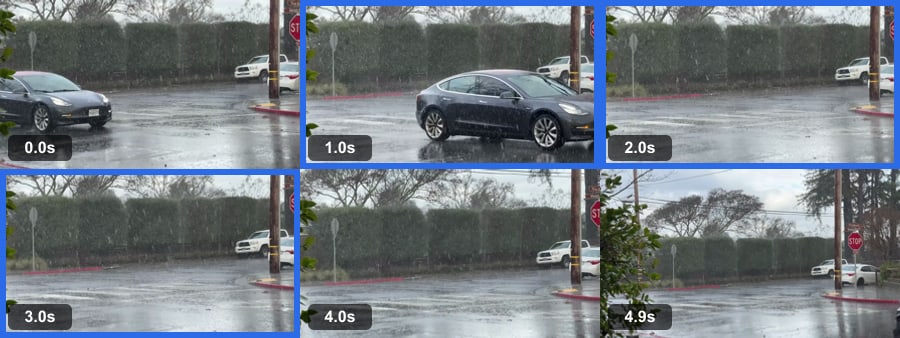
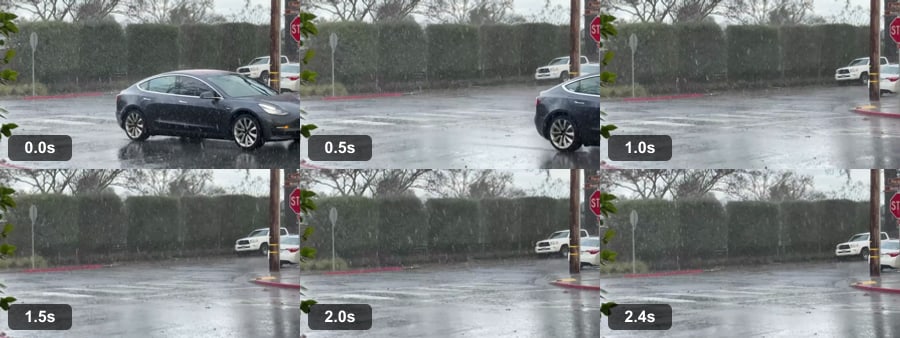
From a 5 s rainy street video, 1–3.5 s saved as a 2.5 s MP4
In a 5-second video of a rainy street (1280×720, 9,812 KB) we set Start 1 and End 3.5, chose “Exact cut” and pressed “Cut this part”. The saved rainy-street_cut.mp4 was 1,092,207 bytes. Reopening it showed 2.51 seconds with both picture (1280×720) and sound.
A real CC0 video from Wikimedia Commons (filmed by Missvain), processed with Trim video v0.1.13. Blue frames on the left are inside the chosen range; the right shows frames taken again from the saved file.
HOW TO
Done in three steps
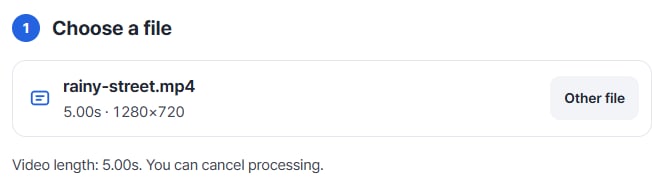
Choose a video
Pick one MP4 or WebM video and its length and frame size appear right away.
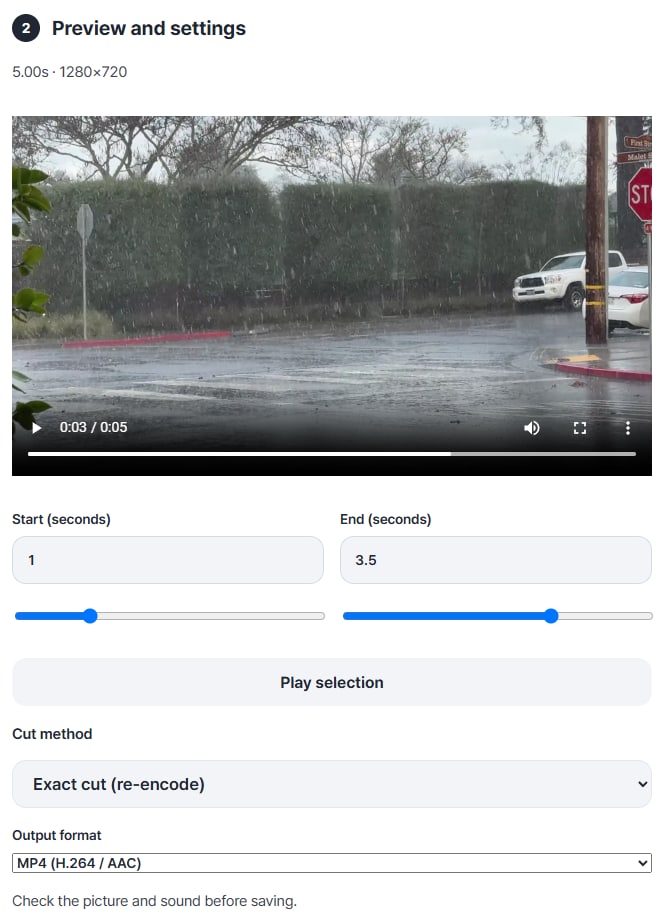
Set the start and end, then preview
Type numbers into Start (seconds) and End (seconds) or move the sliders. Check only the chosen part with “Play selection”, then pick the cut method and output format.
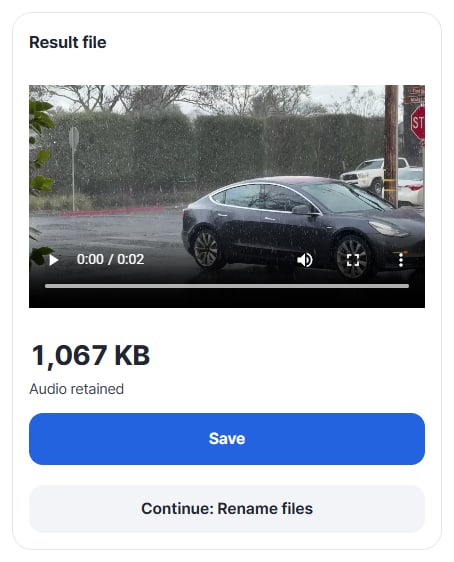
Check the clip and save
Press “Cut this part” to get the result file. Play it, then press “Save”.
WHEN
Perfect for
- Keeping only the scene you need to send
Save just those few seconds.
- Trimming waiting time at the start or end
Cut off what comes before and after.
- Sharing one moment from a meeting recording
Send only that part, with its sound.
GOOD TO KNOW
Good to know
- Videos you can add: one MP4 (H.264/AAC) or WebM (VP8 · VP9/Opus), up to 100MB, 2 minutes, 1080p-equivalent and 60fps. Choose at least 0.2 seconds.
- Exact cut cuts exactly where you choose but re-encodes the clip, so a clip from a small, low-bitrate video can end up larger than the original.
- Keep original does not re-encode, but the end may extend to the next scene boundary. Earlier decode frames also remain in the file, so use Exact cut to remove sensitive scenes. For WebM it works only when the start is on a scene boundary.
FAQ
Frequently asked questions
Where do my files get uploaded?
Nowhere. Everything is processed in this device's browser, so there is nothing on a server to delete. Results you haven't saved are cleared when you close the window.
The clip is larger than the original.
Exact cut re-encodes the chosen part. If the source was very lightly compressed, the result can be larger. Keep original does not re-encode.
Is the sound saved too?
If the source has sound, it is saved with the clip. If it has none, the result card shows “Source has no audio”.
Which devices has it been checked on?
We confirmed it in Edge on Windows. Phones were tested by simulating a phone screen on a PC; Safari-based browsers and real Mac, iPhone and Android devices are still to come.
NEXT