SCREEN RECORDER
Screen recorder with audio trim and save as MP4
Send how-tos and error screens as a short video.
Pick a screen, window or tab and record it with computer sound. When you stop, trim off the part where you picked what to share and the part where you went to stop, then save an MP4 on the same page.
Checked · v0.1.4
In short Screen recorder is a web tool that records your PC screen, a window or a tab with sound, then lets you trim the start and end on the same page before saving the video. Works in Chrome and Edge on a PC, up to 30 minutes or 1GB per recording. System sound is captured only for a full Windows screen or a tab. Phones can’t record.
BEFORE → AFTER
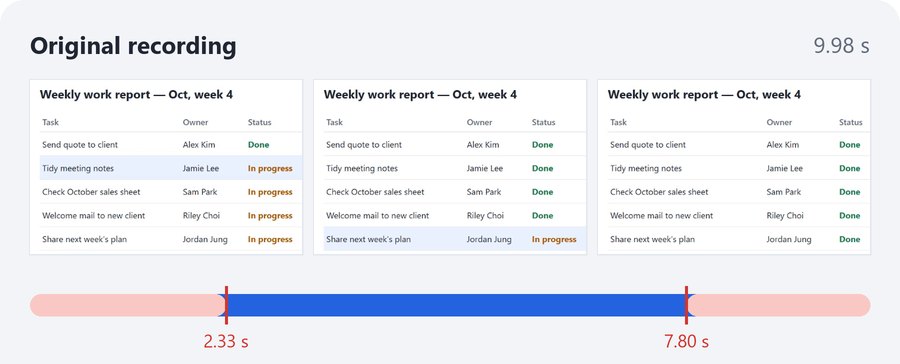
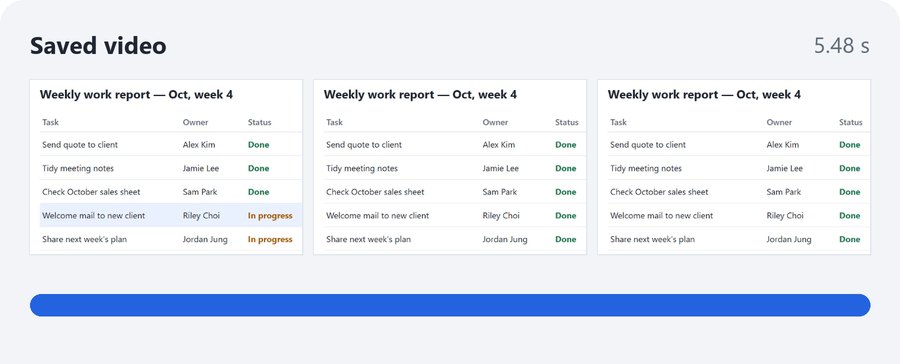
A 9.98 s recording trimmed to a 5.48 s video
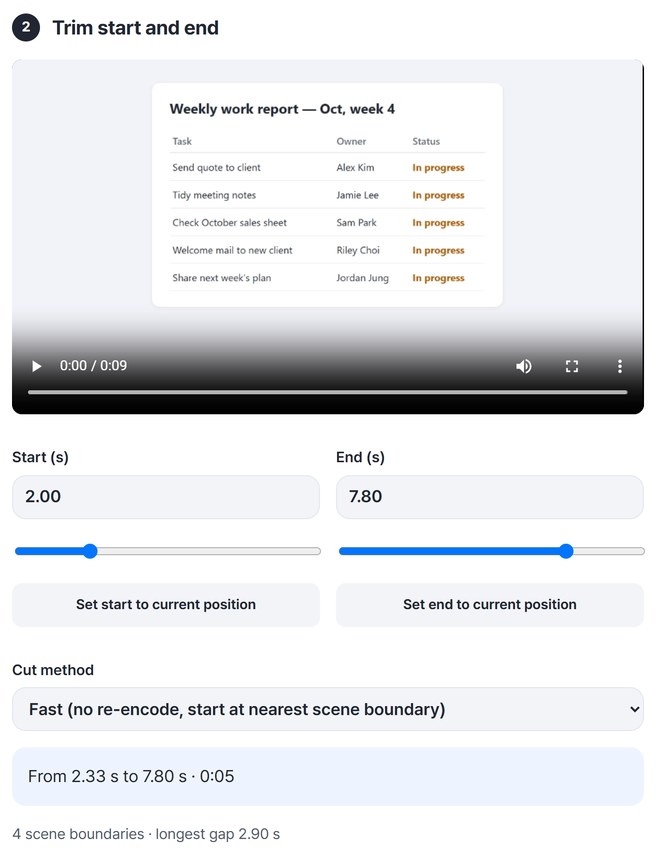
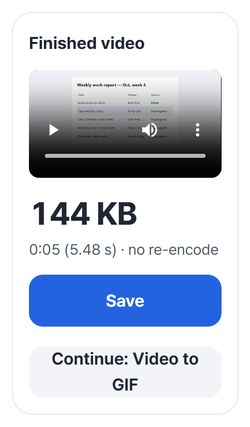
We recorded a work report open in another tab for 9.98 s. The first and last 2 s were still, so we set start 2 s and end 7.80 s and used “Fast.” Fast moves the start to the nearest scene boundary, which here was 2.33 s (red in the picture = trimmed parts). Opening the saved MP4 (147,444 bytes) again shows 5.48 s with both video and sound.
Actually recorded, trimmed and saved with Screen recorder v0.1.4 in Edge on Windows. In this test the tab to record was picked automatically; normally you choose it in the browser’s sharing dialog. Lengths were measured by opening the saved file again.
HOW TO
Done in three steps
Set quality and sound, then start
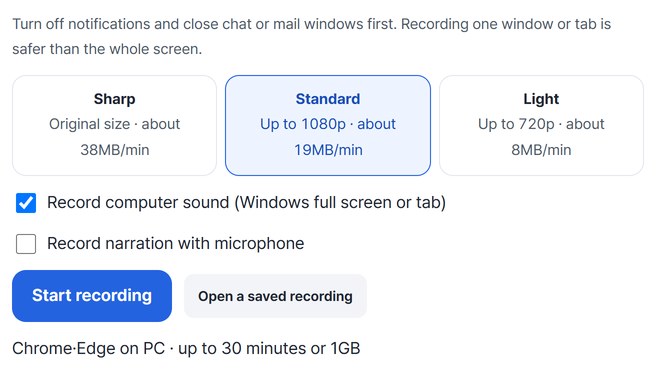
Choose “Sharp,” “Standard” or “Light,” and decide whether to record computer sound. Press “Start recording,” then pick the screen, window or tab in the browser dialog. Press “Stop recording” to finish.
Trim the start and end
Type a start and end in seconds while watching the preview, or press “Set start to current position.” “Fast” doesn’t re-encode and finishes in seconds; choose “Exact” to cut at the exact time.
Make the video and save
Press “Make video” to get the finished video. Press “Save,” or go on with “Continue: Video to GIF” if you need a GIF.
WHEN
Perfect for
- Showing how to use a program
Record one window, trim it and send it.
- Keeping an online meeting or class
Pick a tab and its sound is recorded too.
- Reporting an error screen
Record the steps that cause it in a short clip.
GOOD TO KNOW
Good to know
- Records in Chrome and Edge on a PC. Up to 30 minutes or 1GB per recording, with a notice at 25 minutes. At the limit, recording stops and the video so far is kept.
- Phone browsers can’t record the screen. Use your phone’s screen recorder, then trim the file in “Trim video” and save it.
- Computer sound is recorded only when you pick a full screen or a tab on Windows. If there’s no sound, check “Share audio” in the sharing dialog.
- Turn on “Record narration with microphone” to add a spoken explanation. If the microphone is unavailable, recording continues without it — check permissions in the address bar.
- Turn off notifications and close chat or mail windows before you start. Recording one window or tab is safer than the whole screen.
- A recording you saved before (MP4 or WebM) can be opened with “Open a saved recording” and trimmed again.
FAQ
Frequently asked questions
Where do my files get uploaded?
Nowhere. Everything is processed in this device's browser, so there is nothing on a server to delete. Results you haven't saved are cleared when you close the window.
Does it work on a phone?
Phone browsers can’t record the screen. Record with your phone’s screen recorder and add the file to “Trim video” to trim and save it.
After a fast cut, the start moved a little.
Fast doesn’t re-encode, so the start goes to the nearest scene boundary. Choose “Exact” to start at the exact time; it takes longer because it re-encodes.
Which devices has it been checked on?
Recording, trimming and saving were confirmed in Edge on Windows. Chrome and Mac are still to be checked.
NEXT