PAYSLIP MAKER
Korean payslip generator with 2026 insurance rates
Payslips for payday, one PDF per employee.
Enter the company and each employee’s pay and deduction items to get a payslip PDF for every employee, with the overtime and night-work calculations written out. Korea’s four social insurances are calculated at 2026 rates, and a payroll CSV and an input file for next month are saved too.
In short Payslip maker is a web tool that deducts Korea’s four social insurances at 2026 rates from the pay items you enter (or a work hours result) and saves a PDF and CSV for each employee. Up to 50 employees at once; automatic rates apply only to pay dates in 2026. The first PDF downloads a CJK font (about 22MB). It’s a reference form — if a deduction differs from the official notice, use the notice. Don’t enter resident registration numbers.
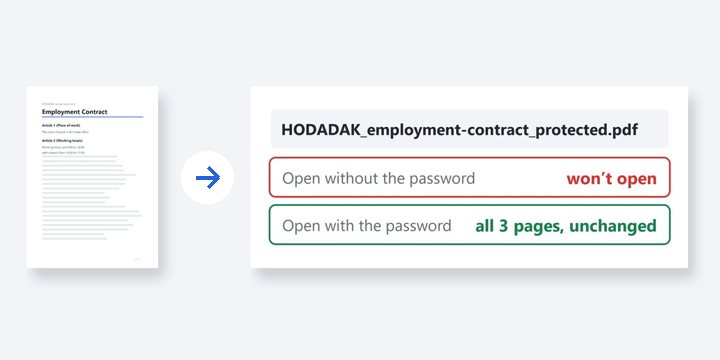
BEFORE → AFTER
Two employees: gross KRW 4,276,164, net KRW 3,835,024
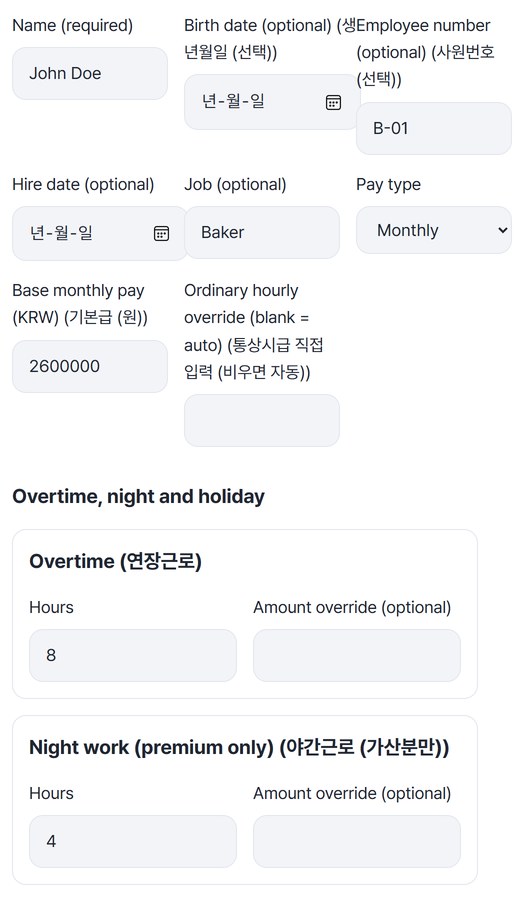
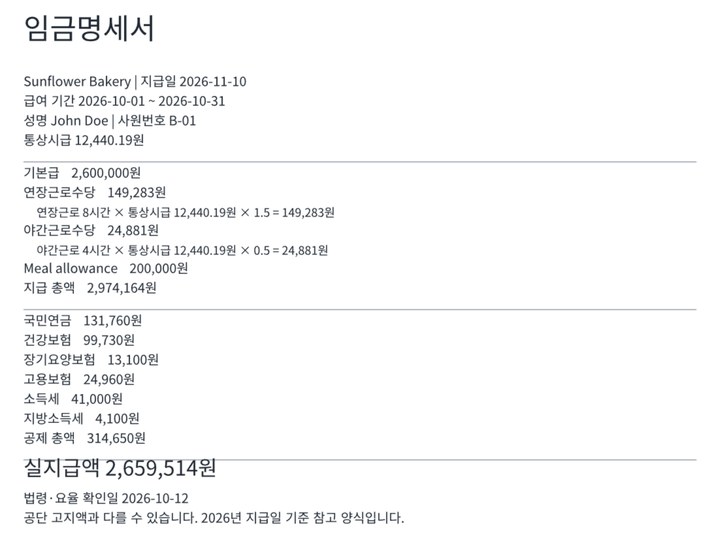
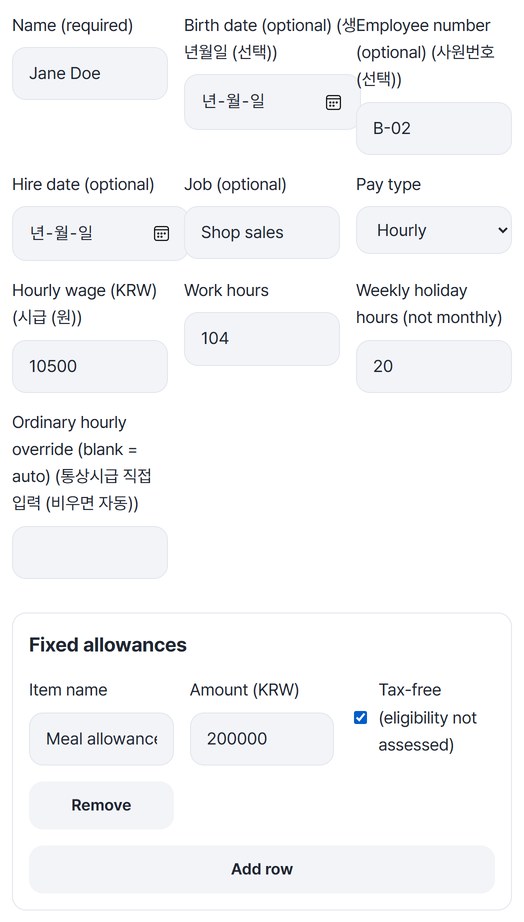
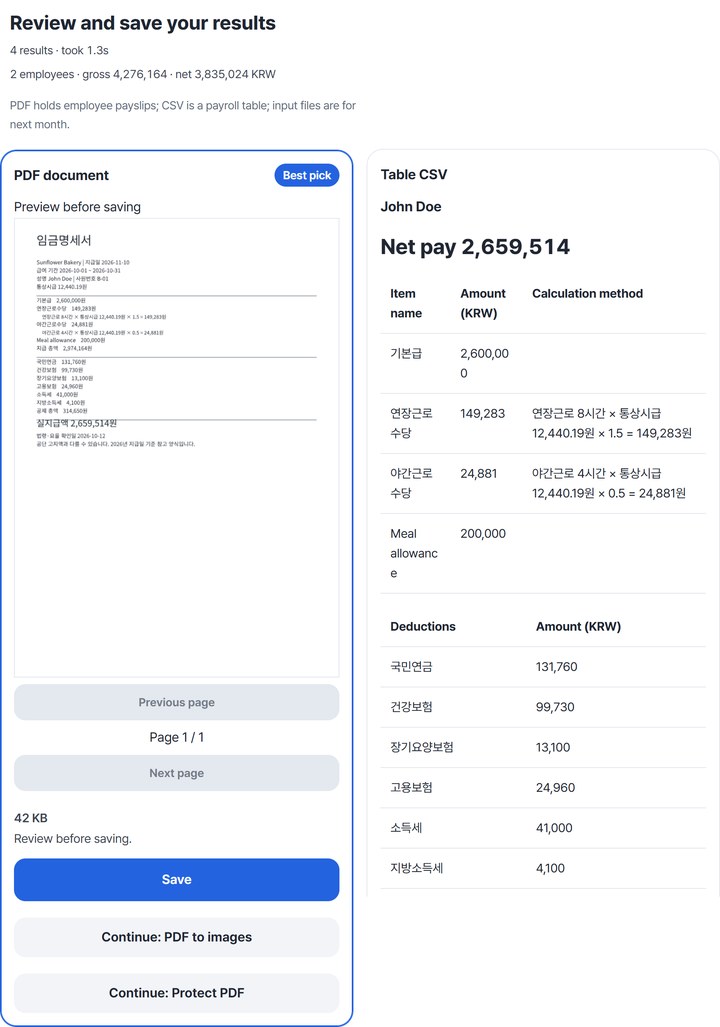
A made-up shop, Sunflower Bakery, pays October wages on November 10. We entered John Doe on a monthly wage (base KRW 2,600,000, 8 hours overtime, 4 night hours, KRW 200,000 tax-free meal allowance, KRW 41,000 income tax) and Jane Doe on an hourly wage (KRW 10,500, 104 hours, 20 weekly holiday hours). Reopening John Doe’s PDF showed KRW 149,283 overtime pay and KRW 24,881 night pay from an ordinary hourly wage of KRW 12,440.19; gross pay KRW 2,974,164 minus KRW 314,650 in deductions left net pay of KRW 2,659,514. The hand calculation and the CSV gave the same figures.
Actual result of entering a made-up shop and names into Payslip maker v0.1.2. The left image is employee 1’s input; the right is the first page of the saved PDF, drawn again with the empty bottom cropped off.
HOW TO
Three steps
Enter the company and pay period
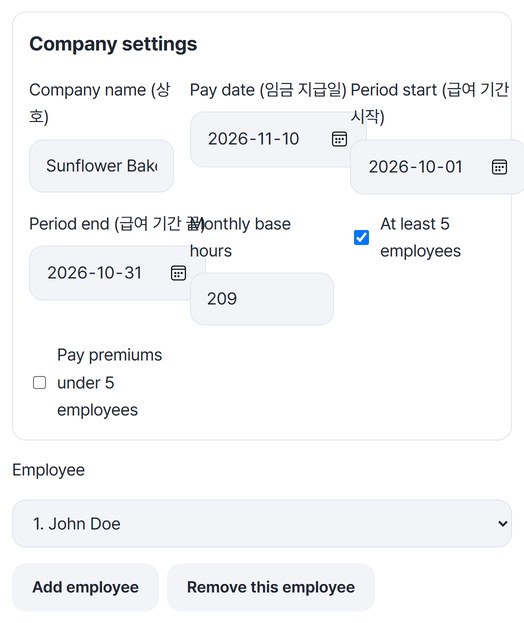
Enter the company name, pay date and pay period, and check whether you have “At least 5 employees.” Monthly base hours default to 209. For more staff, press “Add employee,” then pick each person under “Employee” to fill in.
Enter pay and allowances for each employee
Choose the pay type — monthly, hourly or daily. For hourly staff, enter the hourly wage, work hours and weekly holiday hours. Add overtime, night and holiday hours and any fixed allowances; tick “Tax-free” for allowances such as meals. Social insurance is calculated for you, and income tax is entered by hand.
Review the payslips and save
Press “Create payslips” to get a PDF document for each employee, a table CSV and an input file for reuse. On the CSV card, check each person’s net pay, calculation method and required-field checks, then press “Save” or “Save all (ZIP).”
WHEN
Perfect for
- Handing out payslips on payday
Save a one-page PDF for each employee and send it.
- Making next month’s payslips
Open last month’s input file and press “Move previous file to next month.”
- Hourly staff whose hours you’ve already worked out
Carry over a Worktime calculator result to fill in overtime and night hours, the hourly wage and the pay period.
GOOD TO KNOW
Good to know
- It’s a reference form. Automatic deductions can differ from the official insurance notices; if they do, enter the notice amount in each “Amount override (optional)” field. Ordinary wages, tax-free limits and who must be insured are not assessed.
- Automatic rates apply only to pay dates in 2026. Income tax is entered by hand; leave local income tax blank and it is 10% of income tax.
- Don’t enter resident registration numbers. Anything that looks like one is refused. Use a birth date or employee number to tell staff apart.
- Turning off “At least 5 employees” sets overtime, night and holiday premiums to 0%. To pay them anyway, turn on “Pay premiums under 5 employees.”
- Up to 50 employees at once. The PDF is a Korean-language form, and the first one downloads a CJK font (about 22MB) once.
FAQ
Frequently asked questions
Are employee names and amounts kept on this device?
No. Even with “Remember company settings only” turned on (it is on by default), only company settings such as the name, the 5-employee setting and monthly base hours stay in this browser. Keep employee details in the input file you save.
Why is night pay hours × 0.5?
The base pay for night hours is already in the base pay or work hours, so only the 50% premium is added — the field is labelled “Night work (premium only).” In the example, 4 hours × KRW 12,440.19 × 0.5 = KRW 24,881.
Which devices has it been checked on?
We confirmed it in Edge and WebKit (the engine behind Safari) on Windows. Phones were tested by simulating a phone screen on a PC; checks on real Mac, iPhone and Android devices are still to come.
NEXT
Handy next steps
 New
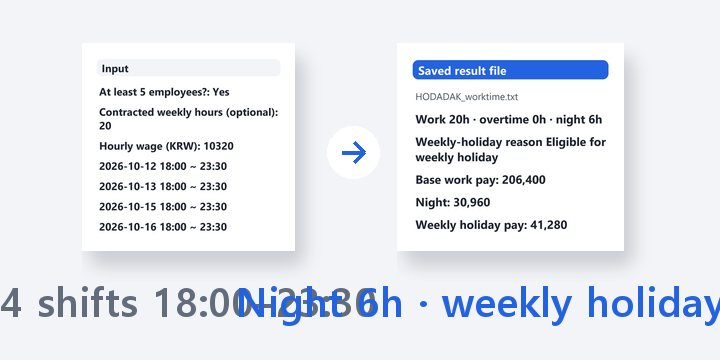
NewSplit clock-in and clock-out times into overtime, night and holiday hours, plus weekly holiday pay (Korean law).
Open