
PROTECT PDF
Before you send a PDF,
add an opening password.
Set an opening password right on this device, without uploading the file anywhere. Before saving, the result is reopened with that password to check that the text and images are unchanged.
- No install
- No sign-up
- Files stay on this device
BEFORE → AFTER
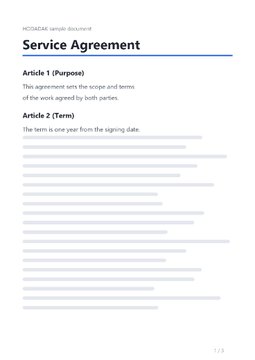
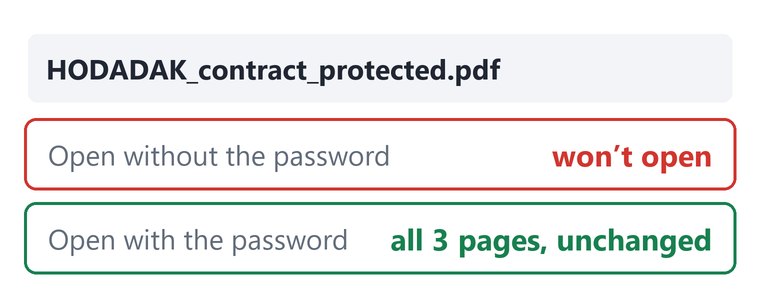
A 3-page contract, now with an opening password
We entered the same password twice and pressed “Protect and check.” Without the password the result won’t open; with the right password all 3 pages open exactly as before.
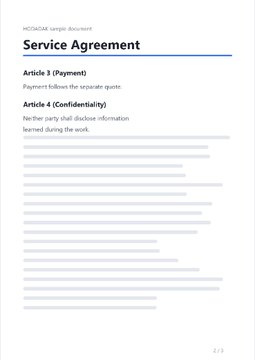
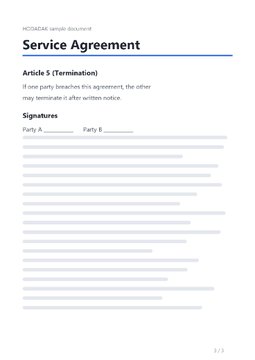
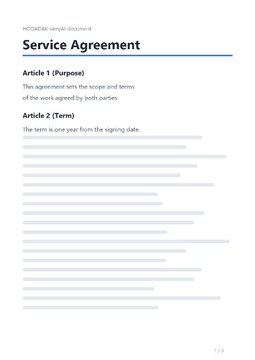
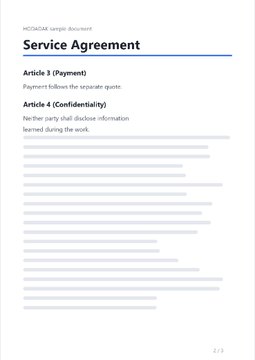
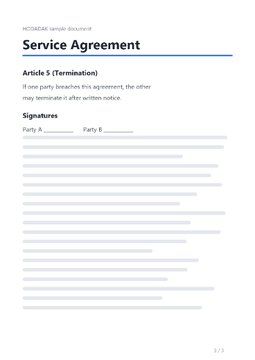
A HODADAK sample file (an example contract) protected with Protect PDF v0.1.0 using the tool’s public test password, then reopened without and with the password.
HOW TO
Three steps to protect
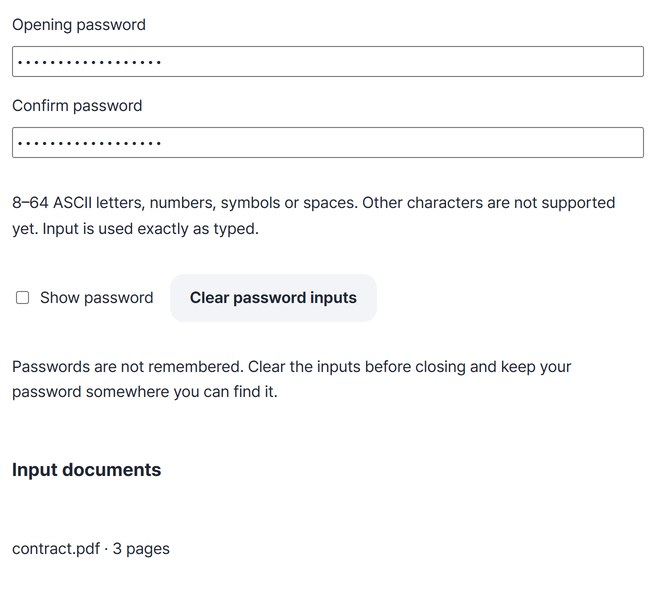
Pick PDFs, type the password twice
Add up to 6 PDFs and enter the opening password twice — 8 to 64 ASCII letters, numbers, symbols or spaces.
“Protect and check”
The result is reopened with your password and its text and images are compared. Use Previous and Next to review every page.
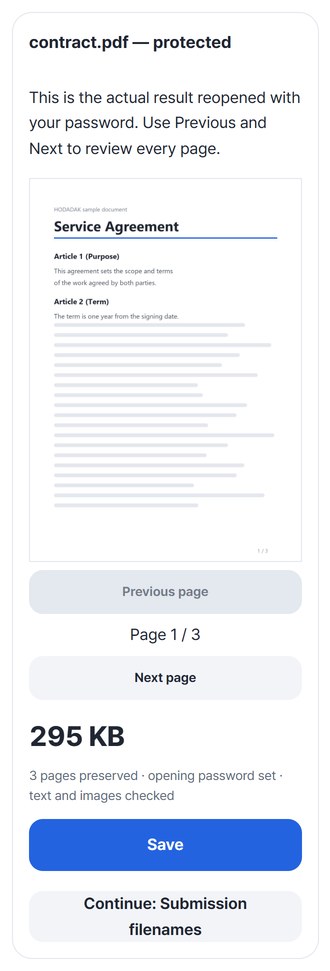
Save, and keep the password safe
Several files can be saved at once as a ZIP. Without the password the file can’t be opened, so write it down somewhere.
WHEN
Perfect for
- Emailing documents with personal data
Send the file and the password by different routes.
- One password for several files
Up to 6 at once, saved as a ZIP.
- Tidying names before submitting
Continue straight to Submission filenames.
GOOD TO KNOW
Good to know
- Adds an opening password only (AES-256, confirmed in our audit). No print or copy restrictions, certificate protection, or password recovery.
- Passwords are not remembered. Press “Clear password inputs” before closing.
- Up to 6 PDFs · 20MB each · 50MB/200 pages in total. PDFs that are already encrypted, signed or have form fields are not processed.
- On iPhone, use Save all (ZIP) even for a single file.
- The PDF engine is downloaded once, about 4MB, the first time. It's fetched only after you pick a file, and other PDF tools reuse it.
- Press Try a sample to try it without your own file. The Continue button on a result card carries on in another tool without adding the file again.
FAQ
Frequently asked questions
Where do my files get uploaded?
Nowhere. Everything is processed inside this device's browser, and closing the window clears both the files and the results.
What if I forget the password?
The file can’t be opened. HODADAK doesn’t store passwords and can’t recover them. Your original isn’t changed, so keep it, and write the password down somewhere.
Which devices has it been checked on?
We confirmed it in Edge and WebKit (the engine behind Safari) on Windows. Phones were tested by simulating a phone screen on a PC; checks on real Mac, iPhone and Android devices are still to come.
NEXT
Handy next steps
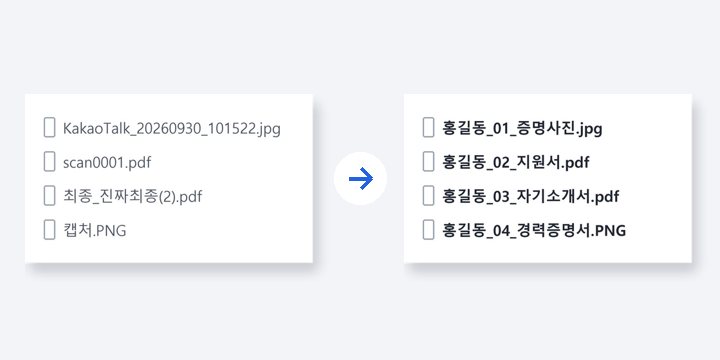 FilesNewSubmission filenames
Line up submission file names and order in one go. File contents stay untouched.
Open →How to use
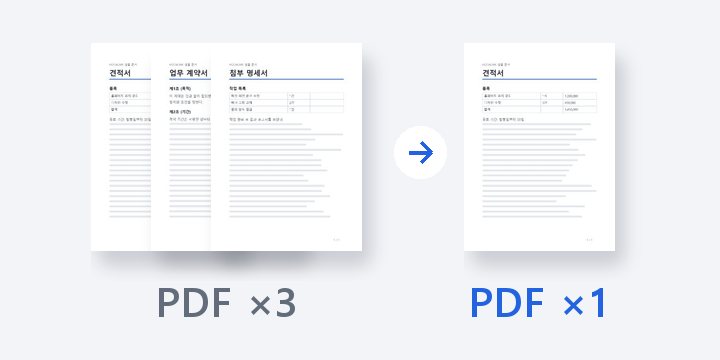
Type it, check it, save it.
No install, no sign-up. Right now.