
COMPARE EXCEL/CSV
Compare two Excel or CSV files free find changes
Two versions of a sheet — a report of just what changed.
Add the previous and current files, pick a key column such as an item code, and every added, deleted and changed record goes into an XLSX report with its original cell location (like E2). Your files never leave this device.
- No install
- No sign-up
- No upload
In short Excel/CSV comparison is a free web tool that matches two files by a key column (such as a customer ID), finds added, deleted and changed records, and builds a report (XLSX or CSV) with the original cell locations. It runs in your browser with no install or sign-up, and your files are processed in this device’s browser — never uploaded to a server. Two CSV or XLSX files, 5,000,000 bytes (about 5MB) each, up to 10,000 rows, 100 columns and 200,000 cells per sheet. Merged cells, passwords, macros and XLS aren’t supported.
BEFORE → AFTER
September vs. October price list — only the changes
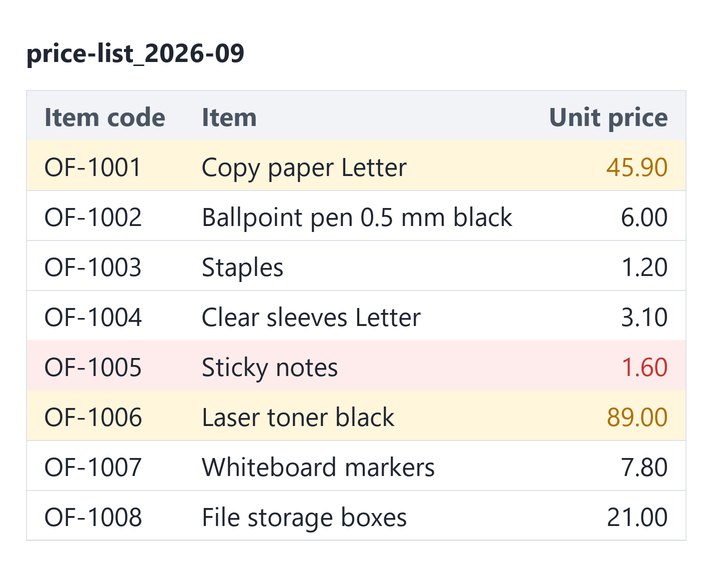
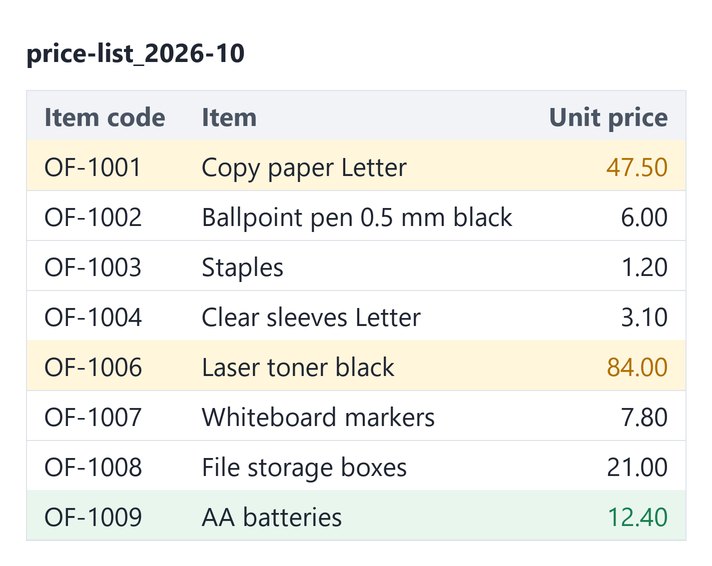
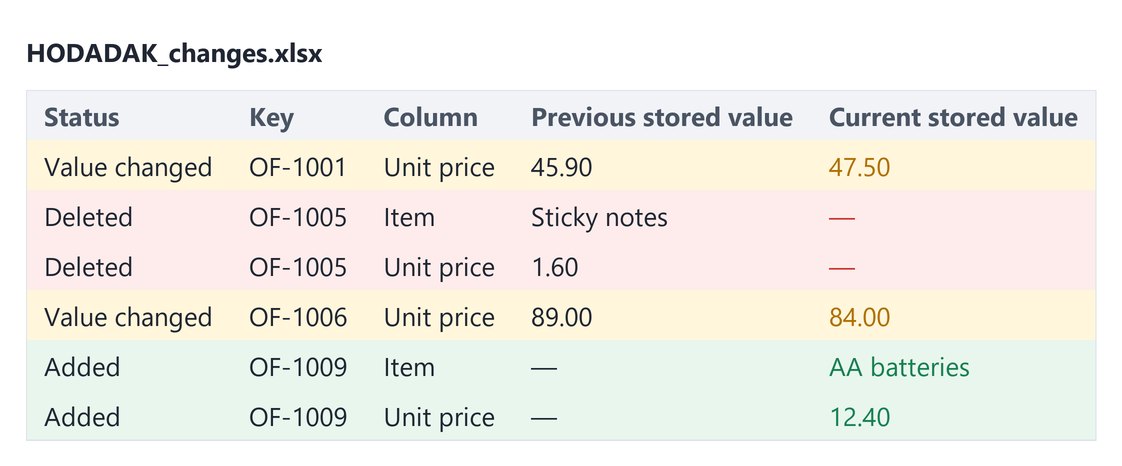
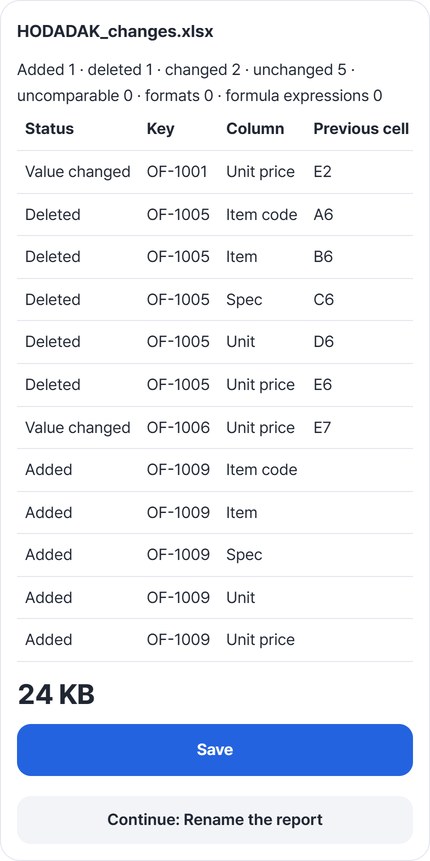
We compared an office-supply price list for September (434 bytes) and October (437 bytes) by Item code. Result: added 1 · deleted 1 · changed 2 · unchanged 5. Copy paper went from 45.90 to 47.50 and laser toner from 89.00 to 84.00; sticky notes were dropped and AA batteries were added. Reopening the saved report (24,472 bytes), all four changes were there with their previous and current cell locations.
Actual result of comparing a made-up office-supply price list (company and prices are examples) with Excel/CSV comparison v0.1.6, then reopening the saved XLSX report to check it.
HOW TO
Three steps and done
Add the previous and current files
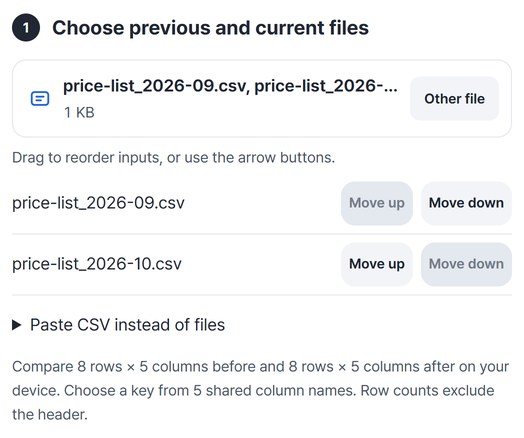
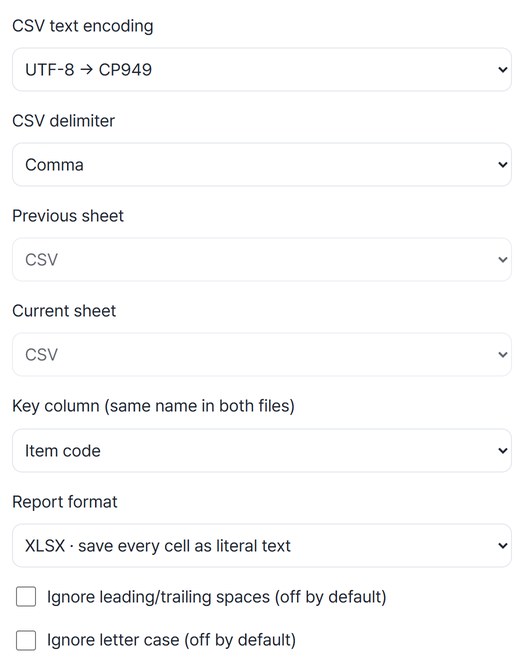
The first file in the list is the previous one, the second is current. If they are the wrong way round, reorder them. You can also paste CSV text instead of choosing files.
Pick the key column
Choose a column that has the same name in both files and a different value on each row (here, Item code). We kept the default report format: XLSX, with every cell saved as literal text.
“Compare changes,” then save
Check status, key, column, previous and current cell and stored values in the preview, then press “Save.” The report can go straight on to “Rename the report.”
WHEN
Perfect for
- A supplier sends a new price list
See only the changed prices, with cell locations.
- A new roster or stock sheet arrives
Spot removed and new rows at once.
- Sharing changes with evidence
Attach the XLSX report as is.
GOOD TO KNOW
Good to know
- Two CSV/XLSX files, 5,000,000 bytes each, up to 10,000 data rows, 100 columns and 200,000 cells per sheet.
- Stored values and cell types are compared: number 123 and text 123 are different. Formulas are not recalculated — only their stored results are compared.
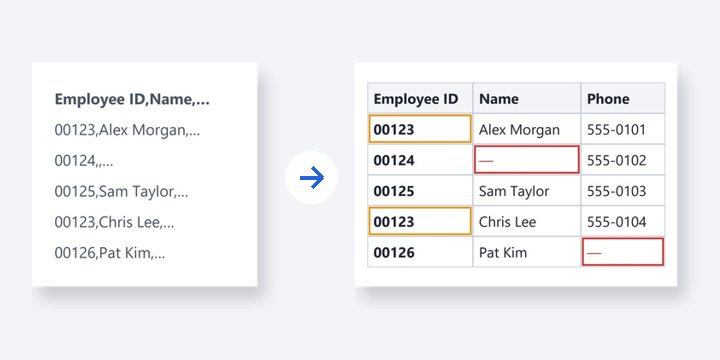
- Column order may differ, but column names must match. Rows with an empty or duplicated key are reported separately rather than matched.
- Merged cells, passwords, macros, old XLS files, charts and external links are not supported. Only settings are remembered — not files, contents or column names.
- The Continue button on a result card carries on in another tool without adding the file again.
FAQ
Frequently asked questions
Where do my files get uploaded?
Nowhere. Everything is processed in this device's browser, so there is nothing on a server to delete. Results you haven't saved are cleared when you close the window.
Does column order matter?
No. Columns with the same name are compared even if they sit in a different order. Columns with different names are never paired automatically, so make the names match.
Which devices was it checked on?
We compared files in Edge on Windows and reopened the saved report to check it. Real Mac, iPhone and Android devices haven’t been checked yet.
NEXT
Handy next steps
Two files, one key, one report.
No install, no sign-up. Right now.