
CSV CHECK
Before employee ID 00123
turns into 123.
Add a list CSV and it finds blanks and duplicates by row number, then builds an Excel file with every cell stored as text. Leading zeros and long numbers stay intact.
- No install
- No sign-up
- Files stay on this device
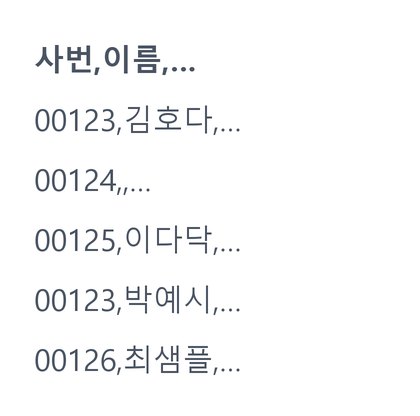
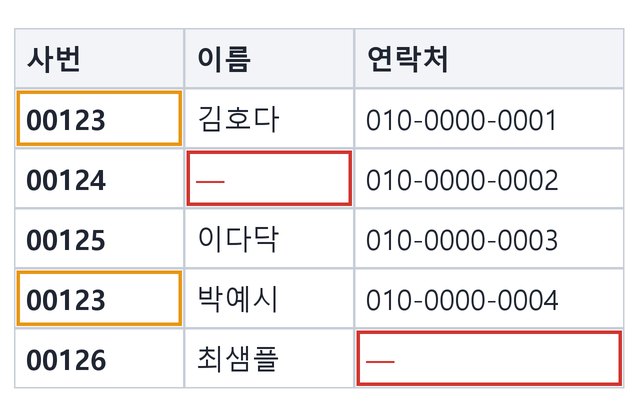
BEFORE → AFTER
Three issues found in a five-person list
Required columns: Employee ID, Name, Phone; duplicates checked on Employee ID. It flagged a blank name in row 3, a blank phone in row 6, and row 5 repeating the ID from row 2. IDs like 00123 stay as they are in the Excel file.
Actual result of processing a HODADAK sample file (all names and numbers are examples) with CSV submission check v0.1.1.
HOW TO
Three steps and done
Add your CSV
One at a time. Text encoding starts on automatic (UTF-8 → CP949, the older Korean Windows encoding); switch it if text looks garbled.
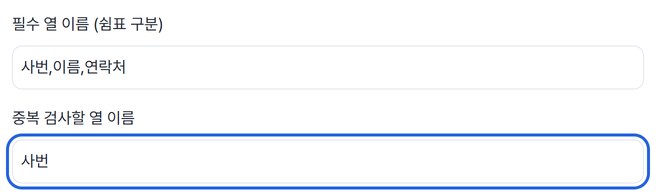
Name the required and duplicate-check columns
Type column names exactly, separated by commas — e.g. ID,Name,Phone, and ID for duplicates.
Review the issues and save
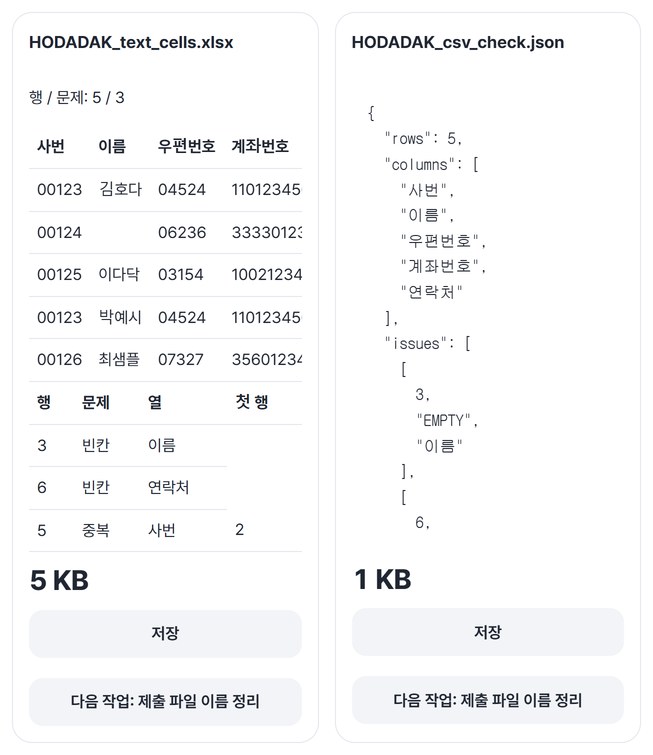
Row, issue and column appear in a table. Save the Excel file and the check report (JSON).
WHEN
Perfect for
- Before sending an event or training roster
Find blank names and phone numbers by row.
- IDs, postal codes or account numbers starting with 0
Stored as text, so the leading zeros survive.
- A list merged from several people
Duplicates come with the row where the value first appeared.
GOOD TO KNOW
Good to know
- Files you can add: one CSV, up to 5MB, 20,000 rows and 100 columns.
- Two results: an Excel file (xlsx) with every cell stored as text, plus a check report (JSON). Opening a CSV directly in Excel can drop leading zeros; in this file, values like 0012 stay as they are.
- What it checks: blanks in required columns, missing required columns, repeated values in the duplicate-check column, and empty or repeated headers. Row numbers count the header as row 1.
- It doesn’t edit your values. Blanks aren’t filled and duplicate rows aren’t removed — it only reports them. Text that was already saved garbled can’t be restored.
- Press Try a sample to try it without your own file. The Continue button on a result card carries on in another tool without adding the file again.
FAQ
Frequently asked questions
Where do my files get uploaded?
Nowhere. Everything is processed inside this device's browser, and closing the window clears both the files and the results.
Will calculations work on these cells in Excel?
Possibly not. Every cell is stored as text to protect leading zeros and long numbers. For columns you need to calculate with, change them to a number format in Excel.
Which devices has it been checked on?
We confirmed it in Edge and WebKit (the engine behind Safari) on Windows. Phones were tested by simulating a phone screen on a PC; checks on real Mac, iPhone and Android devices are still to come.
NEXT
Handy next steps
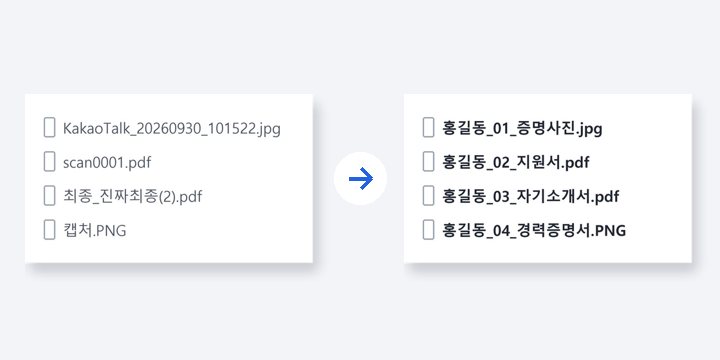 FilesNewSubmission filenames
Line up submission file names and order in one go. File contents stay untouched.
Open →How to use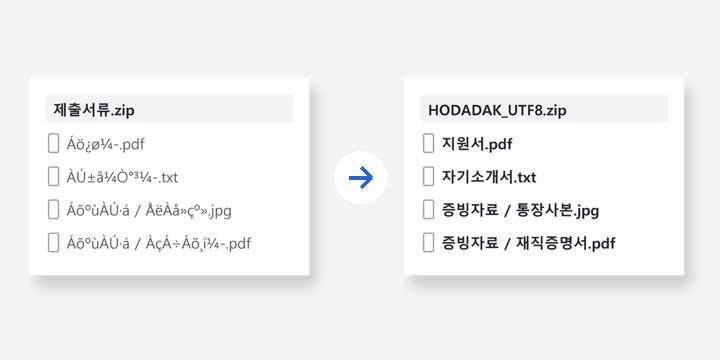 ZIPNewRepair ZIP filenames
Garbled names after unzipping? Read them correctly and repack as UTF-8.
Open →How to use
Add, name the columns, check.
No install, no sign-up. Right now.