
CUT & JOIN AUDIO
Cut MP3 and audio trim and join recordings
Trim the silence around recordings and join several into one.
Choose what to keep on the waveform and join several recordings in order into one file. Files never leave your device. 16-bit WAV keeps its original samples even when cut, and MP3 stays original only when you join files without cutting.
- No install
- No sign-up
- No upload
In short Cut and join recordings is a web tool that trims unwanted parts of several recordings on a waveform, joins them in order, and saves the result as MP3, WAV or M4A. It runs in your browser with no install or sign-up, and your files are processed in this device’s browser — never uploaded to a server. Up to 20 files (500MB each) and 3 hours in total. Some formats can be read only up to 30 minutes per file, depending on the browser. Cutting an MP3 re-encodes it to M4A because the edges can change; joining MP3s without cuts keeps the original MP3.
BEFORE → AFTER
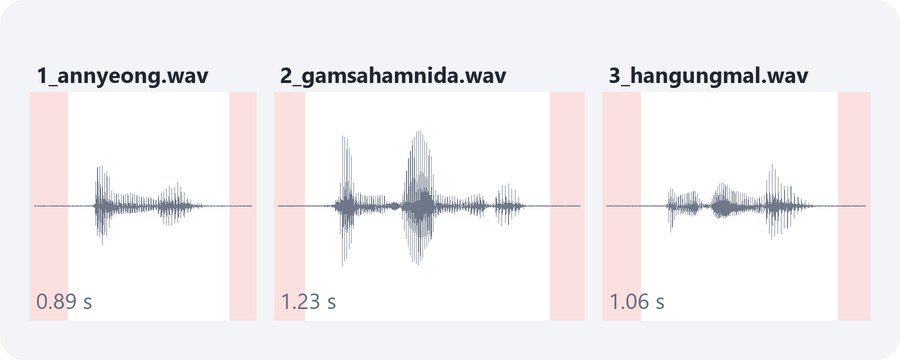
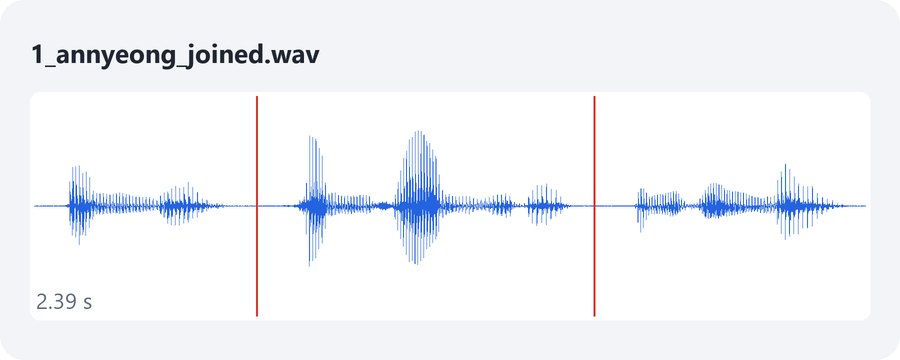
Three word recordings, silence trimmed, joined into one 2.39 s file
We added three Korean word recordings read by a real person (3.18 s in total, WAV, 48kHz, 1 channel) and set a start and end for each. With “quietest spot” turned off, “Make recording” chose “WAV, original samples.” Reading the saved 1_annyeong_joined.wav (229,484 bytes) back shows 2.39 s, and all 114,720 samples match the chosen parts of the originals.
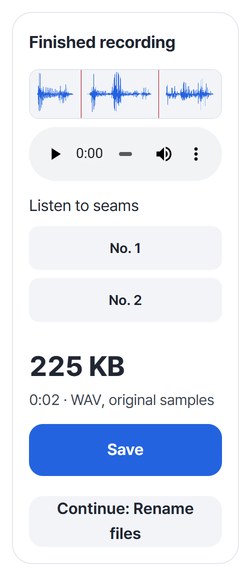
Actual result of processing CC0 recordings from Wikimedia Commons (Lingua Libre speaker CHK2605, a human voice) with Cut and join recordings v0.1.1, then reading the saved WAV back and comparing it with the original samples. Red areas are the trimmed edges; red lines are seams.
HOW TO
Three steps and done
Add recordings and set the order
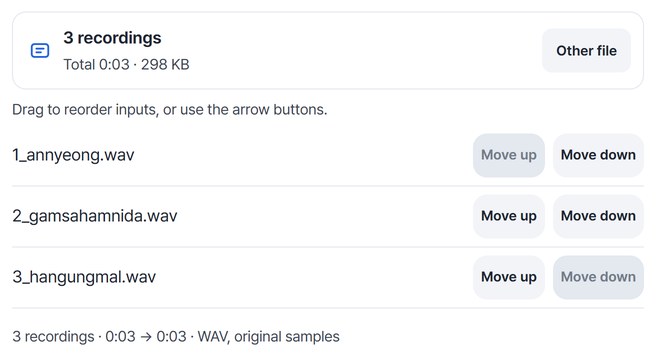
Pick one or more files and they go into a list. Drag them or use the arrow buttons to change the joining order. The count and total length show right away.
Choose what to keep in each file
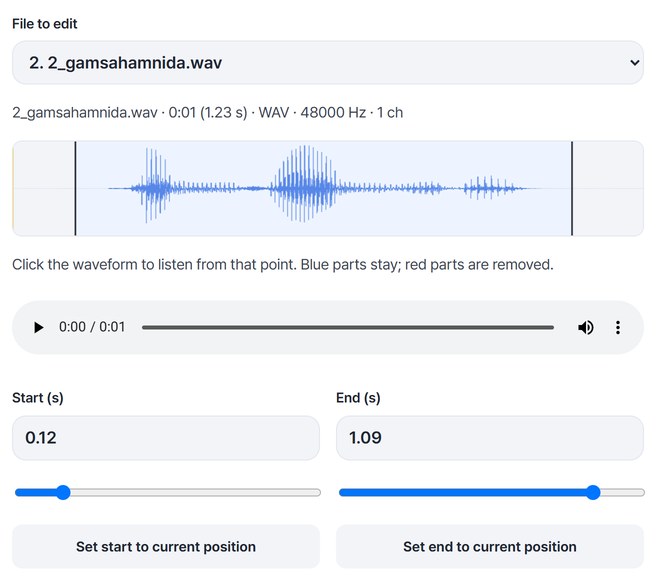
Switch files in “File to edit” and type a start and end in seconds, or press “Set start to current position” while listening. The kept part has a blue background; to drop something in the middle, press “Remove a middle part.”
Listen to the seams and save
Press “Make recording” to get the finished recording. Use “No. 1” and “No. 2” to hear only the joins, then press “Save.” You can also go on with “Continue: Rename files.”
WHEN
Perfect for
- Tidying a meeting or lecture recording
Cut the noise before it starts and the silence after it ends.
- Turning split recordings into one
Set the order and join them into a single file.
- Removing a cough or side talk
Drop just that part with “Remove a middle part.”
GOOD TO KNOW
Good to know
- Files you can add: MP3, M4A, AAC, WAV, FLAC, OGG, OPUS and WebM, up to 20 files, 500MB each, 3 hours in total. Some formats can be read only up to 30 minutes per file, depending on the browser.
- To get an MP3, only join — don’t cut. Cutting an MP3 or changing loudness or fades re-encodes it to M4A. 16-bit WAV files with the same sample rate and channels keep their original samples even when cut, unless you change loudness or fades. You can also pick M4A or WAV (16-bit) under Format.
- “Quietest spot” is on at first. With it on, the start and end can move up to 0.3 s outward from your selection, and a middle cut can remove up to 0.3 s more on each side. Made with it on, the example above keeps 2.92 s of 3.18 s. Turn it off to cut exactly where you chose.
- The engine that reads and saves audio (about 0.69MB) is downloaded once, after you pick a file.
FAQ
Frequently asked questions
Where do my files get uploaded?
Nowhere. Everything is processed in this device's browser, so there is nothing on a server to delete. Results you haven't saved are cleared when you close the window.
I added an MP3 but got an M4A.
Cutting an MP3 can change the sound at the boundary, so it’s re-encoded to M4A. The same happens when you turn on loudness matching or fades, or join MP3s with different sample rates or channels. To keep the MP3, only join files without cutting.
I hear a click at a seam.
Turn on “quietest spot” and make it again. The cut points move to a quiet spot within 0.3 s.
Which devices has it been checked on?
We confirmed it in Edge on Windows. Phones were tested by simulating a phone screen on a PC; Safari-based browsers and real Mac, iPhone and Android devices are still to come.
NEXT
Handy next steps
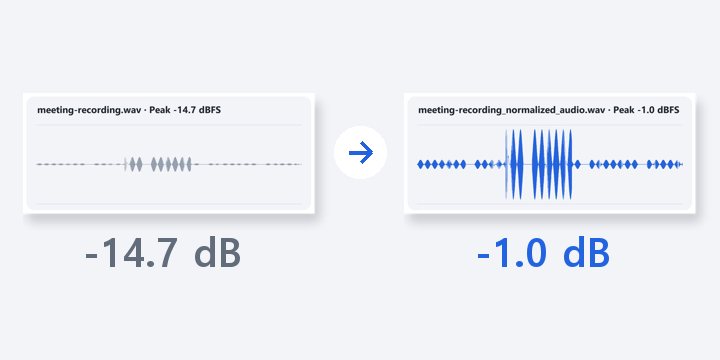
Adjust the whole recording without adding clipped peaks. Listen before and after, then save a new WAV.
Open
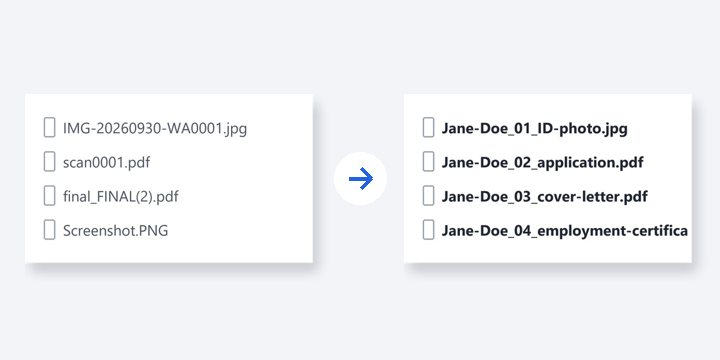
Add, choose, listen, save.
No install, no sign-up. Right now.