
RECORDING VOLUME
Recording too quiet?
Raise it without clipping.
Raise or lower the whole recording by the same amount and save a new WAV. It only goes as loud as the highest peak allows, and you can switch between the original and the result at the same point while listening.
- No install
- No sign-up
- Files stay on this device
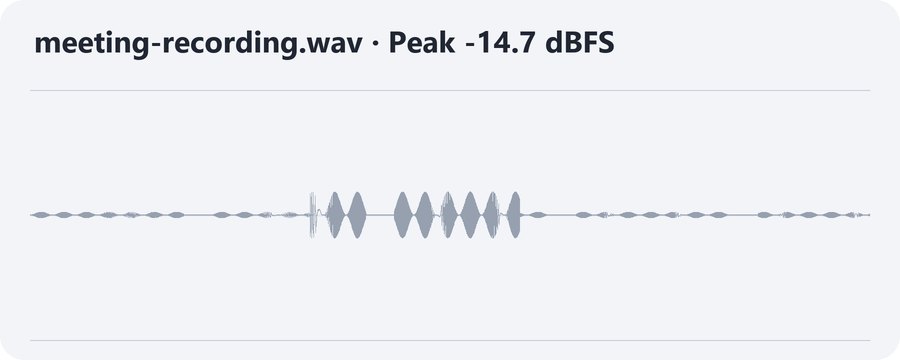
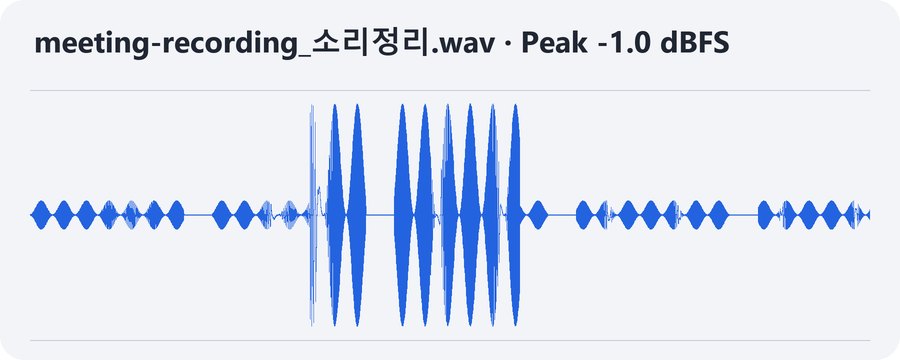
In short Recording volume is a free web tool that adjusts a whole recording’s loudness without pushing the loudest peak into clipping, lets you compare before and after, and saves a new WAV. It runs in your browser with no install or sign-up, and your files are processed on your device — never uploaded to a server. One file up to 60 seconds and 10MiB (mono or stereo, 8–96kHz); MP3, M4A and others work only if your browser can decode them. It doesn’t remove noise or repair audio.
BEFORE → AFTER
Peak -14.7 dB → -1.0 dB, whole recording raised 13.7dB
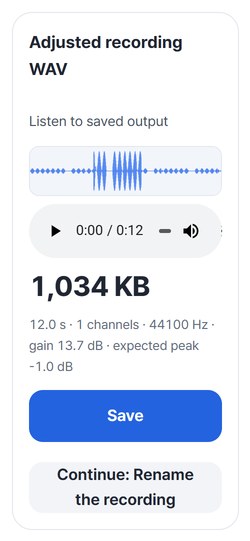
A 12-second synthetic recording (quiet speech-like sound with one louder burst) processed with “Set maximum peak level” and a -1dB target. The screen showed “Requested 13.7 dB → applied 13.7 dB”, and measuring the saved WAV again gave a peak of -1.0 dBFS with the same 12.0 s, 1 channel and 44100Hz.
Actual result of processing a HODADAK synthetic recording (not a human voice) with Recording volume v0.1.0, then reading the saved WAV back to measure its levels.
HOW TO
Three steps and done
Add the recording
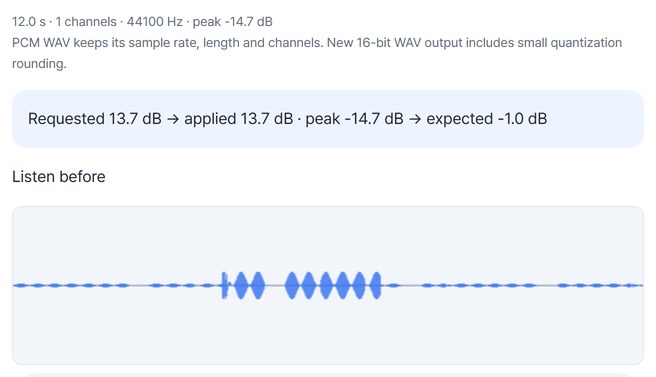
Once you pick a file you’ll see its length, channels, sample rate, highest peak and the full waveform. Use “Listen before” to hear it first.
Choose how to adjust
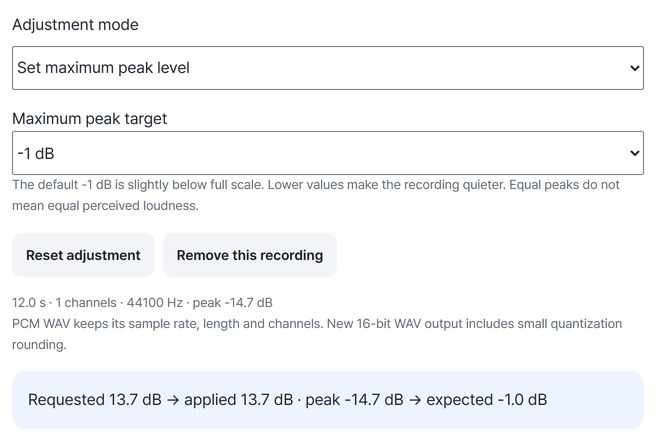
“Set maximum peak level” uses a target of -1, -3, -6 or -12dB; “Manually raise / lower volume” lets you set the amount. The requested and applied amounts are shown together.
Listen and save the WAV
Press “Adjust and create WAV”, check it with “Listen to saved output”, then press “Save”.
WHEN
Perfect for
- Quiet meeting or lecture recordings
Raise the whole thing as far as it can go without clipping.
- Matching a submission level
Set a peak target so recordings follow the same rule.
- Recordings that are too loud
Lower everything with the manual control.
GOOD TO KNOW
Good to know
- Files you can add: one file, up to 60 s and 10 MiB, mono or stereo, 8–96 kHz. MP3, M4A and similar formats work only if the browser can decode them.
- The whole recording changes by the same amount. Quiet parts aren’t raised separately, and equal peaks don’t mean two recordings will sound equally loud.
- No noise removal or repair. Noise may get louder too, existing distortion can’t be undone, and it doesn’t target broadcast loudness standards.
- The result is a 16-bit WAV. It can be larger than the original and includes tiny rounding changes. The original file isn’t changed.
FAQ
Frequently asked questions
Where do my files get uploaded?
Nowhere. Everything is processed inside this device's browser, and closing the window clears both the files and the results.
It didn’t get as loud as I asked.
Going that far would push the highest peak past the limit and clip it, so the tool lowers the amount to a safe value and shows what was applied. Sounding louder than that needs other processing, such as compression, which this tool doesn’t do.
Which devices has it been checked on?
We confirmed it in Edge on Windows. Phones were tested by simulating a phone screen on a PC; Safari-based browsers and real Mac, iPhone and Android devices are still to come.
NEXT
Handy next steps
Add, choose, listen, save.
No install, no sign-up. Right now.