VIDEO FRAMES TO IMAGES
Extract frames from video save stills as images
The moments you want from a video, as images and a contact sheet.
List times separated by commas or set an interval, and those frames are saved as PNG or JPG images plus a one-page contact sheet. Similar frames are flagged, never deleted.
In short Video frames to images is a web tool that saves frames at times you choose or at regular intervals as PNG or JPG images and a contact sheet, flagging similar frames. One video your browser can play, up to 100MB and 10 minutes; up to 60 frames. Not every video format is supported.
BEFORE → AFTER
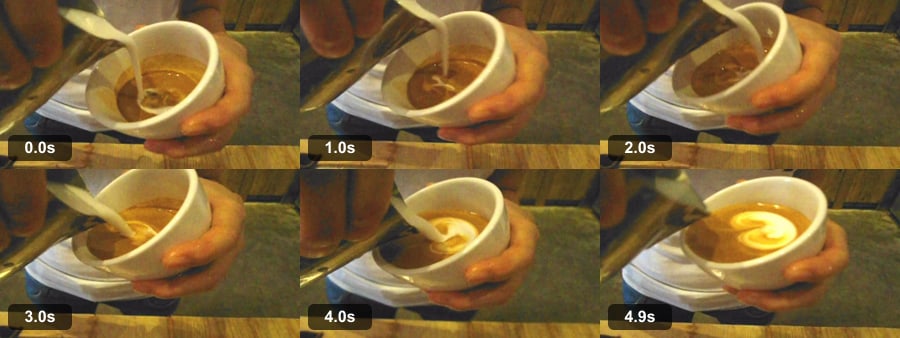
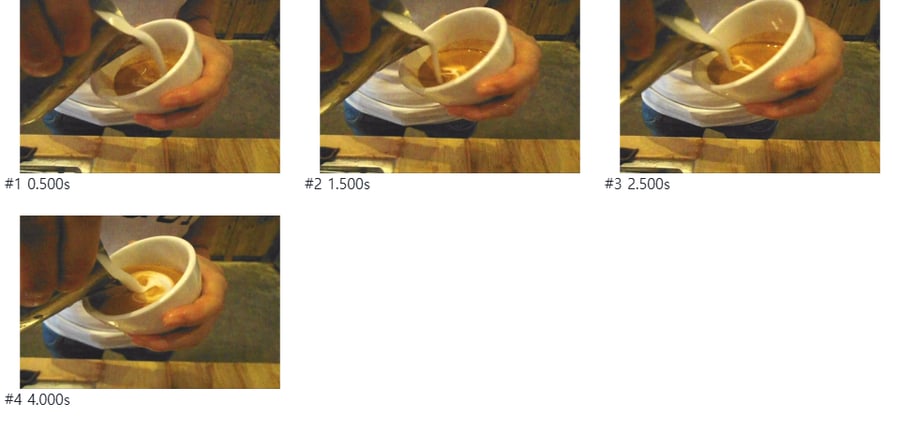
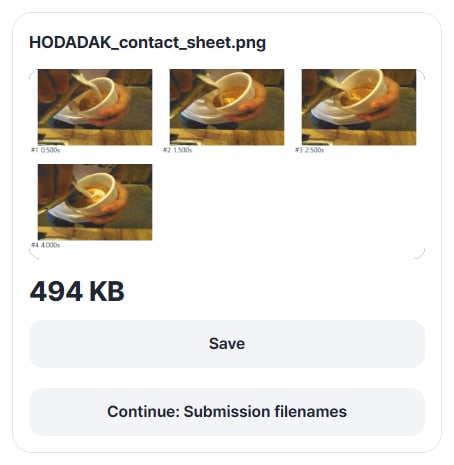
Four frames and one contact sheet from a 5 s latte art video
We entered 0.5, 1.5, 2.5 and 4 seconds for a 5-second video of milk being poured (720×480) and pressed “Grab frames”. Six files came out: a contact sheet (960×460 PNG), four frames (720×480 PNG) and a JSON file listing the times. Matching the first saved frame against the video showed the frame just before 0.5 s (0.467 s). Because of how the browser decodes video, the frame can be off by about one frame.
A real CC0 video from Wikimedia Commons (filmed by Anna Frodesiak), processed with Video frames to images v0.1.11. The right side is the saved contact sheet as is.
HOW TO
Done in three steps
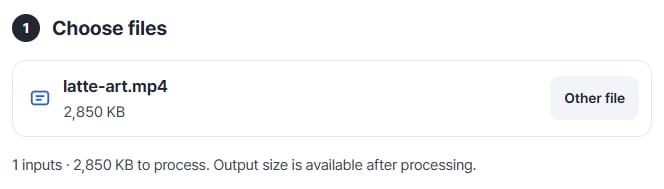
Choose a video
Pick one video that this browser can play, up to 100MB and 10 minutes.
Set the times
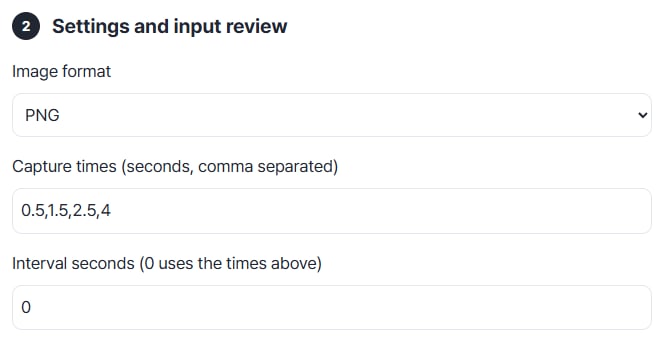
Type seconds separated by commas, like 0.5,1.5, into “Capture times”, or enter a number in “Interval seconds”. You can also pause the preview and press “Add current time”. Choose PNG or JPG as the image format.
Check the contact sheet and save
Press “Grab frames” and the contact sheet and frames appear as cards. Save them one by one or with “Save all (ZIP)”.
WHEN
Perfect for
- Keeping slides shown in a meeting video
Save only the moments the slides appear.
- Turning a how-to video into step images
Grab frames at intervals and gather them on one sheet.
- Picking a cover shot from your footage
Grab several times, compare, then use the best one.
GOOD TO KNOW
Good to know
- Videos you can add: one video this browser can play, up to 100MB and 10 minutes. Up to 60 frames at a time; not every video format is supported.
- The frame can differ from the requested time by about one frame. The saved HODADAK_frame_times.json lists each requested time, the actual frame time and the number of any similar frame.
- Similar frames are flagged, never deleted. Write one line per frame in “Frame notes” and each note is kept in the JSON.
FAQ
Frequently asked questions
Where do my files get uploaded?
Nowhere. Everything is processed in this device's browser, so there is nothing on a server to delete. Results you haven't saved are cleared when you close the window.
Can I get JPG files?
Yes. Choose JPG under “Image format”.
I entered 0.5 s but got a slightly different frame.
When the browser decodes video, it may give the frame right next to the requested time. The actual time is recorded in HODADAK_frame_times.json.
Which devices has it been checked on?
We confirmed it in Edge on Windows. Phones were tested by simulating a phone screen on a PC; Safari-based browsers and real Mac, iPhone and Android devices are still to come.
NEXT