
IMAGES TO PDF
Ten receipt photos,
one PDF.
Put photos in order, choose paper, orientation, margin and photos per page, and get one PDF — it can even fit a size limit.
- No install
- No sign-up
- Files stay on this device
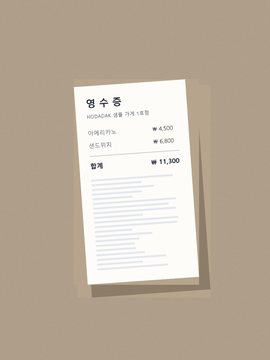
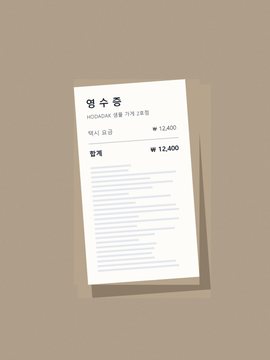
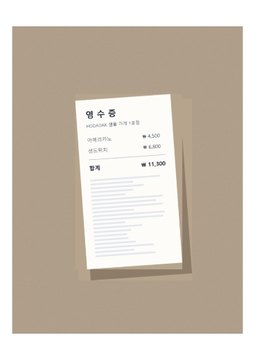
BEFORE → AFTER
Three receipts photographed on a desk
Defaults as they are — A4 portrait, 10mm margin, one photo per page.
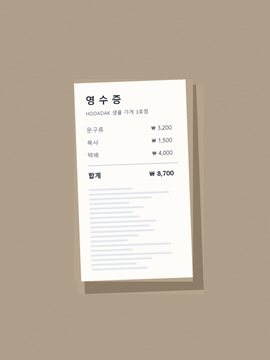
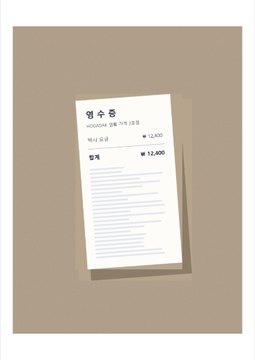
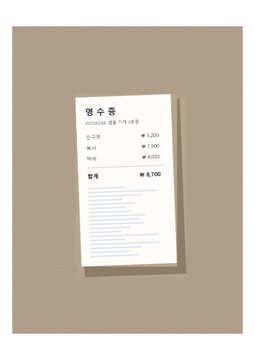
Pages drawn from the actual result of processing a HODADAK sample file with Images to PDF v0.2.1.
HOW TO
Three steps and done
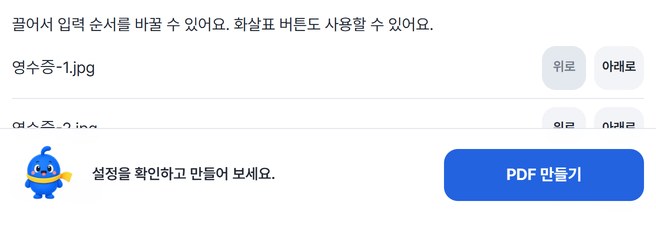
Add photos and set the order
Up to 20 JPG, PNG or WebP images. Drag or use the up/down buttons.
Choose paper and layout
A4 · A5 · Letter · fit to photo; portrait · landscape · auto; 1, 2, 4, 6 or 9 photos per page.

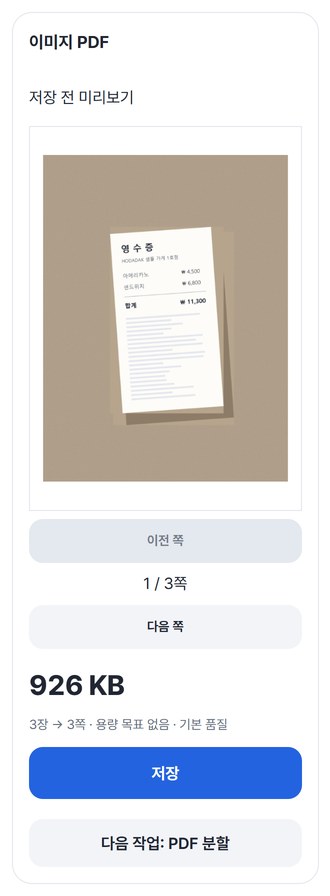
Check and save
After “Create PDF,” flip through and save.
WHEN
Perfect for
- Receipts for an expense claim
Several per page means fewer pages.
- Submitting ID or document photos as PDF
Turn on “Target a maximum file size.”
- Handwritten notes and whiteboard photos
In order, in one file.
GOOD TO KNOW
Good to know
- Photos you can add: JPG, PNG, WebP; 1–20 images, 50MB in total. Animated images, HEIC, RAW and SVG aren’t supported.
- With Target a maximum file size on, photos are converted to JPEG when needed and resolution and quality are lowered step by step. Transparent areas turn white.
- The PDF engine is downloaded once, about 4MB, the first time. It's fetched only after you pick a file, and other PDF tools reuse it.
- Press Try a sample to try it without your own file. The Continue button on a result card carries on in another tool without adding the file again.
FAQ
Frequently asked questions
Where do my files get uploaded?
Nowhere. Everything is processed inside this device's browser, and closing the window clears both the files and the results.
What about iPhone photos (HEIC)?
They can’t be added yet. Convert them to JPG first.
Which devices has it been checked on?
We confirmed it in Edge and WebKit (the engine behind Safari) on Windows. Phones were tested by simulating a phone screen on a PC; checks on real Mac, iPhone and Android devices are still to come.
NEXT
Handy next steps
Add, choose, PDF.
No install, no sign-up. Right now.