
FIX SUBTITLES
Garbled subtitles, drifting timing?
Sort both on one screen.
Korean subtitles saved in CP949 (the older Korean Windows encoding) are read correctly and saved as UTF-8, with time shifting and format conversion (SRT · VTT · SMI) in the same pass. Overlapping cues are flagged by number.
- No install
- No sign-up
- Files stay on this device
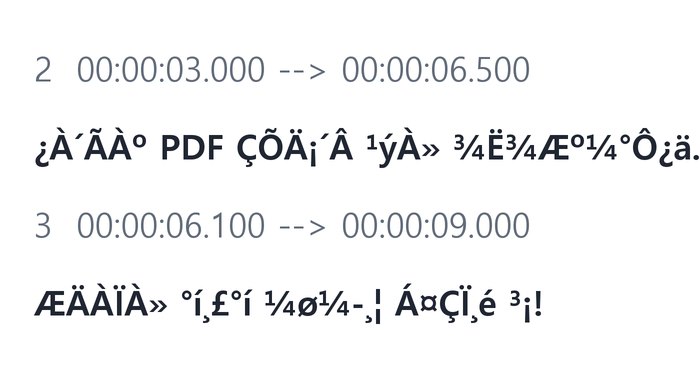
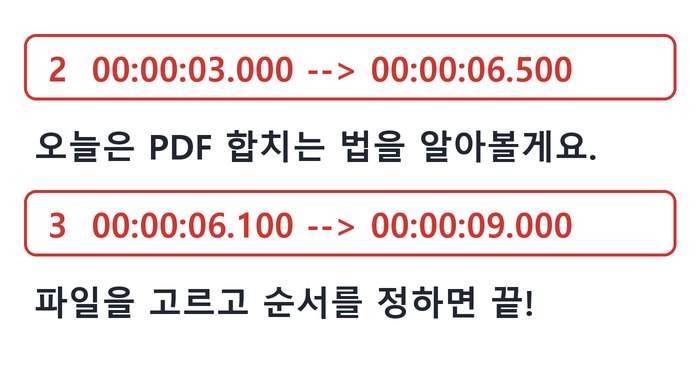
BEFORE → AFTER
A garbled lecture subtitle file, readable again
An SRT saved in CP949 was read on automatic (UTF-8 → CP949) and saved as UTF-8 SRT. Cue 2 starts at 3.0s before cue 1 ends (3.2s), and cue 3 starts at 6.1s before cue 2 ends (6.5s), so two overlaps were flagged. The times are left as they are — you’re just told.
Actual result of processing a HODADAK sample subtitle file with Subtitle format and timing v0.1.1. The garbled text on the left shows the same file read with a different character rule (an example).
HOW TO
Three steps and done
Add your subtitle file
One SRT, VTT or SMI file. Text encoding starts on automatic (UTF-8 → CP949).
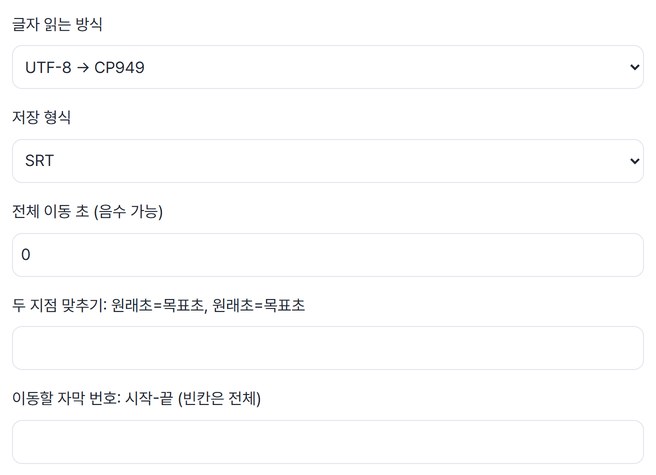
Choose the format and timing
Shift everything by some seconds (negative allowed), match two anchor points, or shift only a range of cues. Leave them alone to just convert the format.
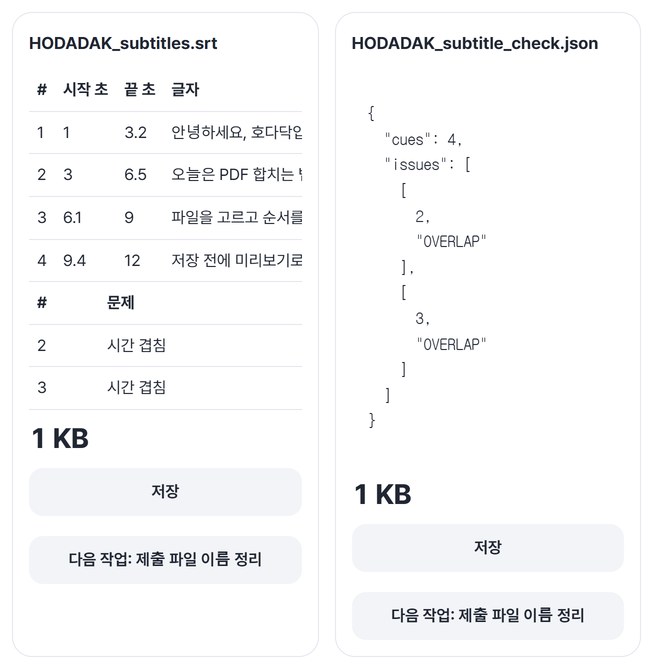
Review issues and save
See each cue’s start, end and text in a table, with issues listed by number. Save the subtitle file and the check report (JSON).
WHEN
Perfect for
- Old SMI subtitles to SRT or VTT
Convert the format and save as UTF-8.
- Trimmed the start of a video and the subtitles drift
Enter the shift in seconds. You can move just some cues too.
- A check before uploading course videos
Find overlapping times and empty cues by number first.
GOOD TO KNOW
Good to know
- Files you can add: one SRT, VTT or SMI file, up to 5MB and 10,000 cues.
- Overlaps are only reported. They aren’t fixed automatically, so use the cue numbers to adjust them yourself. Negative times and empty cues are reported too.
- Three ways to fix timing: shift everything (seconds, negative allowed), two anchors (two source=target pairs), or a cue range (start-end).
- It doesn’t create subtitles from speech or burn them into video. It works only with existing text subtitles.
- Press Try a sample to try it without your own file. The Continue button on a result card carries on in another tool without adding the file again.
FAQ
Frequently asked questions
Where do my files get uploaded?
Nowhere. Everything is processed inside this device's browser, and closing the window clears both the files and the results.
Does it fix overlapping times automatically?
No. It lists the overlapping cue numbers in a table and leaves the times unchanged. As in the example above, check which cue overlaps the one before it and fix it yourself.
Which devices has it been checked on?
We confirmed it in Edge and WebKit (the engine behind Safari) on Windows. Phones were tested by simulating a phone screen on a PC; checks on real Mac, iPhone and Android devices are still to come.
NEXT
Handy next steps
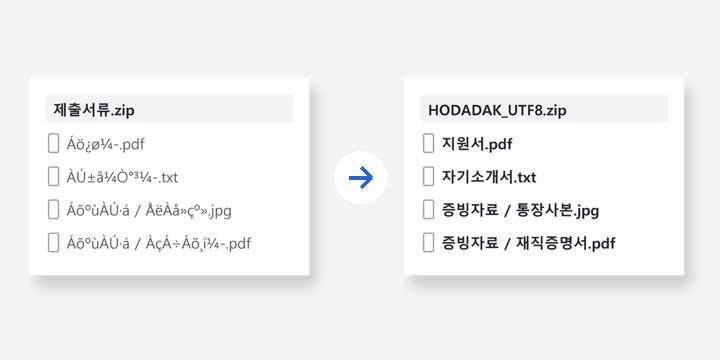 ZIPNewRepair ZIP filenames
Garbled names after unzipping? Read them correctly and repack as UTF-8.
Open →How to use
Read it right, fix timing, save as UTF-8.
No install, no sign-up. Right now.