BULK QR & BARCODES
QR code generator bulk QR codes and barcodes
A product list in Excel, QR labels in one go.
Make a QR code or barcode for every row of an Excel or CSV list. You get the code images (PNG, SVG), an A4 label PDF and a mapping table showing which row became which file, all in one ZIP. If you only need one code, type the content in directly.
In short QR and barcodes is a web tool that makes QR codes and barcodes one at a time or up to 2,000 from an Excel or CSV list, and saves images, label PDFs and a mapping table. List files up to 5MB, 2,000 rows and 100 columns. Code128 takes up to 160 ASCII characters; barcodes for products on sale need numbers issued by GS1.
BEFORE → AFTER
A list of 6 products becomes one sheet of QR labels
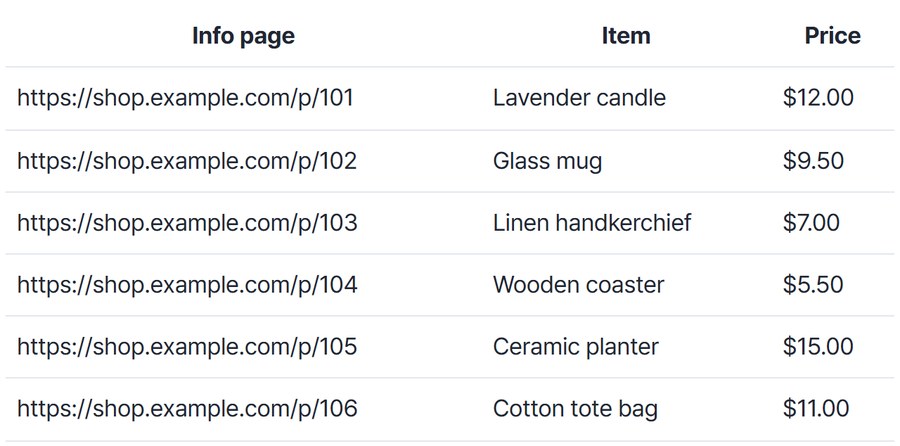
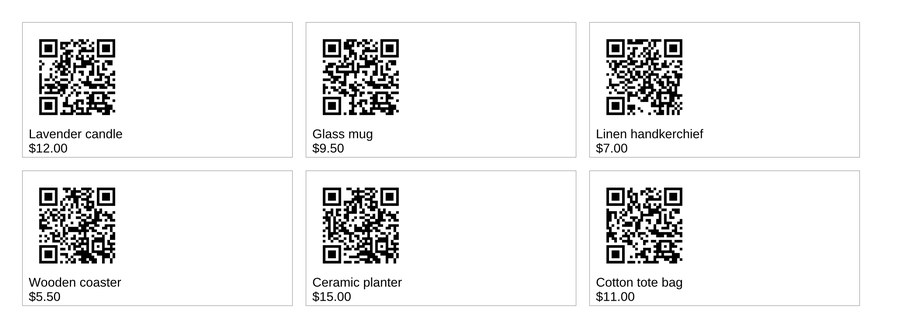
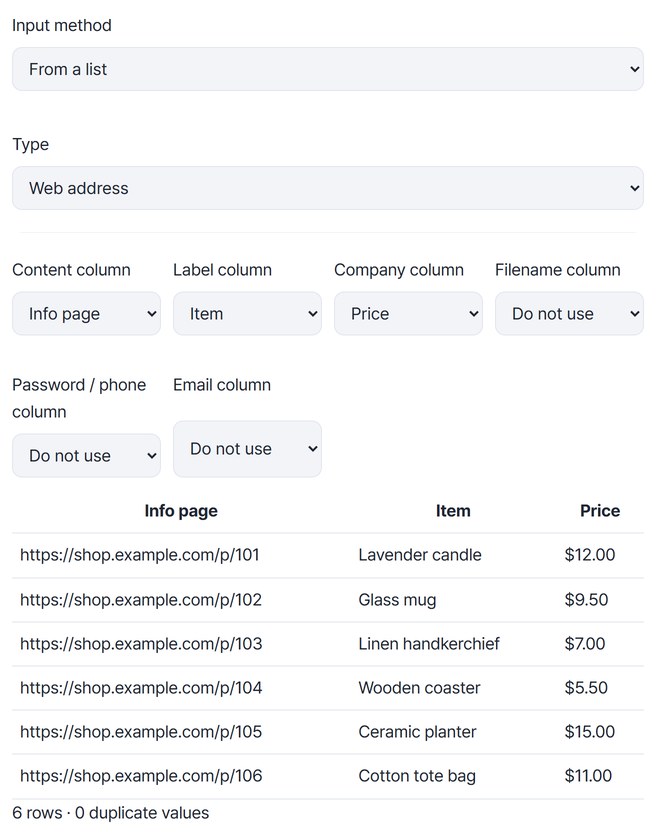
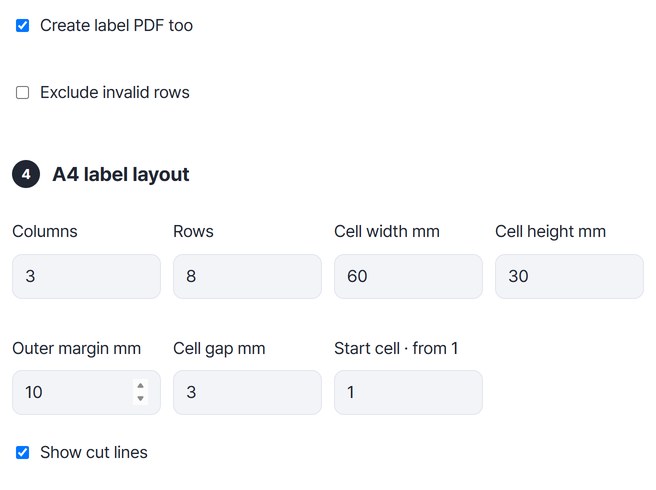
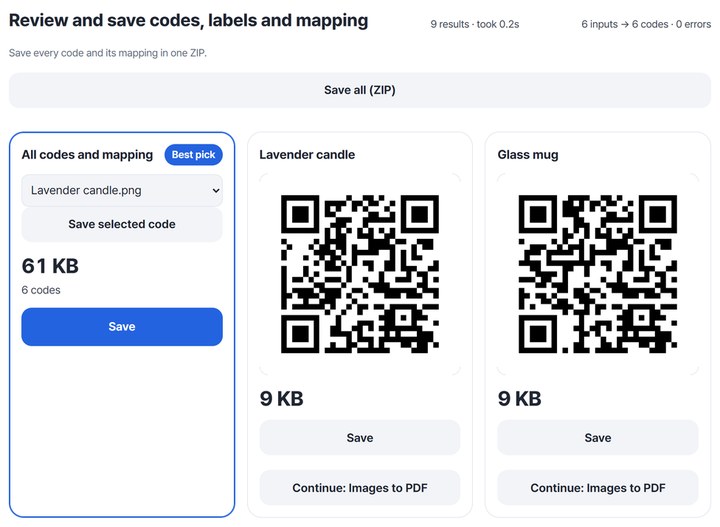
The sample file products.xlsx (5,133 bytes) holds an info page address, item name and price for 6 products. We kept the default label layout (3 columns × 8 rows, 60×30mm cells) and only turned on cut lines. The saved HODADAK_codes.zip (62,411 bytes) contained 6 QR images, a 1-page label PDF and a mapping CSV. After unzipping, we read the 6 QR images and the 6 cells of the label PDF separately, and every one returned the address that went in.
Actual result of processing a sample list for a made-up shop (addresses on shop.example.com) in QR and barcodes v0.1.3. The before image is the table the tool showed after reading the Excel file; the after image is the top of the first page of the saved label PDF, drawn again.
HOW TO
Three steps
Choose the list file and match the columns
Set “Input method” to “From a list” and choose an Excel or CSV file. When the table appears, set “Content column” to the addresses that go into the QR codes and “Label column” to the item names printed on the labels. In the example, “Company column” holds the price, which becomes the second line of each label.
Turn on the label PDF and set the cells
Turn on “Create label PDF too” and “A4 label layout” appears. Match the columns, rows and cell size in mm to your label sheet. If the first cells of a sheet are already used, change the start cell too. The example keeps the defaults and only turns on “Show cut lines.”
Create the codes and save the ZIP
Press “Create codes” and a result card appears for each code. Press “Save” on the first card, “All codes and mapping,” to save the QR images, label PDF and mapping CSV in one ZIP. For a single code, pick it from that card’s list and press “Save selected code.”
WHEN
Perfect for
- Adding an info QR to each item on the shelf
Print QR codes and item-name labels on one sheet from your product list.
- Putting QR codes on event name tags
Place names and groups from the attendee list next to each QR code.
- Labeling equipment with asset numbers
Turn asset numbers into Code128 barcodes and print them as a label PDF.
GOOD TO KNOW
Good to know
- QR codes for web addresses, text, Wi-Fi and contacts; barcodes in Code128 and EAN-13. Code128 takes up to 160 ASCII characters. For EAN-13, enter the first 12 digits and the check digit is calculated for you.
- Barcodes for products on sale need numbers issued by GS1. Numbers you make up yourself are for internal use only.
- The content goes into the QR code as is. If an address changes, make a new QR code. A Wi-Fi QR code also carries the password itself.
- Before you save, the tool reads each QR image back and checks it against the content you entered. Rows that can’t become a code are marked as errors; fix them or choose “Exclude invalid rows.”
- If label text includes characters outside basic Latin, such as Korean or Japanese, a font of about 22MB is downloaded when the PDF is made. This needs an internet connection. The English example used only Latin text, so no font was downloaded.
- List files can be CSV or XLSX, up to 5MB, 2,000 codes and 100 columns. Image size can be set between 128 and 2,048 px.
FAQ
Frequently asked questions
Where do my files get uploaded?
Nowhere. Everything is processed in this device's browser, so there is nothing on a server to delete. Results you haven't saved are cleared when you close the window.
Will the QR codes actually scan?
The tool reads each one back once while creating it. For the example ZIP, we also unzipped it and read the 6 QR images and the 6 cells of the label PDF with a different decoder (OpenCV); all 12 returned the address that went in. Scanning printed labels with a phone camera hasn’t been tested yet, so if you print small labels, print one sheet and try a scan first.
My label sheet has different cells.
In “A4 label layout,” change the columns, rows, cell width and height in mm, outer margin and cell gap to the sizes printed on your label sheet. If the first cells are already used, enter the number of the first empty cell as the start cell.
Which devices has it been checked on?
We confirmed it in Edge and WebKit (the engine behind Safari) on Windows. Phones were tested by simulating a phone screen on a PC; checks on real Mac, iPhone and Android devices are still to come.
NEXT