
PDF TABLE TO CSV
PDF table to Excel free extract to CSV or XLSX
Don’t retype a table from a PDF — turn it into CSV and XLSX.
Mark the table area and column boundaries in a PDF whose text can be selected, and the table moves into a spreadsheet file. Files are only created after you compare the preview with the source and tick the review box. Numbers with commas and text are saved exactly as written.
- No install
- No sign-up
- No upload
In short Simple PDF tables is a free web tool that extracts tables from text-based PDFs, letting you adjust the area and columns, and saves IDs, text and line breaks as strings in CSV or XLSX. It runs in your browser with no install or sign-up, and your files are processed in this device’s browser — never uploaded to a server. One text-based PDF up to 10MiB and 20 pages, with tables up to 500 lines and 30 columns. Scanned PDFs (OCR) and complex merged tables aren’t supported.
BEFORE → AFTER
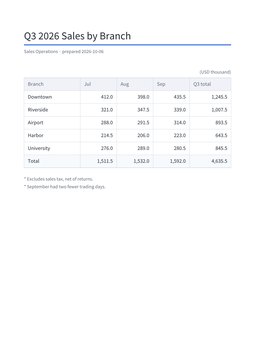
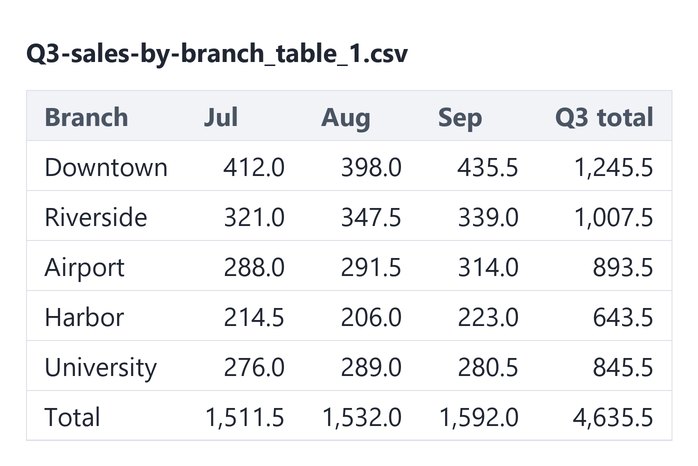
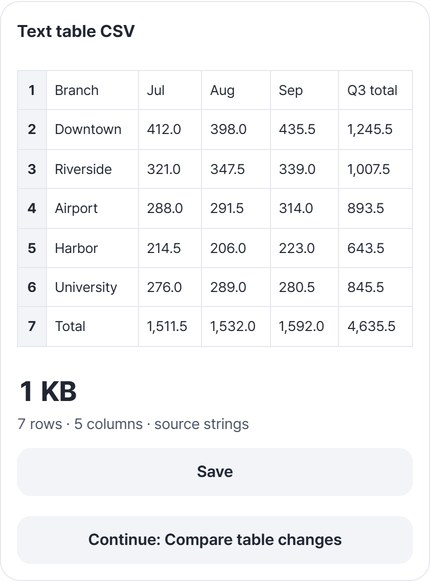
A 7-row, 5-column sales table, as is
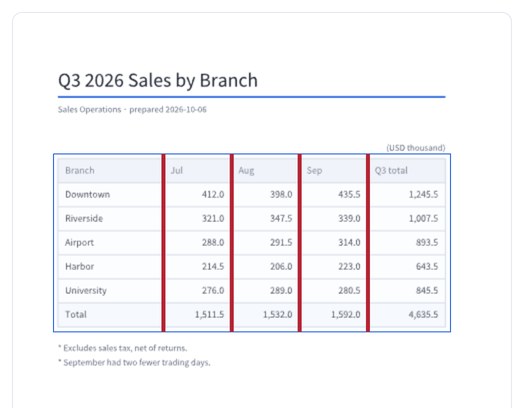
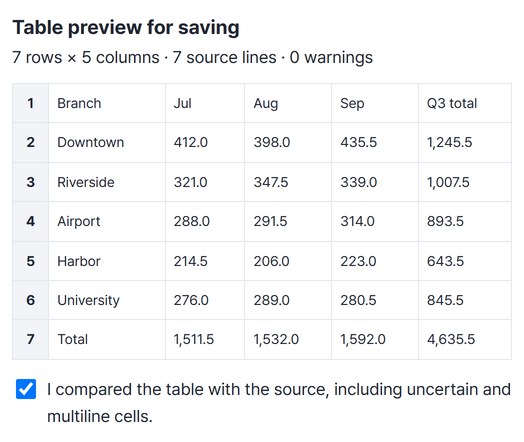
From the “Q3 2026 Sales by Branch” PDF (10,553 bytes) we selected only the table, leaving out the title and notes, and added four column boundaries (27.7, 44.9, 62.0, 79.2%) for five columns. The preview read “7 rows × 5 columns · 7 source lines · 0 warnings.” Saved as CSV (313 bytes) and XLSX (4,782 bytes) and read back, all 35 cells matched the original table.
Actual result of extracting a made-up branch sales table (figures are examples) with Simple PDF tables v0.1.7, then reading the saved CSV and XLSX back and comparing every cell with the original table.
HOW TO
Three steps and done
Select the table area
Use “Drag to select an area” around the table, or type the numbers under “Area (%).” Keep the title and notes outside the area so they stay out of the table.
Add column boundaries and compare
Click on the table with “Click to add a boundary,” or type them in “Column boundaries (%)” separated by commas (we typed them here). “Suggest from text gaps” is there too, but always check the preview. When it matches, tick the review box.
“Create reviewed table files,” then save
By default you get both CSV and XLSX. Press “Save” on each card, or continue with “Compare table changes” to compare it with another month.
WHEN
Perfect for
- A report table needs to go into Excel
No retyping the numbers.
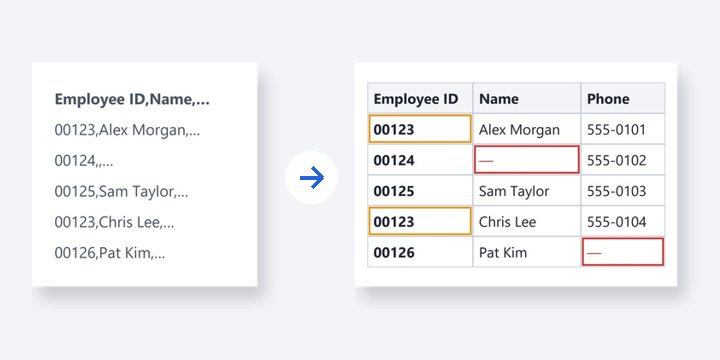
- Leading zeros must survive
XLSX stores every cell as text.
- Comparing with last month
Go straight on to “Compare table changes.”
GOOD TO KNOW
Good to know
- One text PDF · 10MiB · 20 pages · up to 500 lines and 30 columns. Scanned PDFs (text you can’t select) and OCR are not supported.
- Complex merged tables are not rebuilt automatically. If one cell comes out as two lines, enter the line number under “Source line numbers to merge with the previous line.”
- XLSX keeps leading zeros, long IDs and formula-like text as text. Spreadsheet apps may read a CSV as numbers or formulas.
- Password-protected PDFs are not supported. Unlock them first with “Unlock PDF.”
- The PDF engine is downloaded once, about 4MB, the first time. It's fetched only after you pick a file, and other PDF tools reuse it.
FAQ
Frequently asked questions
Where do my files get uploaded?
Nowhere. Everything is processed in this device's browser, so there is nothing on a server to delete. Results you haven't saved are cleared when you close the window.
The table comes out as one column.
Click on the table to add column boundaries, or type them under “Column boundaries (%).” “Suggest from text gaps” can help, but its guess may not match the real columns — always compare the preview with the source.
Which devices was it checked on?
We extracted the table in Edge on Windows and read the saved CSV and XLSX back to check them. Real Mac, iPhone and Android devices haven’t been checked yet.
NEXT
Handy next steps
 CSVNew
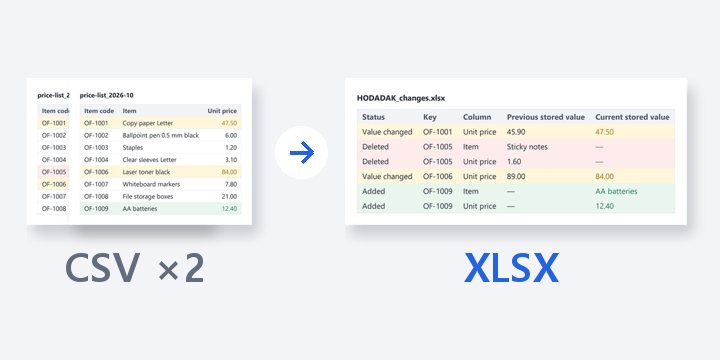
Match two versions by a key column, find added, deleted and changed rows, and get a report with cell locations.
Open
Select, compare, export.
No install, no sign-up. Right now.