AI IMAGE UPSCALER
AI Image Upscaler enlarge photos 2x or 4x
Small, blurry photo? Enlarge it 4× and keep it sharp.
AI enlarges photos 2× or 4×, or to a 2K or 4K long side, and redraws blurry areas. Before saving, compare the same spot with the original using the magnifier.

In short AI Image Upscaler is a web tool that enlarges JPG, PNG and WebP photos 2x or 4x and redraws blurry areas with AI. JPG, PNG and WebP, up to 30MB per photo and 20 photos at a time. 2K means 2,560px and 4K 3,840px on the long side. Detail that was not in the original is drawn by AI, so use the original for ID or forensic purposes.
BEFORE → AFTER
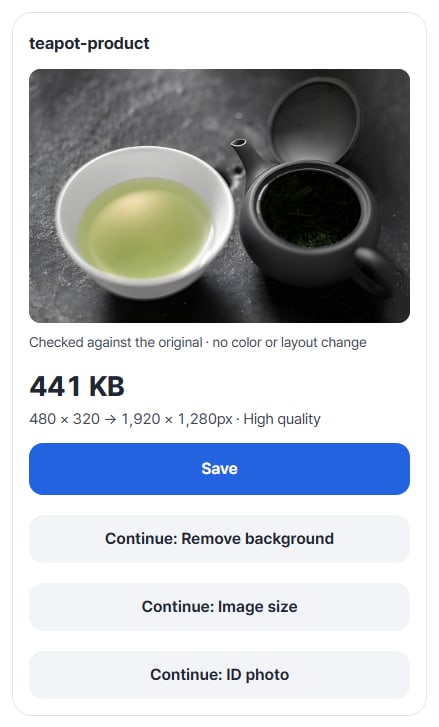
A 480×320 product photo, enlarged to 1920×1280
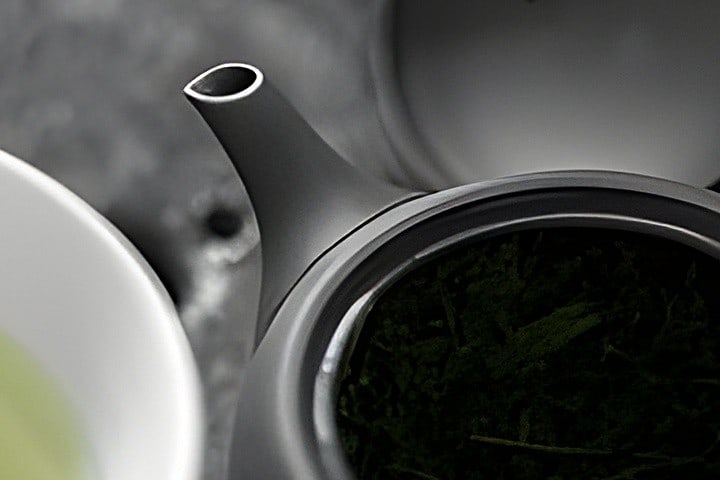
We enlarged a small teapot photo, like one saved from the web (teapot-product.jpg, 18,650 bytes), with ‘4×’ and ‘Auto’. The left side is the original simply stretched 4×; the right side is the same spot in the saved result. The spout rim and the tea leaves come out sharper.
A CC0 public photo (Markus Kniebes) reduced to a 480px long side, actually enlarged in AI Image Upscaler v0.1.4 using the graphics card. We reopened the saved file to confirm it is 1920×1280px. Details not in the original are drawn by AI.
HOW TO
Three steps
Choose the photos
Use ‘Choose photos’ to pick JPG, PNG or WebP photos — up to 30MB each and up to 20 photos at a time.
Pick a size and a method
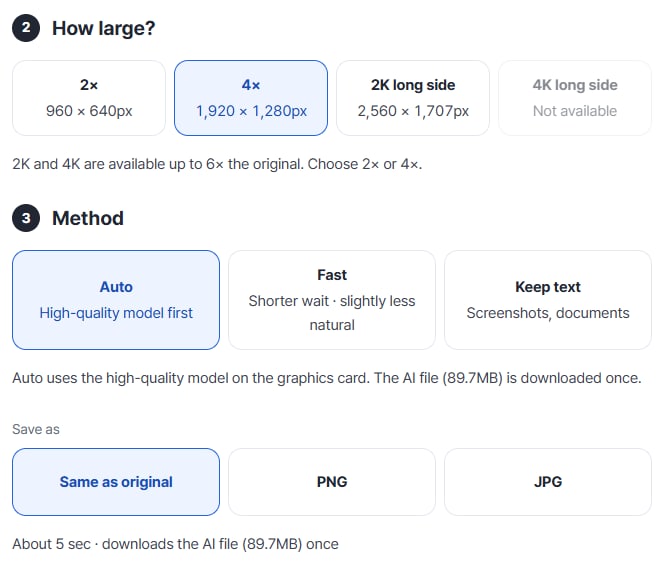
Choose ‘2×’, ‘4×’, ‘2K long side’ or ‘4K long side’. If you’re unsure about the method, ‘Auto’ works well; for screenshots and documents, ‘Keep text’ fits better. The estimated time and the AI file size downloaded once (89.7MB) appear below.
Compare with the magnifier, then save
Press ‘Upscale’ and a result card appears. Drag or tap the picture to compare the same spot with the original, then press ‘Save’. With several photos, you get them in one ZIP.
WHEN
Perfect for
- Product photos that are too small
Enlarge a small photo 4× so it stays sharp on a large product page.
- Old photos or photos sent over chat apps
Enlarge shrunken photos 2× or 4× for printing or slides.
- Screenshots with text
Use ‘Keep text’ so letters blur less.
GOOD TO KNOW
Good to know
- Details not in the original are drawn by AI. Places that must be exact, like faces or licence plates, may differ from reality. Use the original for ID or forensic purposes.
- Sizes: 2K means a 2,560px long side and 4K a 3,840px long side. They’re unavailable when the original is already larger, and only up to 6× the original — which is why ‘4K long side’ couldn’t be chosen for the 480px sample.
- Devices that can’t use the graphics card process on the CPU, which takes longer. On phones, 2× is the default; big photos are better enlarged on a computer.
- The AI file is downloaded once (89.7MB for Auto). The same browser usually reuses it afterwards.
- iPhone photos (HEIC) can’t be enlarged directly. Convert them with “HEIC to JPG” first, then add the JPG.
FAQ
Frequently asked questions
Where do my files get uploaded?
Nowhere. Everything is processed in this device's browser, so there is nothing on a server to delete. Results you haven't saved are cleared when you close the window.
How large can it go?
‘2×’ or ‘4×’, or a long side of 2,560px (2K) or 3,840px (4K). 2K and 4K are only available when they don’t exceed 6× the original. The 480×320 sample became 1920×1280px at 4×.
NEXT