
WHITE BACKGROUND
Before you reshoot on a white sheet,
just click the background.
Click a plain background and the connected similar colors turn white; anything caught by mistake comes back with the restore brush. Your photos never leave this device.
- No install
- No sign-up
- Files stay on this device
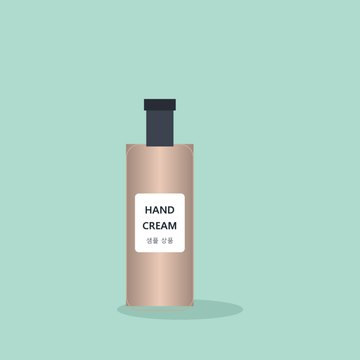
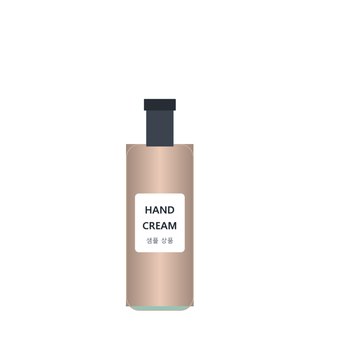
BEFORE → AFTER
A product shot on mint, now on white
With “Pick connected background color” we clicked the mint background in all four corners. The product stayed as it was and only the background turned white — a PNG of 89,945 bytes.
Actual result of processing a HODADAK sample photo (an example product shot) with White background v0.1.1.
HOW TO
Click, touch up, save
Add a photo with a plain background
Up to 4 JPEG or PNG photos. Transparent areas are saved as white too.
Click the background
The top-left background is selected to start. Click the background to pick the similar colors connected to that spot. Fine-tune with Color tolerance and the white and restore brushes.
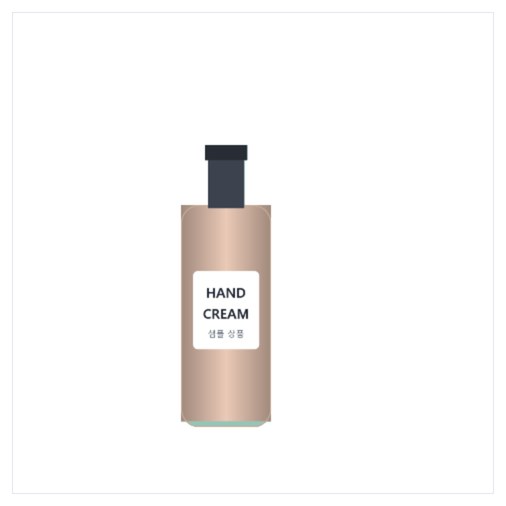
Check each photo and save as PNG
After “Make white-background PNGs,” review the results and save. Several photos come as one ZIP.
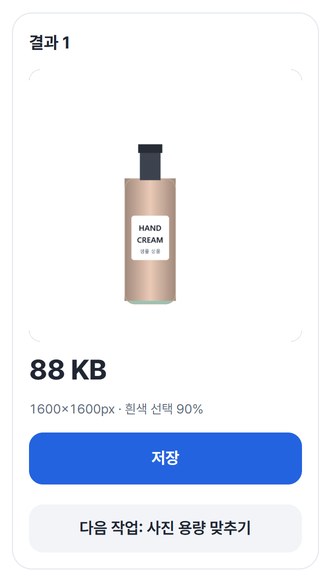
WHEN
Perfect for
- Product photos for an online store
Shot against a plain wall or cloth? Make it white.
- Items for a resale listing or blog post
A clean background keeps the focus on the item.
- Product images for documents and slides
Sits naturally on a white page.
GOOD TO KNOW
Good to know
- Photos you can add: still JPEG · PNG, up to 4. 20MB · 12MP each, 60MB · 32MP in total.
- Made for plain backgrounds. It doesn’t automatically separate complex scenes, hair or glass.
- Large photos are reduced to 4MP at most while you work, and saved that way. Results are PNG.
- Don’t use it to alter passport photo backgrounds.
- Press Try a sample to try it without your own file. The Continue button on a result card carries on in another tool without adding the file again.
FAQ
Frequently asked questions
Where do my files get uploaded?
Nowhere. Everything is processed inside this device's browser, and closing the window clears both the files and the results.
Part of my item turned white too.
Areas close to the background color can get selected along with it. Paint over them with the Restore original brush to bring them back, or lower Color tolerance and click the background again. Clicking again replaces earlier selections and brush edits, so use the brushes last.
Which devices has it been checked on?
We confirmed it in Edge and WebKit (the engine behind Safari) on Windows. Phones were tested by simulating a phone screen on a PC; checks on real Mac, iPhone and Android devices are still to come.
NEXT
Handy next steps
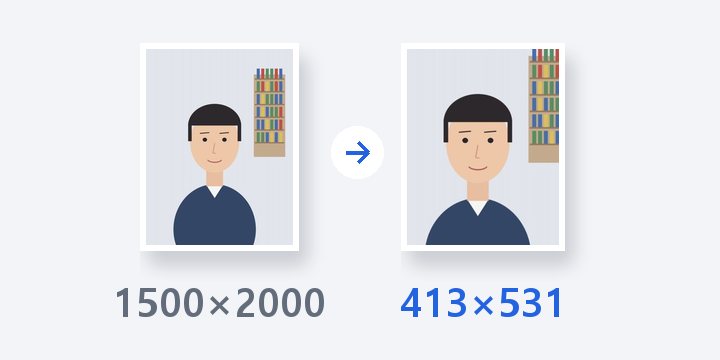 PhotoNewID photo size
Fit crop, pixels and file size to the required spec. Your photo is never uploaded.
Open →How to use PhotoNewImage converter
Convert many images at once and preview how transparency is handled.
Open →How to use
Click, touch up, save it on white.
No install, no sign-up. Right now.