
JOIN SCREENSHOTS
“Screenshot 1, screenshot 2, screenshot 3…”
One image will do.
Screenshots taken in pieces are joined top to bottom, in order. For the overlap, check the tool’s suggestion and trim exactly as much as you decide.
- No install
- No sign-up
- Files stay on this device
BEFORE → AFTER
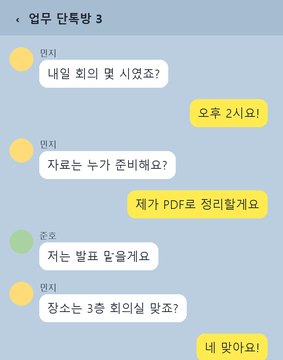
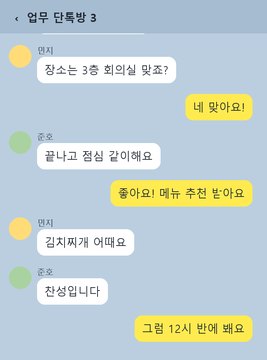
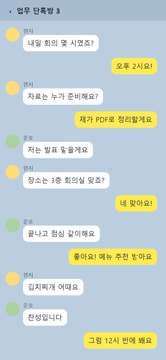
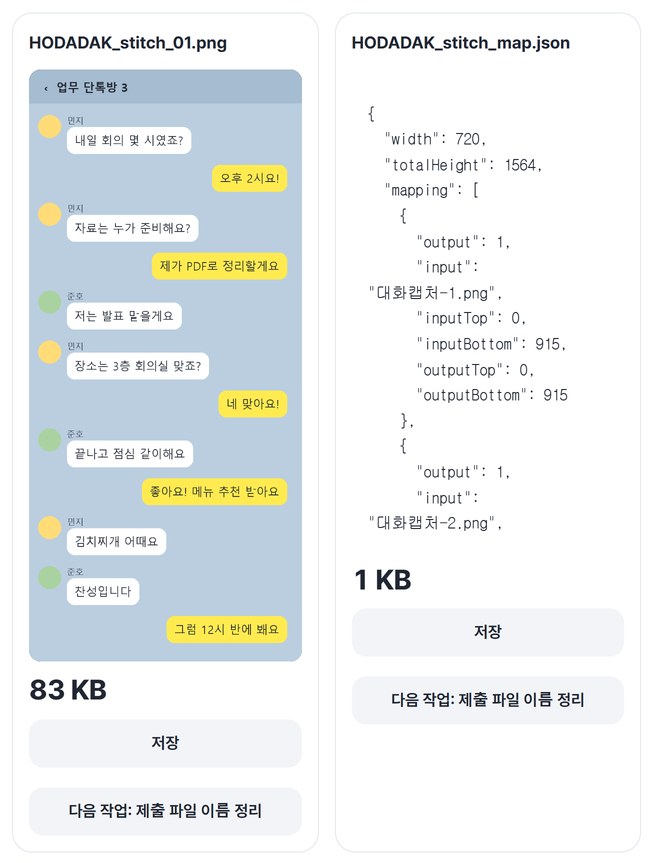
A group chat captured in two shots, joined into one
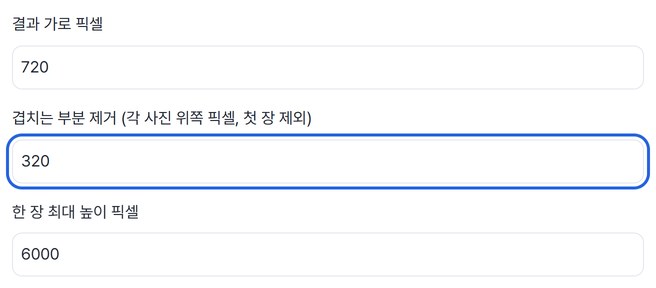
Width 720px, with 320 entered in “Trim overlap.” The tool suggested 315px; we trimmed 320px to remove both the header bar and the repeated messages at the top of the second capture. The result: one 720×1564 PNG plus a position map JSON.
Actual result of processing HODADAK sample screenshots (the chat is an example) with Join screenshots v0.1.1.
HOW TO
Order, overlap, save
Add screenshots and set the order
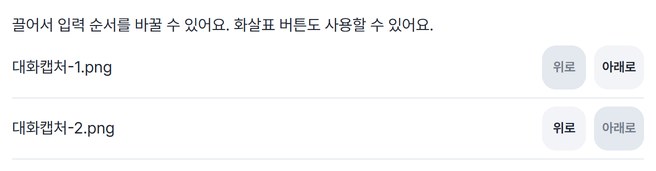
Up to 20 JPG or PNG images. Drag them, or use the arrow buttons.
Set width, overlap and maximum height
Enter “Output width in pixels,” “Trim overlap” (top pixels of each image except the first) and “Maximum height per output.” Use the “Suggested overlap (review)” column in the review table as a guide.
Check the joined image and save
After “Create results,” check the seams and save. Anything taller than the maximum height is split into several images, and several files come as one ZIP.
WHEN
Perfect for
- Sending a chat to customer support or a complaints desk
Several captures, in order, in one image.
- Sharing group-chat notices or schedules
Show scattered captures all at once.
- Recording long web pages or app screens
Too long? Split it at a readable height.
GOOD TO KNOW
Good to know
- Images you can add: JPG · PNG, up to 20, 60MB in total. Your originals stay unchanged.
- Overlaps aren’t trimmed automatically. The tool only shows a “Suggested overlap (review)”; you enter the height to trim. The first image is never trimmed.
- Images are joined top to bottom only — not side by side like a panorama — and each is scaled to the same width.
- Results are PNG. A position map JSON, recording which part of which image went where, can be saved too.
- Press Try a sample to try it without your own file. The Continue button on a result card carries on in another tool without adding the file again.
FAQ
Frequently asked questions
Where do my files get uploaded?
Nowhere. Everything is processed inside this device's browser, and closing the window clears both the files and the results.
Can I just use the suggested overlap?
The suggestion is a starting point and needs checking. In this example it said 315px, but we entered 320px to remove the second capture’s header bar too. Check the preview for missing or repeated messages, adjust the value and create again.
Which devices has it been checked on?
We confirmed it in Edge and WebKit (the engine behind Safari) on Windows. Phones were tested by simulating a phone screen on a PC; checks on real Mac, iPhone and Android devices are still to come.
NEXT
Handy next steps
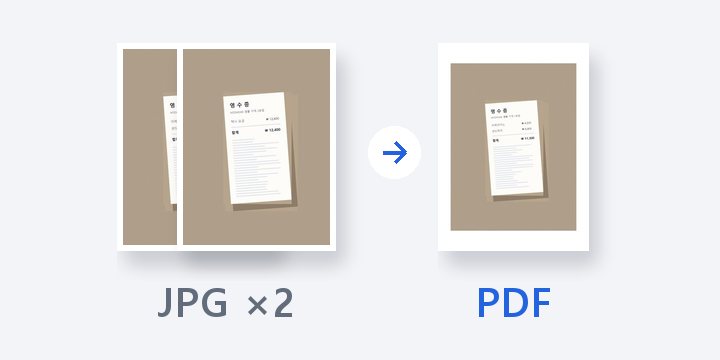
Order, check the overlap, one image.
No install, no sign-up. Right now.