HWP TO PDF
HWP to PDF converter Korean Hangul documents
Got an HWP file from a Korean school or office? Turn it into a PDF.
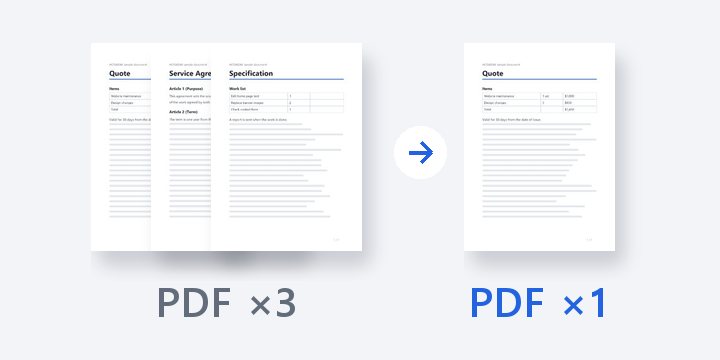
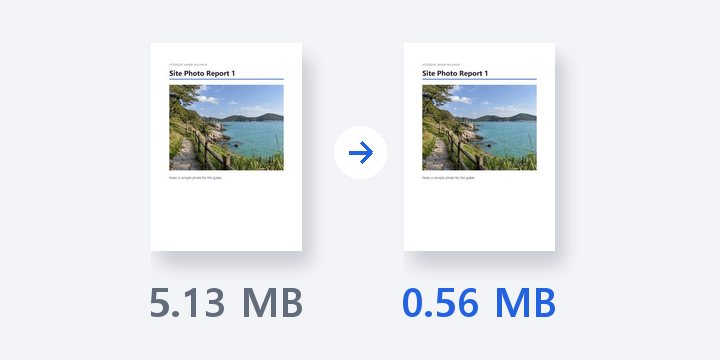
Convert HWP and HWPX documents into PDFs with selectable, searchable text. You don’t need Hancom Office, and the PDF opens and prints like any other PDF.
In short HWP to PDF is a web tool that converts Korean HWP and HWPX documents into PDFs with selectable, searchable text, without Hancom Office. Up to 10 HWP or HWPX files at a time, 30MB and 100 pages each. Fonts are replaced with similar open fonts (Nanum Myeongjo, Noto Sans), so the PDF may look different from one made in Hancom Office.
BEFORE → AFTER
A two-page school letter, converted into a PDF with real text
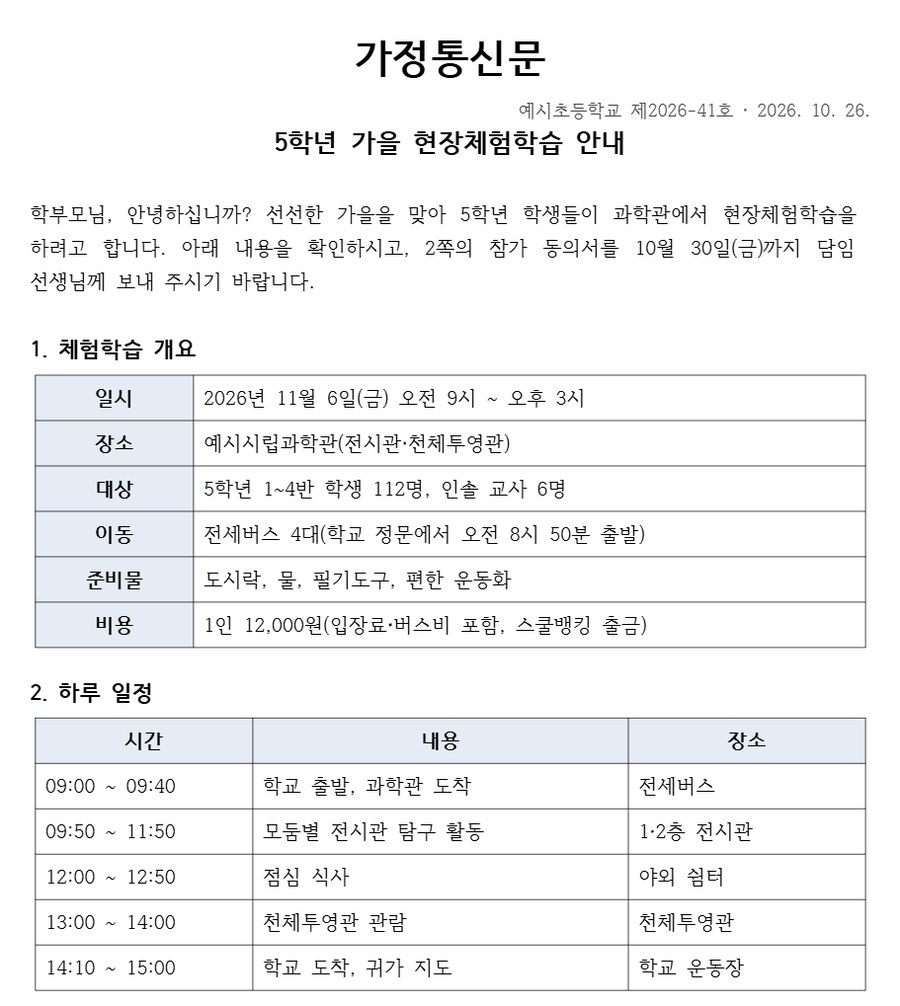
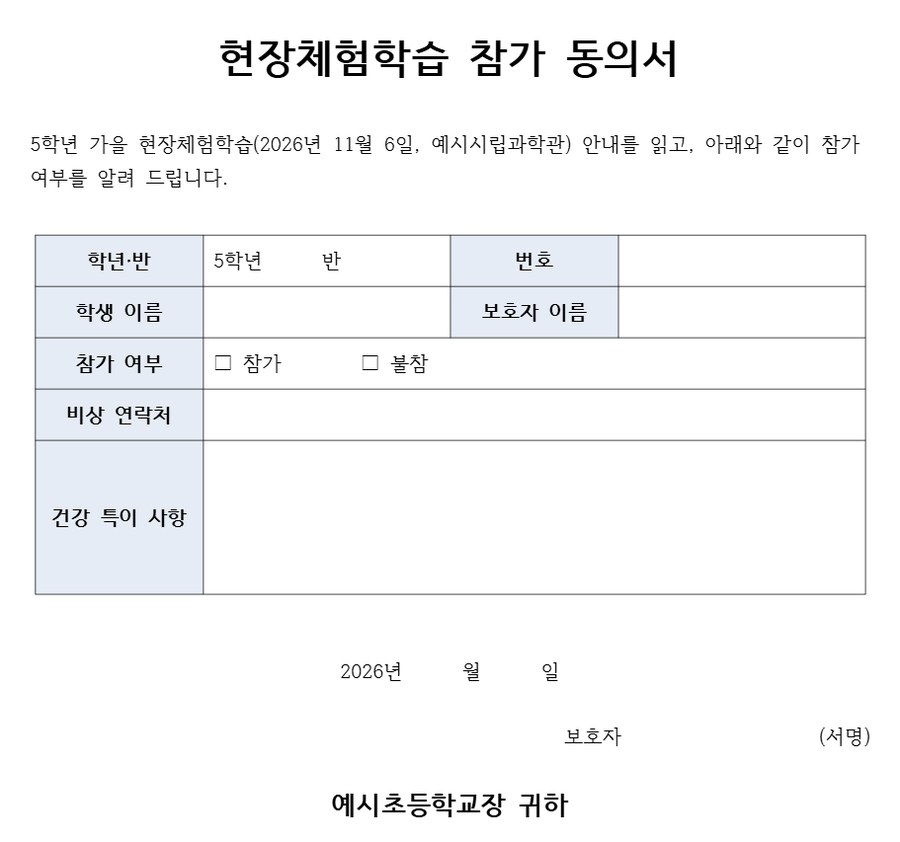
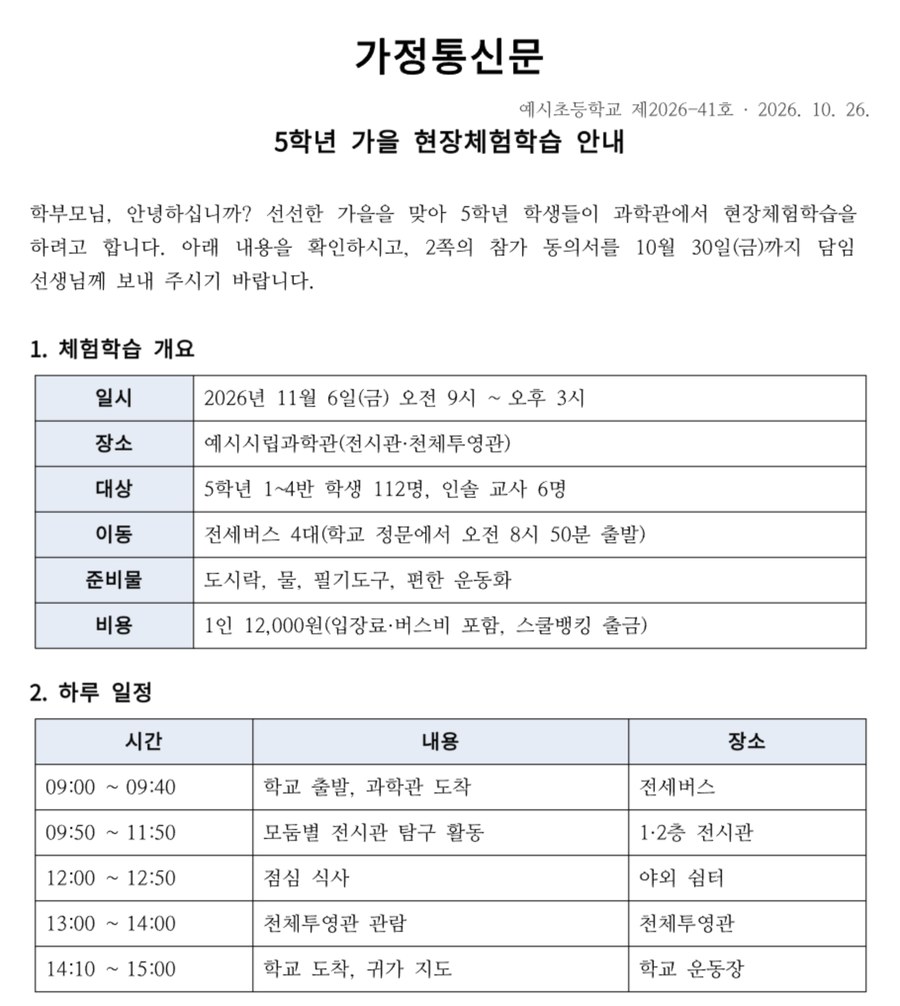
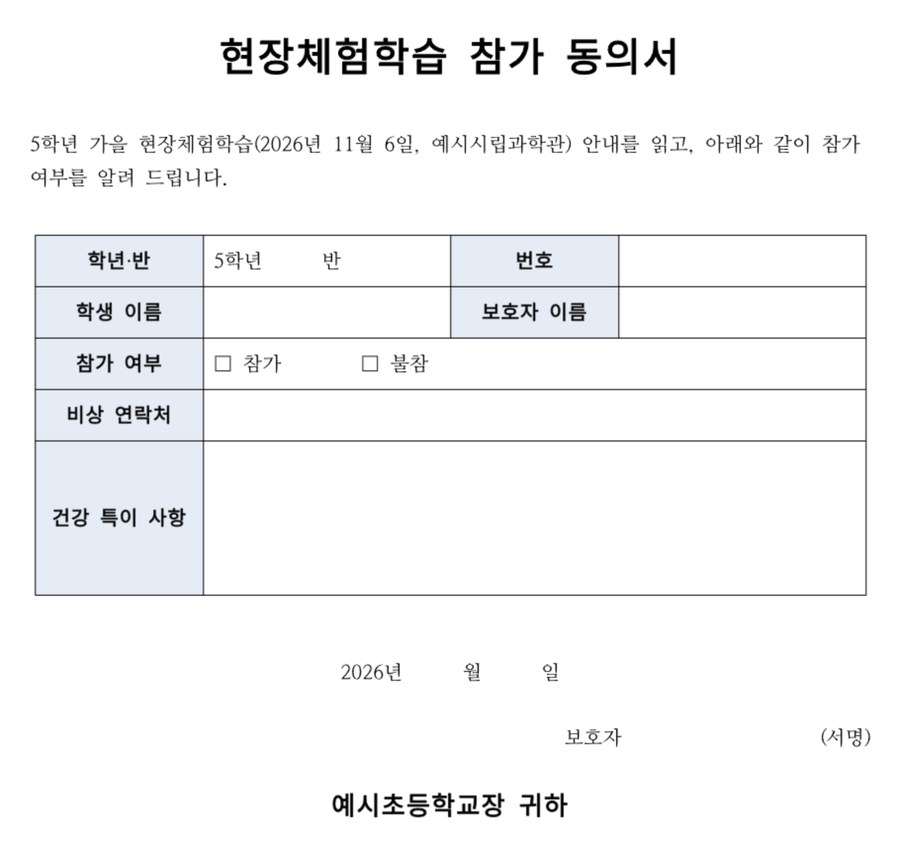
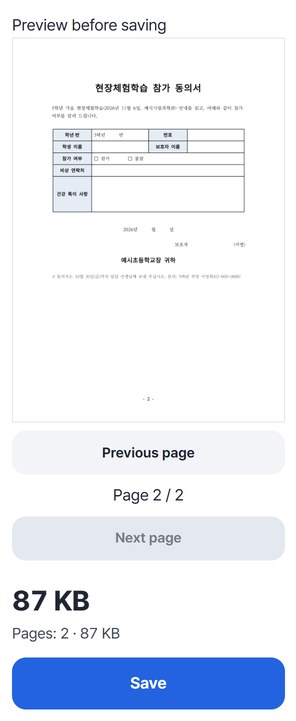
We converted a sample Korean school letter, school-letter.hwpx (10,062 bytes). Page 1 has two information tables, page 2 has a consent-form table, and each page has a page number at the bottom. We reopened the saved HODADAK_school-letter.pdf (87 KB) in two different PDF readers: it still had 2 pages, the page numbers - 1 - and - 2 - were there as text, and Korean words from the letter, such as “참가 동의서” (consent form), could be found by search.
Actual result of converting a sample document we made with a made-up school name, in HWP to PDF v0.1.1. The left image is the original HWPX drawn by the tool’s document engine; the right image is the saved PDF, reopened and drawn. Fonts are replaced with similar fonts: Nanum Myeongjo for serif styles and Noto Sans for the rest.
HOW TO
Three steps and done
Choose the HWP file
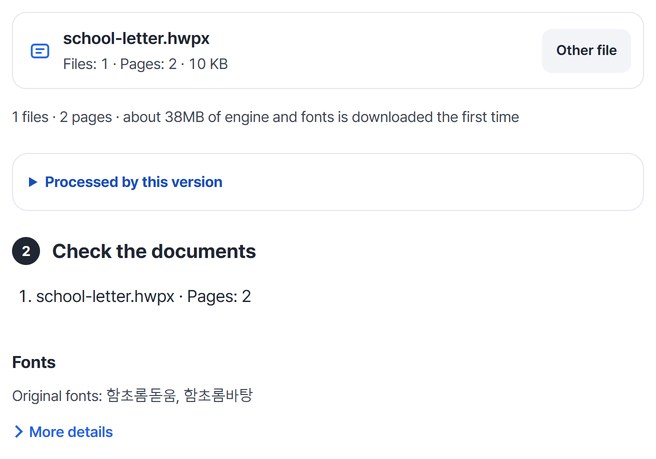
Choose an HWP or HWPX file in “Choose a file,” and “Check the documents” shows its page count and original fonts. The first time, about 38MB of document engine and fonts is downloaded. Choose several files to convert them together.
Press “Create PDF”
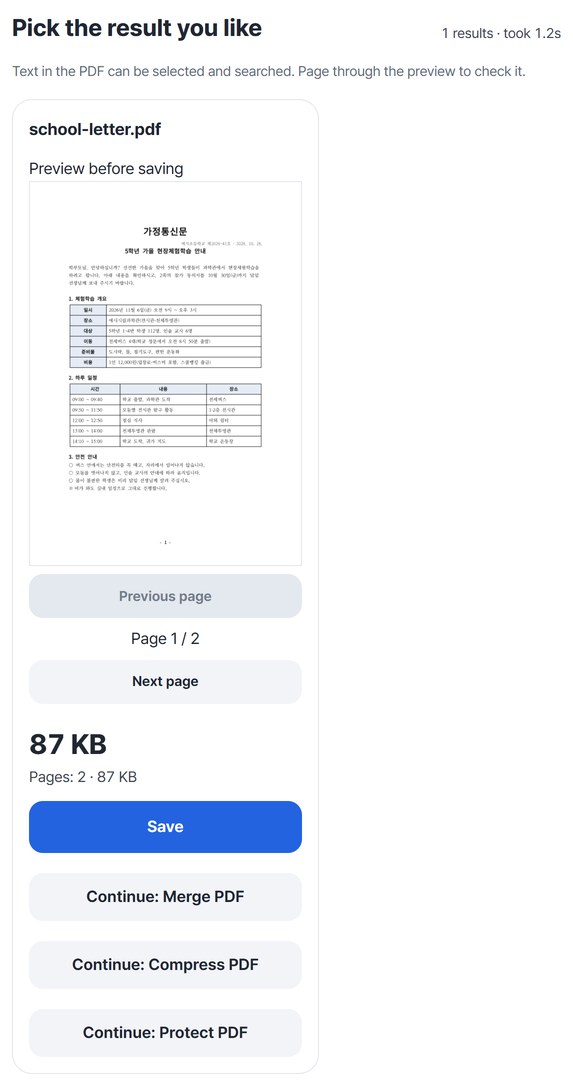
Each page is written into the PDF, then the new PDF is reopened to check that its page count matches the original. The result card’s preview starts at page 1.
Page through it and save
Use “Next page” to check up to the consent form on page 2, then press “Save.” With several files you can download one ZIP.
WHEN
Perfect for
- An HWP file from a Korean school or office won’t open
Convert it to PDF and open it without Hancom Office.
- You need to print a consent or application form
Convert to PDF, then print just the pages you need.
- A submission must be in PDF
Convert your HWP document to PDF before sending it. Several files can be converted at once.
GOOD TO KNOW
Good to know
- It only views and converts. No editing. Password-protected documents, distribution-only documents and old HWP 3.0 files are not converted. Remove the password in Hancom Office first, then choose the file again.
- Letter shapes may differ. Document fonts are replaced with similar fonts, so the PDF can look different from one made in Hancom Office.
- Page through the preview before saving. If characters missing from the fonts, images that couldn’t be added or objects that couldn’t be drawn turn up, the note above the results shows how many and on which pages. If you see that note, compare with the original.
- The first time, about 38MB of document engine and fonts is downloaded, so an internet connection is needed then.
- Up to 10 HWP or HWPX files at a time, each up to 30MB and 100 pages.
FAQ
Frequently asked questions
Where do my files get uploaded?
Nowhere. Everything is processed in this device's browser, so there is nothing on a server to delete. Results you haven't saved are cleared when you close the window.
Is it the same as saving as PDF in Hancom Office?
Not exactly. Fonts are replaced with similar ones, so letter shapes can differ. In return, the text goes in as text rather than as an image, so you can select and search it in the saved PDF. For the sample school letter, we reopened the PDF and confirmed that words like “참가 동의서” could be found.
It says “distribution-only document” and won’t convert.
A distribution-only document is one whose author has blocked copying and printing, so it isn’t converted. Ask whoever sent it for a PDF or the original file.
Which devices has it been checked on?
We confirmed it in Edge and WebKit (the engine behind Safari) on Windows. Phones were tested by simulating a phone screen on a PC; checks on real Mac, iPhone and Android devices are still to come.
NEXT