
EXTRACT IMAGES
That photo inside the PDF?
Get the original out.
Finds the images stored inside a PDF and extracts them at their original size — unlike a screenshot, you get exactly what was in there.
- No install
- No sign-up
- Files stay on this device
 2 images
BEFORE → AFTER
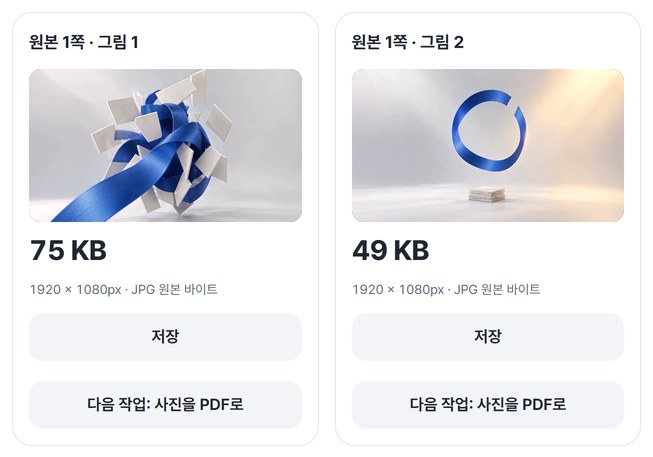
Two photos out of a report
The two extracted JPGs were byte-for-byte identical to the photo files used to make the PDF.



Pages drawn from the actual result of processing a HODADAK sample file with Extract PDF images v0.2.2.
HOW TO
Three steps and done
Add your PDF
You can pick pages with images in the thumbnails.
Check the image list
It shows how many images per page, their pixel size and format. Images that can’t be extracted are listed with the reason.

Extract and save
After “Extract images,” check them and save several at once as a ZIP.
WHEN
Perfect for
- Product photos from a PDF you received
Original size, sharper than a screenshot.
- Reusing photos from an old report
No need to hunt for the original files.
- Collecting images from catalogs or flyers
Repeated images come out once.
GOOD TO KNOW
Good to know
- The default save format is Keep original JPG; others as PNG: JPGs inside the PDF come out as they are, others as new PNGs at their original pixel size.
- Text, lines and shapes aren’t images and aren’t extracted. Some compression and color types (JPX, JBIG2, CCITT, CMYK and others) aren’t supported yet.
- Placement, clipping and rotation on the page aren’t applied. For how the page looks, use “PDF to images.”
- One PDF at a time, up to 50MB and 200 pages.
- PDFs with passwords, digital signatures or form fields aren't supported yet. Bookmarks and attachments aren't carried over.
- The PDF engine is downloaded once, about 4MB, the first time. It's fetched only after you pick a file, and other PDF tools reuse it.
- Press Try a sample to try it without your own file. The Continue button on a result card carries on in another tool without adding the file again.
FAQ
Frequently asked questions
Where do my files get uploaded?
Nowhere. Everything is processed inside this device's browser, and closing the window clears both the files and the results.
An image I couldn’t see on the page came out.
Images still stored in a page’s data can be extracted even if they’re hidden on the page.
Which devices has it been checked on?
We confirmed it in Edge and WebKit (the engine behind Safari) on Windows. Phones were tested by simulating a phone screen on a PC; checks on real Mac, iPhone and Android devices are still to come.
NEXT
Handy next steps
Add, extract, save.
No install, no sign-up. Right now.