PDF BOOKMARKS
Add bookmarks to a PDF outline from headings
No bookmarks in your PDF? Find the headings and add an outline.
Finds chapter and section headings by text size and weight and suggests bookmarks. Only the lines you keep are added, and page content stays as it is.
Checked · v0.1.1
In short PDF Bookmarks is a web tool that suggests bookmarks from headings by text size and weight, lets you turn them on or off, rename them and set levels 1–3, and writes only the bookmarks into the PDF. One PDF up to 50MB and 500 pages; password-protected PDFs aren’t supported. Existing bookmarks load for editing, and saving with all of them off removes them.
BEFORE → AFTER
A 5-page handbook with no bookmarks gets 9
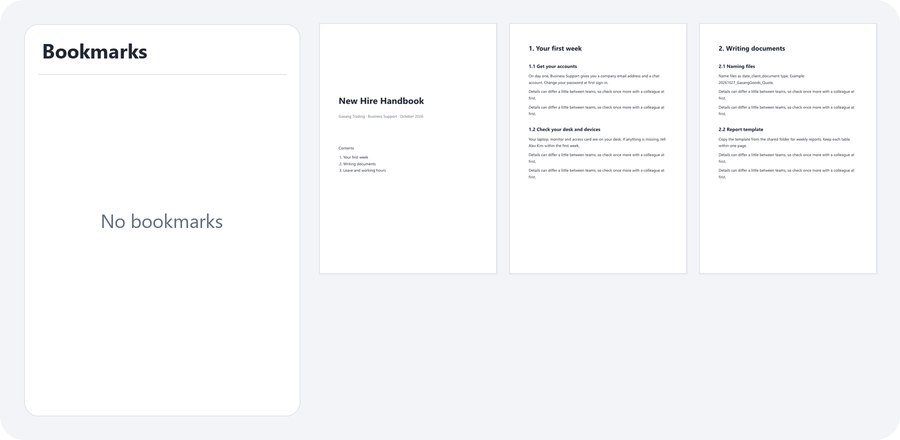
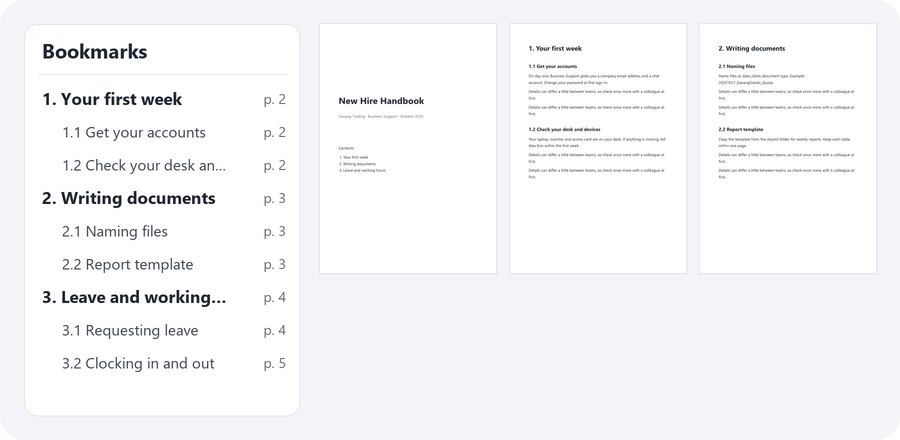
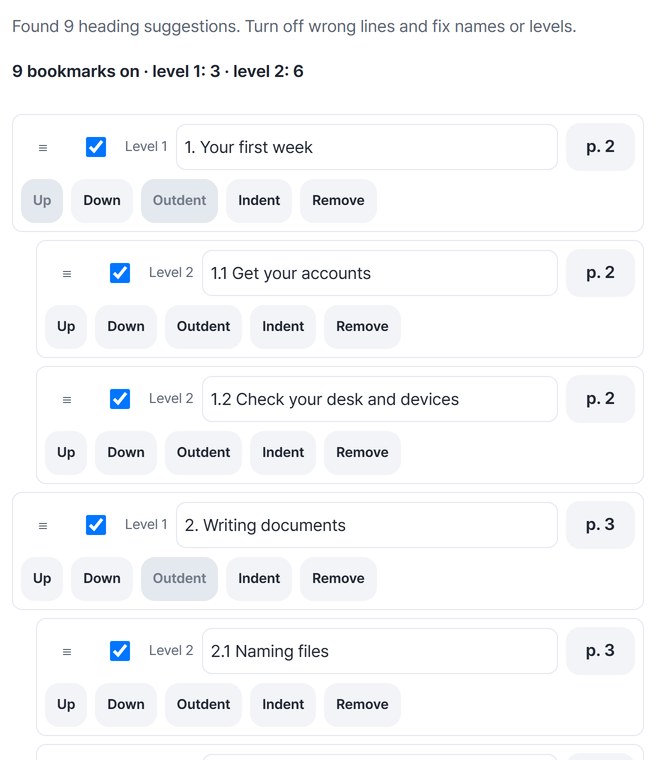
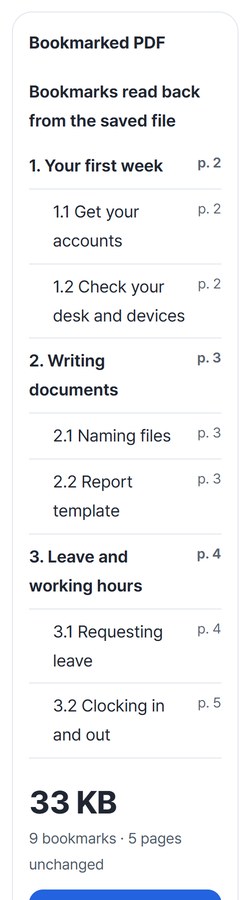
We added a 5-page “New Hire Handbook” with no bookmarks at all. The tool found 3 chapter headings and 6 section headings, and we saved the suggestions as they were. Opening the saved PDF again shows 9 bookmarks pointing to the pages with those headings, and the text on all 5 pages matches the original.
Actual result of processing a handbook PDF from a made-up company with PDF Bookmarks v0.1.1. The left panel shows bookmarks read back from the saved file; the right shows pages 1–3 of that file.
HOW TO
Done in three steps
Choose a PDF
Pick one PDF and its page text is read. Existing bookmarks are loaded first; if there are none, heading suggestions appear right away.

Check the suggestions
Turn each line on or off and fix names. Use “Outdent” and “Indent” for levels 1–3, and “Up” and “Down” for order. To add a missing heading, click its text on the page image below.
Make and save
Press “Make bookmarked PDF” and the card shows the bookmarks read back from the saved file. Check them and press “Save.”
WHEN
Perfect for
- Sending a long report or manual
Readers jump straight to the chapter they need.
- The outline was lost when saving from Word or HWP
Find the heading text and add it back.
- Adding an outline to a scanned PDF
Pick pages and add them one by one with “Add this page.”
GOOD TO KNOW
Good to know
- One PDF at a time, up to 50MB and 500 pages. Unlock password-protected PDFs first.
- Headers, footers, page numbers and the cover are skipped when looking for headings. Lines that look like a contents-page title or a sentence stay in the list turned off, so you can turn them on if needed.
- PDFs without a text layer, such as scans, can’t be searched automatically. Pick a page and use “Add this page.”
- If the PDF has a digital signature, adding bookmarks may invalidate the signature check. Keep the original separately.
- The PDF engine is downloaded once, about 4MB, the first time. It's fetched only after you pick a file, and other PDF tools reuse it.
FAQ
Frequently asked questions
Where do my files get uploaded?
Nowhere. Everything is processed in this device's browser, so there is nothing on a server to delete. Results you haven't saved are cleared when you close the window.
I want to remove the existing bookmarks.
Turn every bookmark in the list off and save. You get a PDF with the existing bookmarks removed and the pages unchanged.
A heading didn’t show up as a suggestion.
Click that heading’s text on the page image to add a bookmark there. For pages without text, use “Add this page.”
Which devices has it been checked on?
We confirmed it in Edge and WebKit (the engine behind Safari) on Windows. Phones were tested by simulating a phone screen on a PC; checks on real Mac, iPhone and Android devices are still to come.
NEXT