
DUPLICATE PHOTOS
Find duplicate & similar photos free no upload
The same photo twice, and one more that looks alike. Keep only the originals you want.
Add photos and the tool lists “exact duplicates” (identical file contents) separately from “similar candidates” (photos that look alike). Compare two at a time side by side, tick “Keep this original”, and only those photos are saved, unchanged. Nothing is picked or deleted for you.
- No install
- No sign-up
- No upload




In short Duplicate photo selection is a free web tool that separates identical files from similar-photo candidates, lets you compare pairs up close, and saves only the originals you choose, unchanged. It runs in your browser with no install or sign-up, and your files are processed in this device’s browser — never uploaded to a server. Up to 12 still JPG or PNG images, 20MB and 50 megapixels each, processed one at a time. Rotated or heavily cropped copies may be missed.
BEFORE → AFTER
One original kept out of three photos
We added three cat photos: the original, a copy with a different name, and a slightly cropped version. The tool reported “1 exact pairs · 2 similar pairs · 3 photos”, and the similar pairs had a difference of 0.085, inside the Standard threshold (≤ 0.110). We ticked “Keep this original” on the original only and saved it. The saved file was 93,724 bytes with the same SHA-256 as the original — copied as is, not recompressed.
Actual result of processing three AI-generated example cat photos with Duplicate photo selection v0.1.10, then comparing the saved file with the original byte by byte.
HOW TO
Three steps and done
Add photos and see how they’re grouped
Use “Choose photos” to add JPG or PNG files. Exact duplicates and similar candidates are counted separately. Pick a pair under “Pair to compare” to see both side by side, and use “Original zoom” to check focus and small text. “Candidate sensitivity” can be Strict, Standard or Broad.
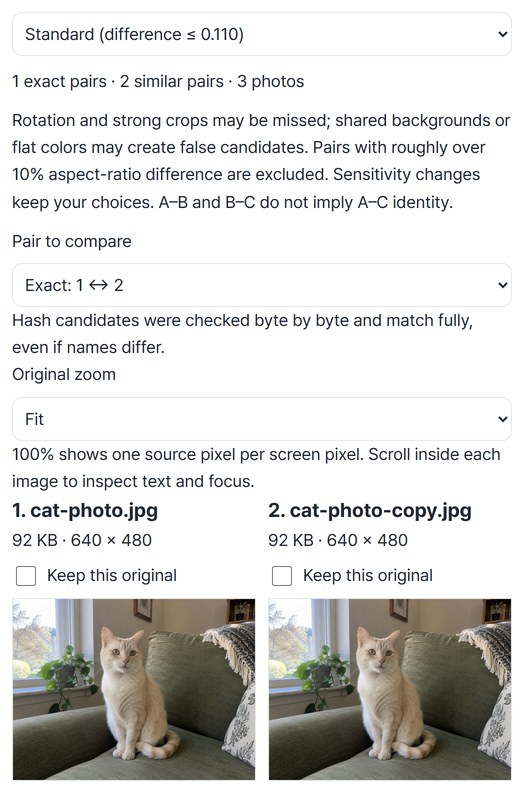
Tick the photos to keep
Nothing is selected at first. Tick “Keep this original” on the photos you want, and the count appears below. “Remove from list” only takes a photo off the list; it doesn’t delete it from your device.
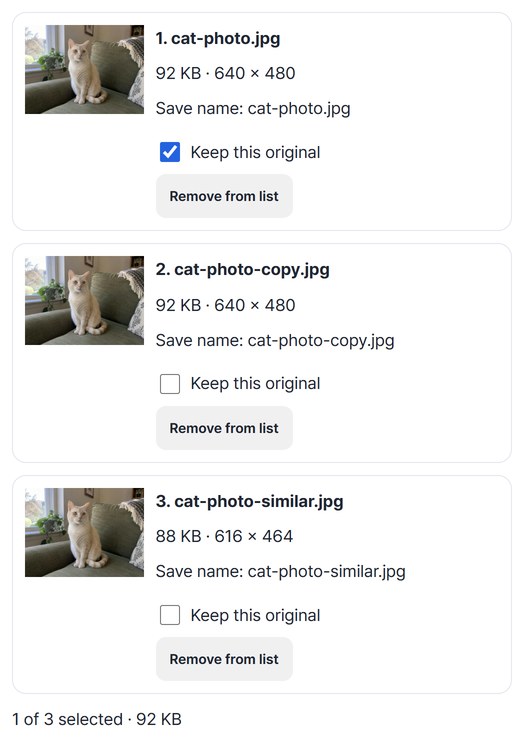
Save only the chosen originals
Press “Prepare selected originals”, then “Save”. With several photos you can save them all as a ZIP, or continue straight to Image size or Remove image metadata.
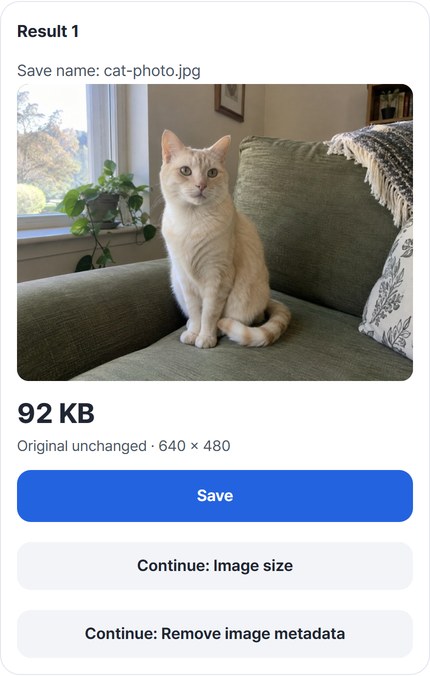
WHEN
Perfect for
- After copying phone photos to a PC
Find photos that were copied twice.
- Several similar shots
Zoom in side by side and keep the best one.
- Before sending a set of photos
Make sure the same photo isn’t in there twice.
GOOD TO KNOW
Good to know
- Photos you can add: JPG and still PNG, up to 12 photos, 20MB and 50 megapixels each, processed one at a time.
- A similar candidate is not a verdict that two photos are the same. It means their small thumbnails have close colors, brightness and edges. Rotated or heavily cropped copies may be missed, and photos with the same background or flat colors may be grouped by mistake. Pairs whose aspect ratios differ by more than about 10% are not compared.
- Nothing is picked or deleted for you. Only ticked photos are saved, in the order you added them.
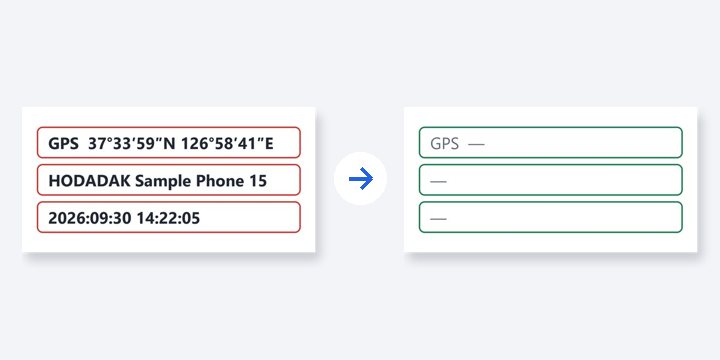
- Saved files are the originals, unchanged. They aren’t recompressed and hidden data isn’t removed, so location and other details may remain. Before sharing, continue to Remove image metadata.
FAQ
Frequently asked questions
Where do my files get uploaded?
Nowhere. Everything is processed in this device's browser, so there is nothing on a server to delete. Results you haven't saved are cleared when you close the window.
Does it delete duplicates from my device?
No. It only saves the originals you pick as new files; the photos on your device stay as they are. Check the saved result, then tidy up unwanted photos yourself.
Which devices does it work on?
We processed photos with it in Edge on Windows. Real Mac, iPhone and Android devices haven’t been checked yet.
NEXT
Handy next steps
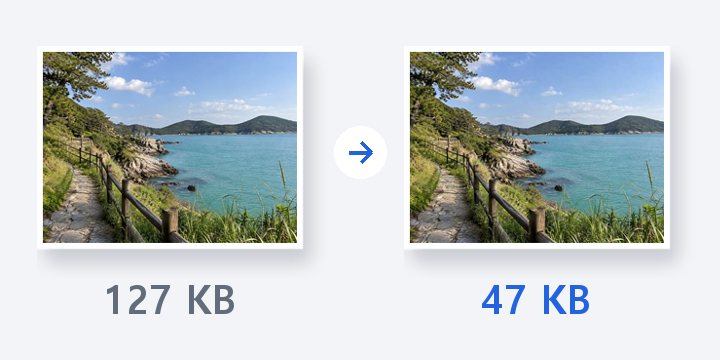
Add, compare, keep only what you need.
No install, no sign-up. Right now.