
REMOVE PHOTO INFO
Is your home’s location
hiding in that photo?
Remove hidden location and device info from your photos. Nothing is recompressed, so the picture itself is untouched, and orientation and color info are kept.
- No install
- No sign-up
- Files stay on this device
BEFORE → AFTER
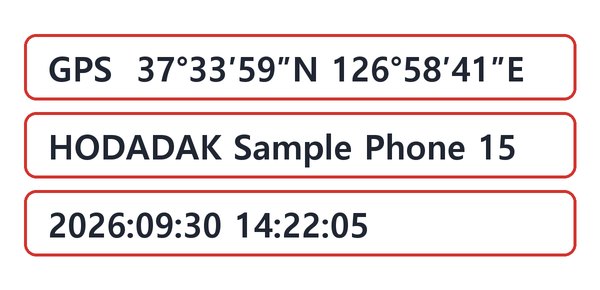
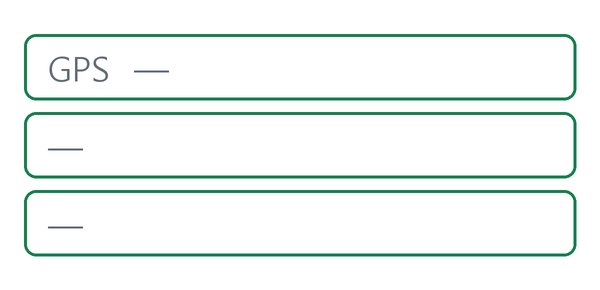
A photo carrying location, device and capture time
We left “Keep capture date” off. Location, device model and capture time were all removed, and only the orientation info stayed. Size went from 122,169 to 121,969 bytes — the info came out, and the photo wasn’t recompressed.


Actual result of processing a HODADAK sample photo (location: public coordinates in front of Seoul City Hall; device name is an example) with Remove photo metadata v0.1.1.
HOW TO
Three steps and done
Add your photos
Up to 20 JPG, PNG or WebP photos, 20MB each. Your originals stay unchanged.
Decide whether to keep the date
Turn on “Keep capture date” to keep supported EXIF dates only. A review table shows, photo by photo, what will be removed and preserved.

Check and save
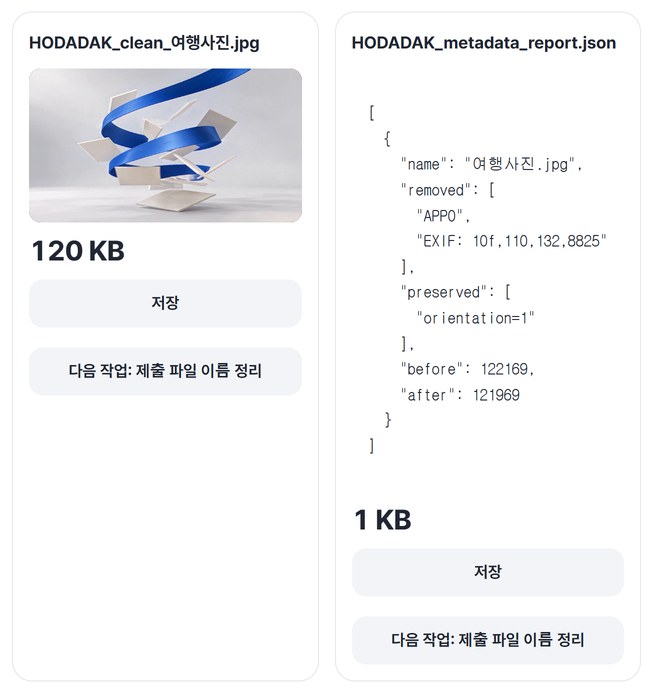
After “Create results,” save the photos and the report (JSON). Several files come as one ZIP.
WHEN
Perfect for
- Selling things you photographed at home
Remove the location before posting.
- Sharing travel photos on a blog or social media
Device info goes too.
- Sending photos as work material
Keep just the capture date and remove the rest.
GOOD TO KNOW
Good to know
- Photos you can add: JPG · PNG · WebP, up to 20, 20MB each. iPhone HEIC photos aren’t supported.
- Photos are not recompressed. Only the hidden info is taken out, so quality is unchanged, and orientation and color info are kept.
- What’s visible in the photo stays. Addresses, faces or license plates in the picture aren’t removed — hide those separately.
- A report (JSON) listing what was removed and kept can be saved too.
- Press Try a sample to try it without your own file. The Continue button on a result card carries on in another tool without adding the file again.
FAQ
Frequently asked questions
Where do my files get uploaded?
Nowhere. Everything is processed inside this device's browser, and closing the window clears both the files and the results.
Does removing the info lower the quality?
No. The photo isn’t recompressed; only the parts holding hidden info are taken out, which is why the size barely changes (in the example, 122,169 → 121,969 bytes). Orientation info is kept, so the photo still shows the right way up.
Which devices has it been checked on?
We confirmed it in Edge and WebKit (the engine behind Safari) on Windows. Phones were tested by simulating a phone screen on a PC; checks on real Mac, iPhone and Android devices are still to come.
NEXT
Handy next steps
 PhotoNewImage watermark
Add your name or logo and check placement and opacity on the real result.
Open →How to use
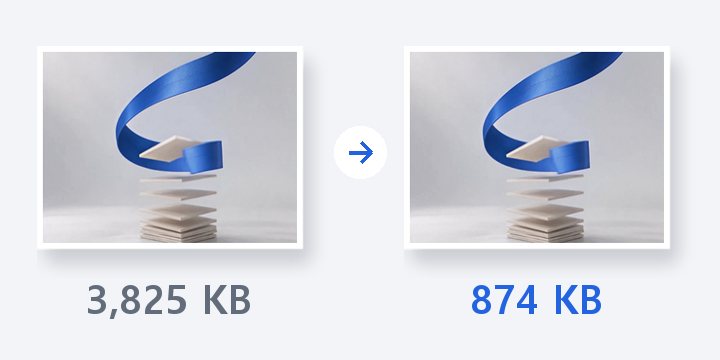
Add, choose the date, save without the info.
No install, no sign-up. Right now.