
CONVERT IMAGES
Your image is a PNG. The form takes JPG only.
Just switch the format.
Convert several images at once between JPG, PNG and WebP. See how transparent areas will turn out before you save.
- No install
- No sign-up
- Files stay on this device


BEFORE → AFTER
A transparent sticker, turned into a JPG
JPG, quality 85, transparent areas filled with white. 1,258,015 bytes became 148,892 bytes, and the pixel dimensions stayed the same.
Actual result of processing a HODADAK sample file (a transparent-background sticker, for illustration) with Image converter v0.1.1. The gray checkerboard in the before image marks the transparent areas.
HOW TO
Three steps and done
Add your images
Still JPEG, PNG or WebP, up to 8. Your originals stay untouched.
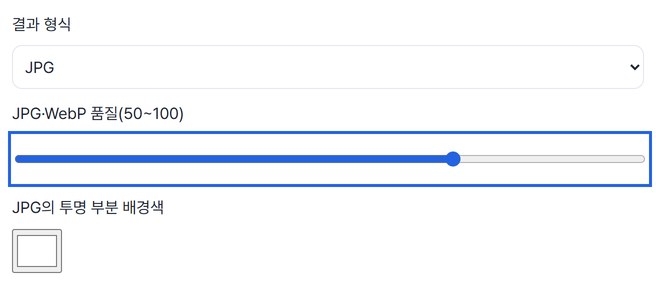
Pick format, quality and background
Output is JPG, PNG or WebP. Set quality from 50 to 100 for JPG and WebP, and for JPG choose the color that fills transparent areas.
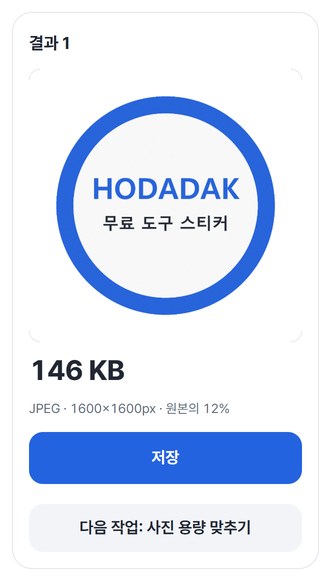
Preview and save
Check colors and transparent areas, then save. Several images come as one ZIP.
WHEN
Perfect for
- Upload forms that say “JPG only”
Turn PNG screenshots or graphics into JPG first.
- A transparent logo for a document or forum post
Convert to JPG and fill the transparency with white or any color.
- A mix of formats you want to match
Up to 8 images to one format, saved as one ZIP.
GOOD TO KNOW
Good to know
- Images you can add: still JPEG · PNG · WebP, up to 8, 20MB · 24MP each, 80MB · 60MP in total.
- Animated images, iPhone photos (HEIC) and RAW aren’t supported.
- Pixel dimensions stay the same. JPG fills transparent areas with the color you choose; PNG and WebP keep transparency.
- Metadata (shooting details and so on) is removed, and colors may render slightly differently. If your browser can’t save WebP, only JPG and PNG are offered.
- Press Try a sample to try it without your own file. The Continue button on a result card carries on in another tool without adding the file again.
FAQ
Frequently asked questions
Where do my files get uploaded?
Nowhere. Everything is processed inside this device's browser, and closing the window clears both the files and the results.
Transparent areas turned white after converting to JPG.
JPG can’t store transparency, so those areas are filled with the background color you chose (white by default). To keep them transparent, pick PNG or WebP.
Which devices has it been checked on?
We confirmed it in Edge and WebKit (the engine behind Safari) on Windows. Phones were tested by simulating a phone screen on a PC; checks on real Mac, iPhone and Android devices are still to come.
NEXT
Handy next steps
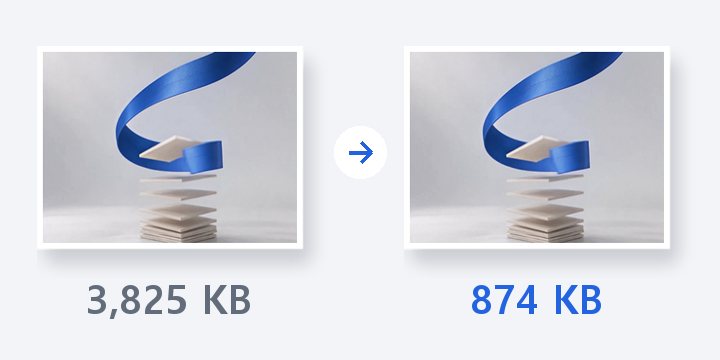
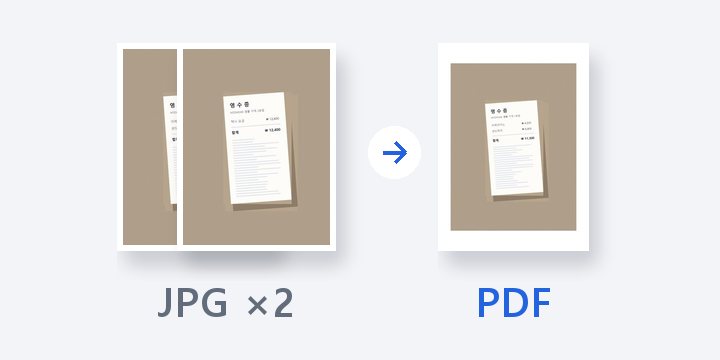
Pick a format, preview, save.
No install, no sign-up. Right now.