
HEIC TO JPG
“Unsupported format”?
It’s an iPhone photo.
Turn iPhone photos (HEIC) into JPG, several at once. Only photos your browser can open are converted; if it can’t, you get free fixes right away.
- No install
- No sign-up
- Files stay on this device
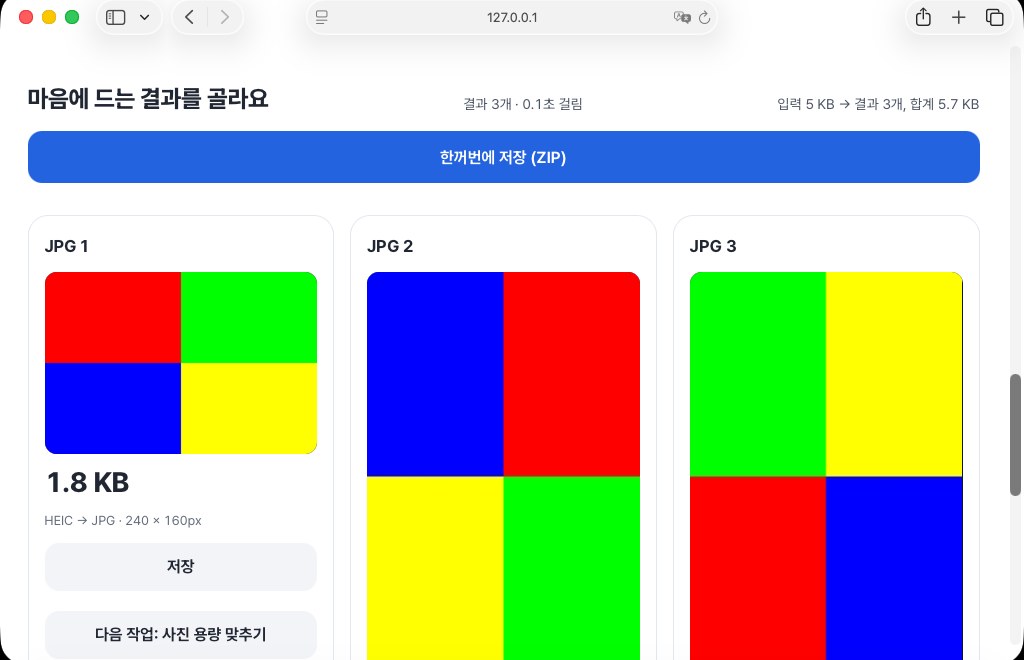 Mac Safari · HEIC → JPG
BEFORE → AFTER
Opens? JPG right away. Doesn’t? Here’s the fix
Add the same HEIC photo in Safari on a Mac and it becomes JPG. In a browser that can’t open it, the tool doesn’t pretend: it shows how to fix it in your iPhone settings.
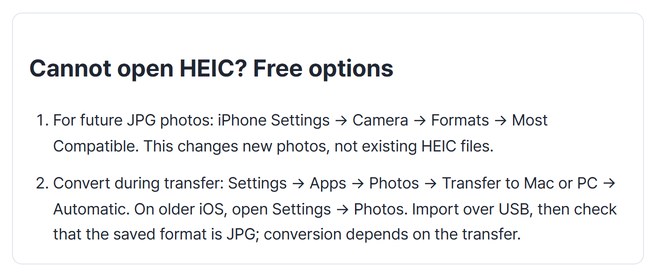
Real screens of a small synthetic HEIC photo made by HODADAK, processed with HEIC to JPG v0.3.0. Left: Safari on a Mac (real OS). Right: Edge on Windows. Not yet checked on a physical iPhone.
HOW TO
Three steps and done
Pick your photos
Up to 12 at once (20MB each, 40MB total). HEIC, HEIF and JPG are accepted.
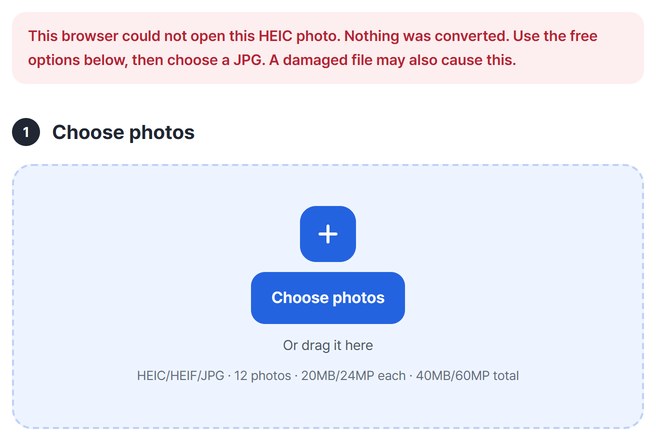
Set the quality and convert
Choose quality from 60 to 100. Orientation follows what the browser shows.
Quality60–100OutputJPG
Won’t open? Use the fix
If the browser can’t open the HEIC, nothing is converted and you see free ways to switch to JPG on your iPhone.
WHEN
Perfect for
- A form won’t accept HEIC
Send JPG instead of “unsupported format.”
- iPhone photos on a work PC
Turn photos that won’t open into JPG in one go.
- You want JPG from the start
One iPhone setting the tool shows you.
GOOD TO KNOW
Good to know
- Only HEIC your browser can open itself is converted. If it can’t, nothing is converted and no success is shown.
- Photos you can add: HEIC · HEIF · JPG, 12 photos, 20MB and 24MP each, 40MB and 60MP in total.
- Location and shooting info, burst, depth and HDR data are not carried into the JPG. Check orientation and color in the preview before saving.
- To shoot JPG from now on: iPhone Settings → Camera → Formats → Most Compatible. Applies to new photos.
- Press Try a sample to try it without your own file. The Continue button on a result card carries on in another tool without adding the file again.
FAQ
Frequently asked questions
Where do my files get uploaded?
Nowhere. Everything is processed inside this device's browser, and closing the window clears both the files and the results.
Why doesn’t it convert on some computers?
The tool doesn’t download a separate converter; it only uses the HEIC reader built into your browser. So it converts in browsers that have one (e.g. Safari on a Mac), and shows fixes when there isn’t one.
Which devices has it been checked on?
We confirmed it in Edge and WebKit (the engine behind Safari) on Windows. Phones were tested by simulating a phone screen on a PC; checks on real Mac, iPhone and Android devices are still to come.
NEXT
Handy next steps
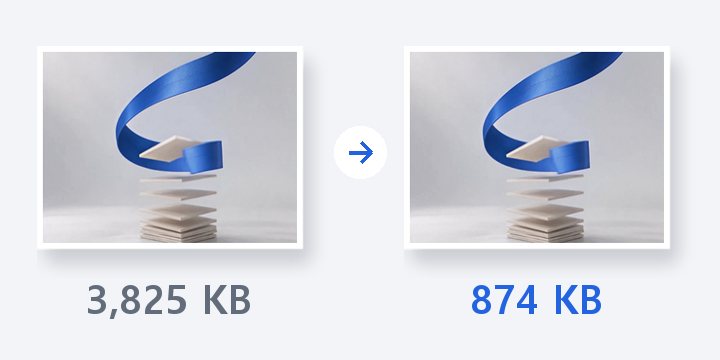
Pick, convert, save as JPG.
No install, no sign-up. Right now.