
VAT CALCULATOR
Adding 20% VAT?
Keep net, tax and gross straight.
Add tax to a net amount, or split a tax-inclusive amount into net and tax. Set your own rate and choose how the tax is rounded.
- No install
- No sign-up
- Files stay on this device
In short VAT amount calculator is a free web tool that adds tax to a net amount or splits a tax-inclusive total into net amount and tax, and saves the result with its calculation rules. It runs in your browser with no install or sign-up, and what you type stays on your device — nothing is sent to a server. Amounts up to 20 digits with 6 decimals; rates from 0 to 1000%. It doesn’t decide legal rates or exemptions, and the saved result isn’t a tax invoice.
BEFORE → AFTER
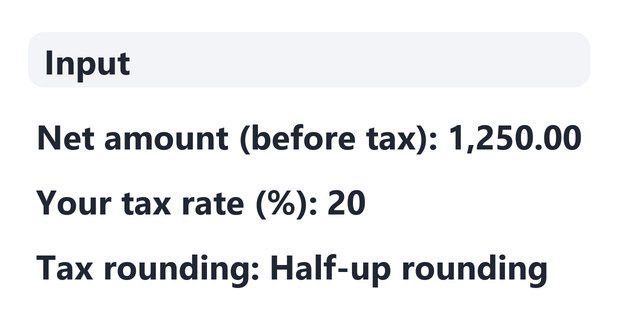
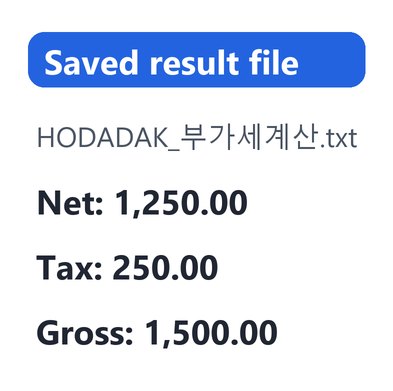
1,250.00 net + 20% VAT = 1,500.00
“Add tax” with a net amount of 1,250.00, a 20% rate, half-up rounding and 2 decimal places. The tax is 250.00 and the gross is 1,500.00.
Actual result of entering example amounts chosen by HODADAK into VAT amount calculator v0.2.0, then reopening the saved TXT to check it.
HOW TO
Three steps and done
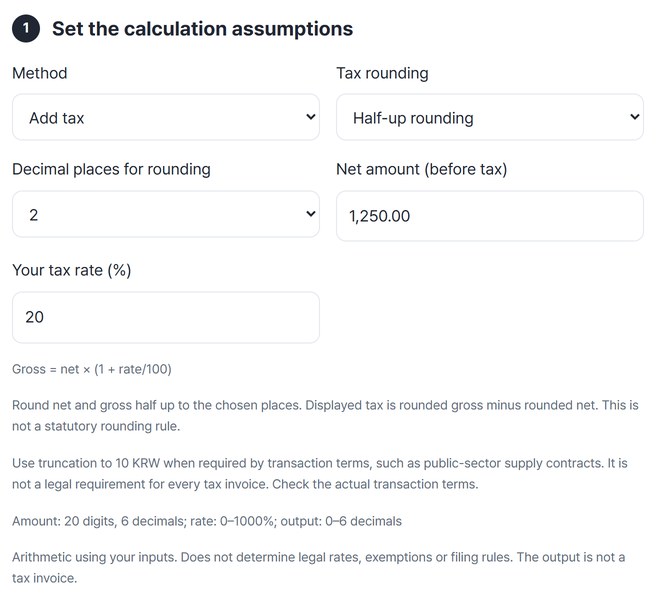
Pick a method and enter the amount
Choose “Add tax” or “Remove included tax” and enter the amount. The rate starts at 10% and can be changed. Choose the tax rounding too.
Check net, tax and gross
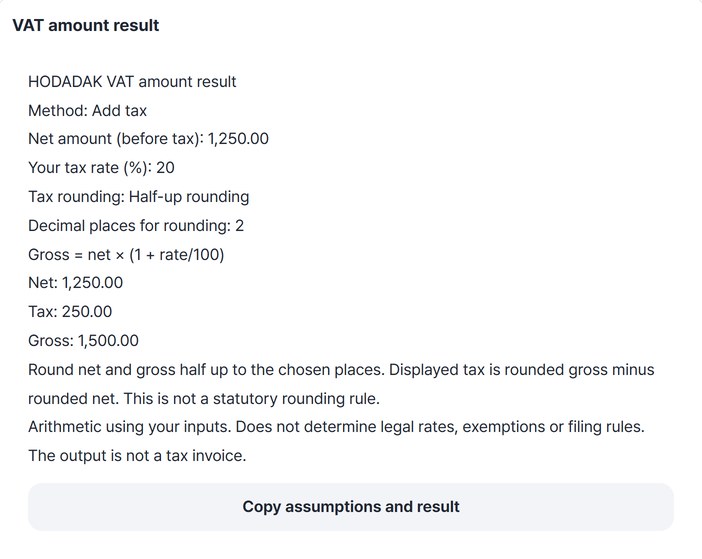
Press “Calculate” to see all three amounts with the formula and rounding rule.
Copy it or save it as TXT
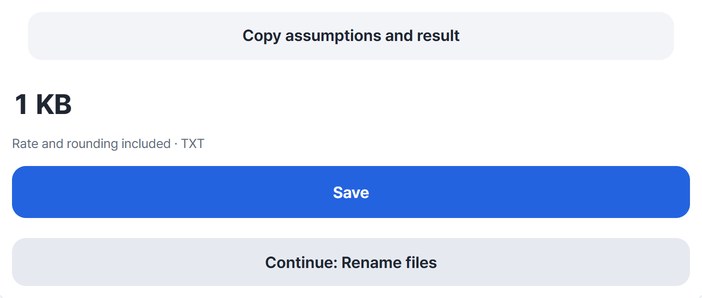
Press “Copy assumptions and result” or “Save”.
WHEN
Perfect for
- Writing a quote or invoice draft
Turn a net price into tax and gross amounts.
- Splitting a tax-inclusive receipt
Find the net amount and the tax inside it.
- Checking another rate
Type in the rate that applies to you.
GOOD TO KNOW
Good to know
- Half-up rounding (default): net and gross are each rounded to the places you choose, and the shown tax is set to shown gross minus shown net. This is not a statement of the legal rounding method.
- Other options: drop fractions of 1 KRW, or drop below 10 KRW (used in some Korean public-sector supply contracts). These cut only the tax and keep net + tax = gross.
- Not a tax invoice. It is arithmetic from your inputs and does not decide legal rates, exemptions or filing rules.
- Limits: amounts up to 20 digits and 6 decimals, rate 0–1000%, 0–6 decimal places in the result. Commas like 1,000 are fine.
- The saved TXT holds the rate, rounding rule, formula and result. The Continue button on the result card passes it to the file renaming tool.
FAQ
Frequently asked questions
Where do the amounts I enter go?
Nowhere. The calculation happens inside this device’s browser.
My tax is off by one cent from another tool.
The rounding may differ. Here net and gross are rounded first and the tax is the difference between them. The result states the rule that was used.
Which devices has it been checked on?
We confirmed it in Edge on Windows. Phones were tested by simulating a phone screen on a PC; Safari-based browsers and real Mac, iPhone and Android devices are still to come.
NEXT
Handy next steps
Enter, pick a rounding rule, save.
No install, no sign-up. Right now.