
UNLOCK PDF
Remove PDF password free unlock with your password
With the password you already know, remove a PDF’s opening password.
Enter the current password of your own PDF once, and save a copy that opens without asking. Files and passwords are never uploaded, and before saving, the result is reopened without a password and checked against the original, text and images.
- No install
- No sign-up
- No upload
In short Unlock PDF is a free web tool that removes the password from your own PDF using the password you already know, then reopens it without a password so you can check text and images before saving. It runs in your browser with no install or sign-up, and your files are processed in this device’s browser — never uploaded to a server. Up to 6 standard password-protected PDFs sharing one password, 20MB each, 50MB and 200 pages in total. It can’t unlock a file without its password, and permission-restricted files need the owner password.
BEFORE → AFTER
A payslip that asked for a password every time now just opens
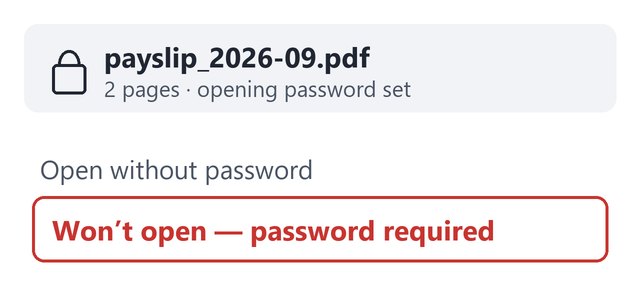
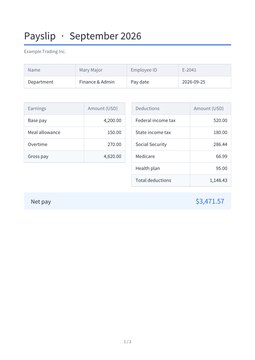
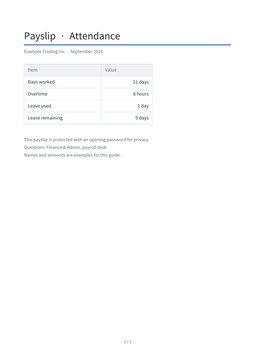
Our 2-page payslip with an opening password (16,643 bytes) won’t open without it. We ticked “These are my files and I am allowed to remove their passwords,” entered the current password and pressed “Unlock and check.” The result card read “2 pages preserved · opens without password · text and images checked.” Reopening the saved PDF (15,587 bytes) outside the tool without a password, both pages opened and the text, down to the name and the net pay of $3,471.57, matched the original.
Actual result of unlocking a payslip for a fictional employee, “Mary Major” (company, name and amounts are examples; the password is a test one for this guide), with Unlock PDF v0.1.9, then reopening the saved PDF without a password. Checked in Edge on Windows; real iPhone and Mac Safari have not been checked yet.
HOW TO
Three steps and done
Add the PDF and enter its current password
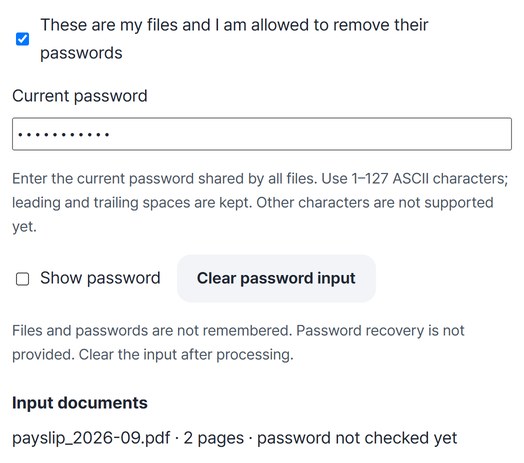
Add up to 6 PDFs that share one password. Tick “These are my files and I am allowed to remove their passwords” and enter the current password. Passwords are not remembered.
“Unlock and check”
The unlocked result is reopened without a password and every page’s text and images are compared with the original. Check all pages with Previous and Next, then press “Save.”
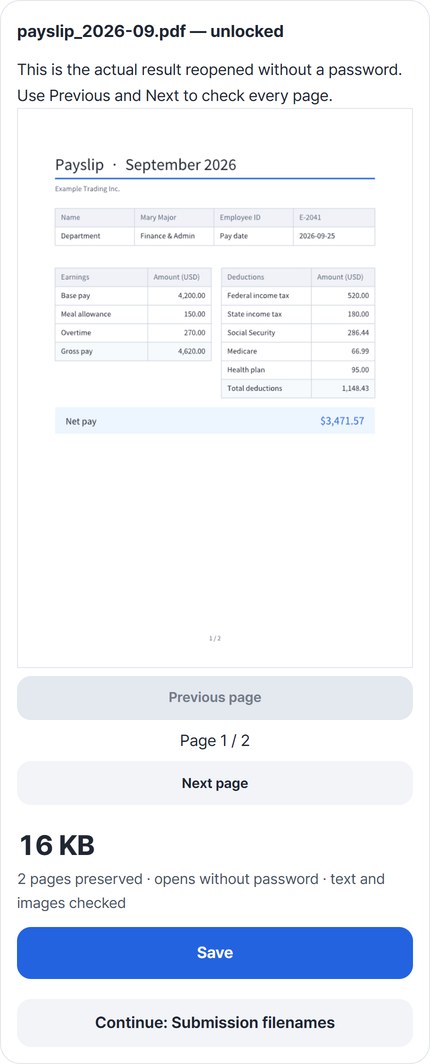
The saved PDF opens without a password
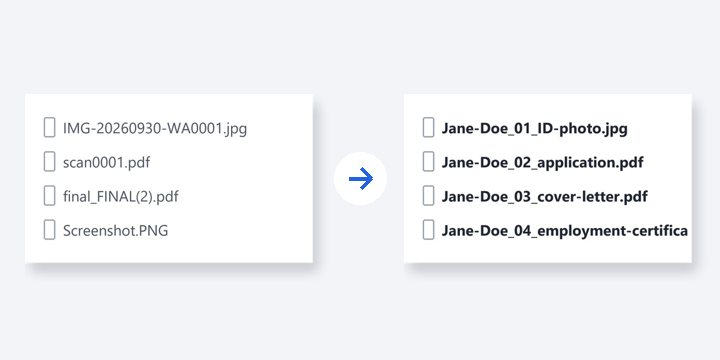
The original is left unchanged. When you finish, press “Clear password input.” You can carry on with “Submission filenames.”
WHEN
Perfect for
- Typing a password every time is tedious
Unlock once, open directly after.
- Several files share one password
Up to 6 at once.
- Tidying files for submission
Continue with “Submission filenames.”
GOOD TO KNOW
Good to know
- Only your own files whose current password you know. There is no password recovery or bypass. Files with change restrictions need the owner password.
- Up to 6 PDFs with the same password · 20MB each · 50MB/200 pages in total. Passwords may use English letters, digits, symbols and spaces, 1–127 characters.
- Form, digitally signed and certificate-protected PDFs are not supported. Files and passwords are not remembered.
- Real iPhone and Mac Safari have not been checked yet. The tool advises using Save all (ZIP) on iPhone, even for a single file.
- The PDF engine is downloaded once, about 4MB, the first time. It's fetched only after you pick a file, and other PDF tools reuse it.
FAQ
Frequently asked questions
Where do my files get uploaded?
Nowhere. Everything is processed in this device's browser, so there is nothing on a server to delete. Results you haven't saved are cleared when you close the window.
Can I unlock a PDF if I don’t know the password?
No. Only your own files whose current password you know can be unlocked, and there is no password recovery.
Which devices was it checked on?
We unlocked files in Edge on Windows and reopened the saved PDF without a password. Real iPhone and Mac Safari, and Android devices, haven’t been checked yet.
NEXT
Handy next steps
Enter, check, save.
No install, no sign-up. Right now.