RESIZE PDF PAGES
Change PDF page size resize PDF pages to A4
PDF pages in all different sizes? Make them all A4.
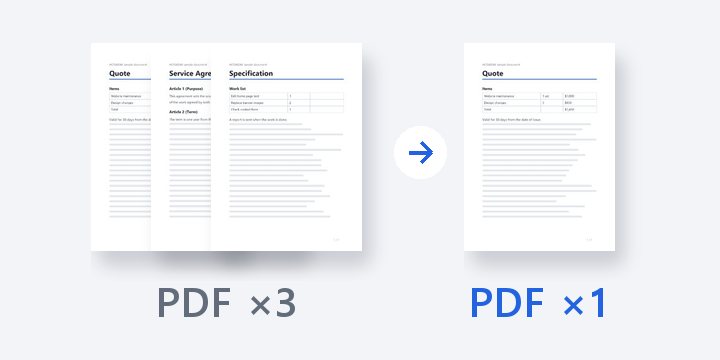
Fit a PDF that mixes a Letter invoice, a small receipt and a wide train ticket to one paper size such as A4. Pages aren’t turned into images — only the scale and position of their content change — so you can still copy and search the text in the saved PDF.
In short PDF page size is a web tool that fits pages of mixed sizes to one paper size such as A4, and can split pages in half or add a binding margin. One PDF up to 50MB and 200 pages; custom sizes from 10 to 2,000mm. Remove any password first; PDFs with form fields can’t be split in half.
BEFORE → AFTER
An expense claim in five sizes, now all A4
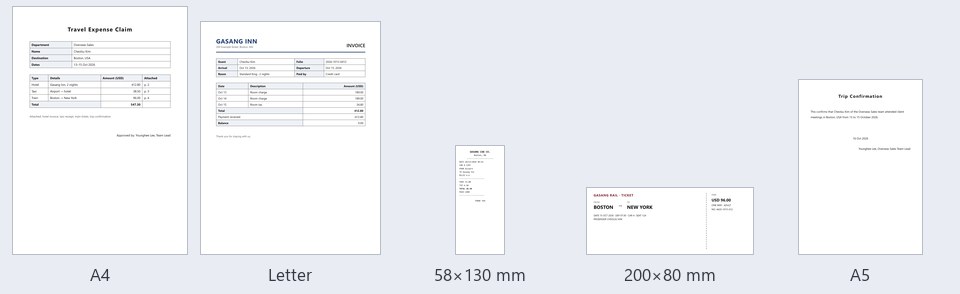
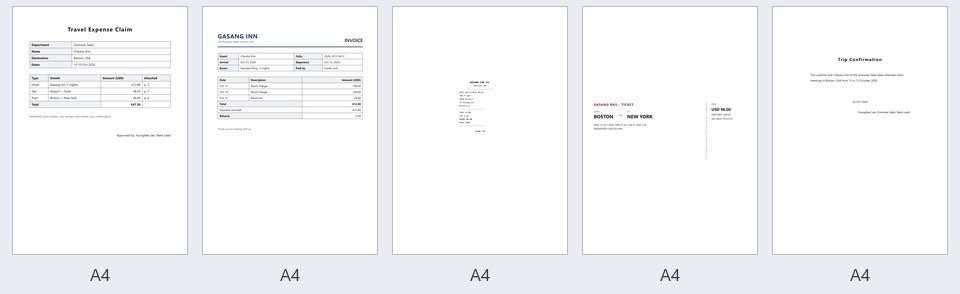
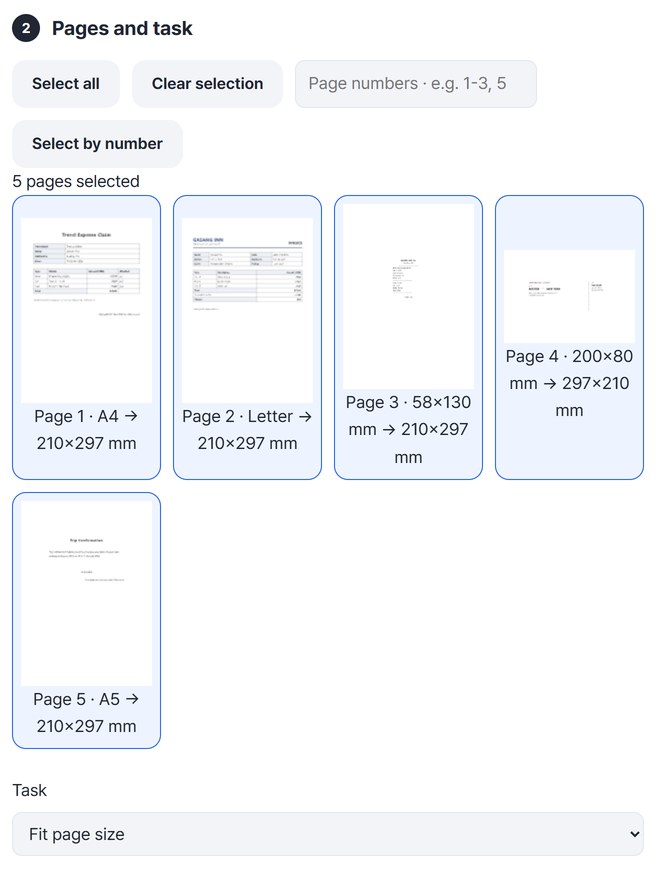
The sample file travel-expense-claim.pdf (124,704 bytes) has a different size on every page: claim form A4, hotel invoice Letter, taxi receipt 58×130mm, train ticket 200×80mm and trip confirmation A5. With Paper set to A4 and Orientation to “All portrait,” all five pages became 210×297mm. The claim form was already A4, so it was left alone and 4 pages changed. We reopened the saved travel-expense-claim_HODADAK.pdf (125,677 bytes) in two different PDF readers, and each page had the same words as the original.
Actual result of resizing sample documents with made-up company and hotel names in PDF page size v0.1.2. Both images draw the five pages of the original and the saved PDF at the same scale, so the size differences show as they are. The gray background and the size names under the pages are added only in this guide.
HOW TO
Three steps and done
Open the PDF and see each page’s size
Choose a PDF and its page thumbnails appear with every page selected. Under each one you see “original size → new size,” and the thumbnail already shows the fitted result. To fit only some pages, click thumbnails to choose them, or hold Shift and click to choose a range.
Set the paper and orientation
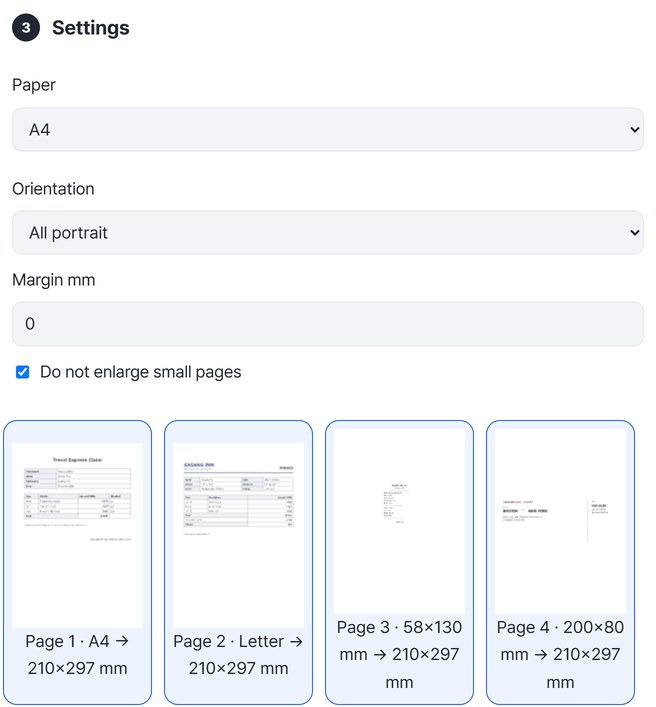
The defaults are A4 and “Automatic per page,” so the wide train ticket would become landscape A4 (297×210mm). If everything must be portrait, change Orientation to “All portrait.” With “Do not enlarge small pages” on, small pages such as the receipt keep their size and sit in the middle of the A4 page.
Create the PDF, check it, then save
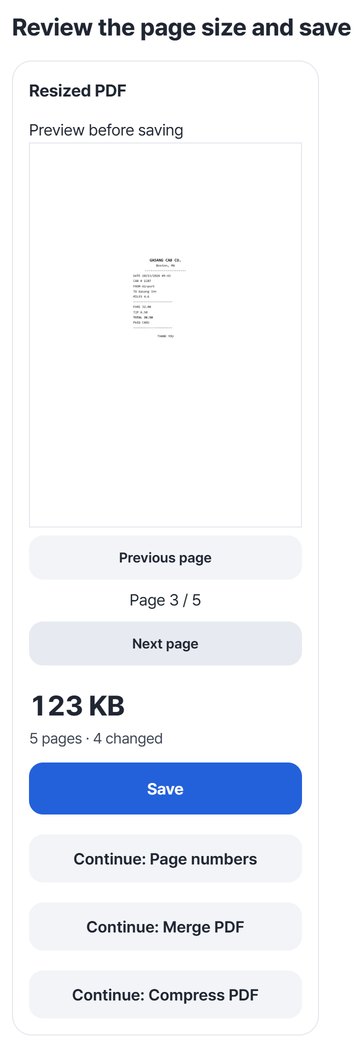
Press “Create PDF.” The result card shows “5 pages · 4 changed” and a preview before saving. Go through the pages with “Next page,” then press “Save.”
WHEN
Perfect for
- Documents that must be submitted in A4
Bring expense or application papers that mix receipts and overseas documents to one size.
- Printouts come out in uneven sizes
Fit every page to the same paper and print in one go.
- Scans with two pages side by side
Switch Task to “Split in half” to cut wide pages into two.
GOOD TO KNOW
Good to know
- Content is not turned into images. Only each page’s scale and position change, so text and links stay. In the example above, only the Letter invoice was reduced to about 97% to fit A4; the other pages kept their original size.
- Small pages are not enlarged by default. Turn off “Do not enlarge small pages” to enlarge them to fill the paper.
- Paper can be A4, B5, A3, Letter or A5; for other sizes use “Custom size” from 10 to 2,000mm. Margins go from 0 to 30mm. Switch Task to “Add binding margin” to add a margin on the left or top.
- “Split in half” only splits what is visible; the clipped half’s content stays in the file. To remove it, use PDF redaction. PDFs with form fields can’t be split in half.
- Opens one PDF of up to 50MB and 200 pages. Remove any password first.
FAQ
Frequently asked questions
Where do my files get uploaded?
Nowhere. Everything is processed in this device's browser, so there is nothing on a server to delete. Results you haven't saved are cleared when you close the window.
Are pages that are already A4 changed too?
Pages that already have the right size and position are left alone. In the example, the claim form on page 1 was A4 from the start, so the result card showed “4 changed.”
What happens to wide pages?
With “Automatic per page,” wide pages become landscape A4. If every page must be portrait, choose “All portrait.” That’s how the train ticket (200×80mm) in the example ended up in the middle of a portrait A4 page.
Which devices has it been checked on?
We confirmed it in Edge and WebKit (the engine behind Safari) on Windows. Phones were tested by simulating a phone screen on a PC; checks on real Mac, iPhone and Android devices are still to come.
NEXT