
ROTATE IMAGES
Tilting your head to view that photo?
Set it upright instead.
Choose rotation and flips for each photo separately, and preview the orientation you’ll actually get before saving. Rotation info saved by your phone is applied first.
- No install
- No sign-up
- Files stay on this device


BEFORE → AFTER
A sideways photo, set upright
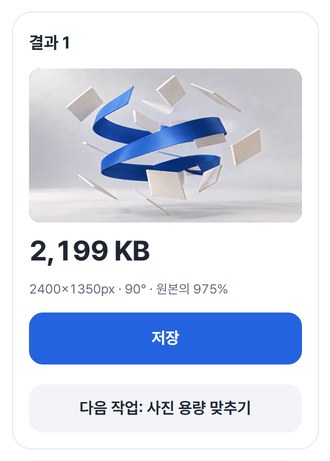
We picked just “90° clockwise.” The 1350×2400 photo now stands at 2400×1350, with its original pixel dimensions intact.
Actual result of processing a HODADAK sample photo (a sideways photo, for illustration) with Rotate images v0.1.1.
HOW TO
Three steps and done
Add your photos
Still JPEG or PNG, up to 8. Your originals stay untouched.
Pick a direction for each
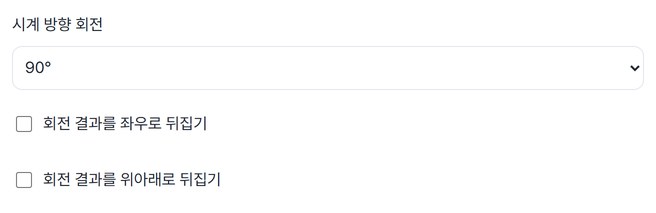
Choose 0, 90, 180 or 270° clockwise, plus horizontal or vertical flips. The preview shows the real result right away.
Check and save
Saved as PNG. Several photos come as one ZIP.
WHEN
Perfect for
- A document photographed sideways
Turn it 90° or 270° and send it upright.
- A batch of photos all lying the same way
Set “Default rotation for new photos” and it’s remembered.
- A photo that came out mirrored
Flip it horizontally so the text reads right.
GOOD TO KNOW
Good to know
- Photos you can add: still JPEG · PNG, up to 8, 20MB · 24MP each, 80MB · 60MP in total.
- Rotation is in 90° steps only (0 · 90 · 180 · 270°). It won’t straighten a photo that’s tilted by a few degrees.
- Saved as PNG at the original pixel dimensions, with EXIF (shooting details and so on) removed.
- Press Try a sample to try it without your own file. The Continue button on a result card carries on in another tool without adding the file again.
FAQ
Frequently asked questions
Where do my files get uploaded?
Nowhere. Everything is processed inside this device's browser, and closing the window clears both the files and the results.
It looked upright on my phone. Will rotating mess up the direction?
Phone photos can carry separate rotation info that says which way is up. This tool applies that first, rotates clockwise from the way the photo currently appears, and then flips based on the rotated result. What you see in the preview is what gets saved.
Which devices has it been checked on?
We confirmed it in Edge and WebKit (the engine behind Safari) on Windows. Phones were tested by simulating a phone screen on a PC; checks on real Mac, iPhone and Android devices are still to come.
NEXT
Handy next steps
Pick, preview, save it upright.
No install, no sign-up. Right now.