
COVER PRIVATE INFO
Before you send that screenshot,
cover the name, number and address.
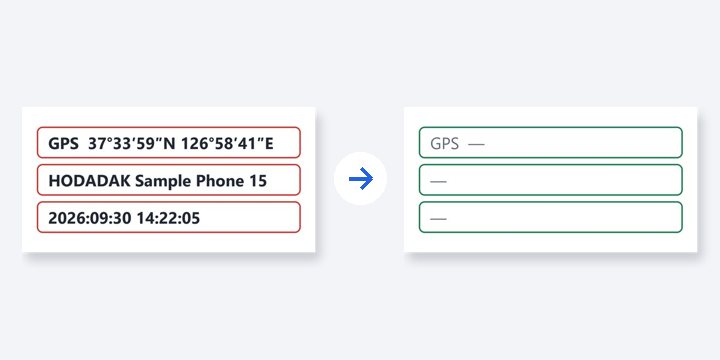
Draw solid blocks over private details and save a new PNG. Each image has to be marked as reviewed before it can be saved, and the original’s location, device tags and thumbnail are not copied.
- No install
- No sign-up
- Files stay on this device
In short Cover private details is a free web tool that lets you draw opaque boxes over what to hide, review each image, and save only reviewed images as new PNGs without hidden metadata. It runs in your browser with no install or sign-up, and your files are processed on your device — never uploaded to a server. Up to 8 JPG or still PNG images, 20MB and 12 million pixels each, 80MB and 24 million pixels in total. It doesn’t detect faces or text automatically.
BEFORE → AFTER
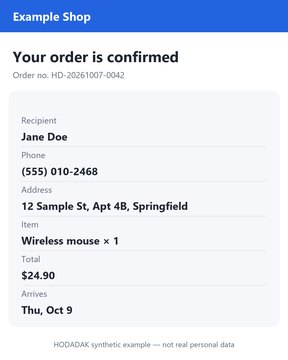
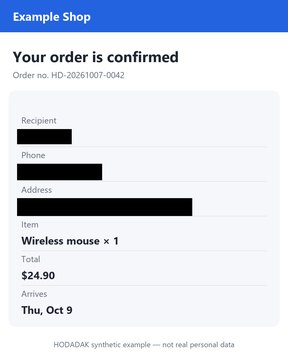
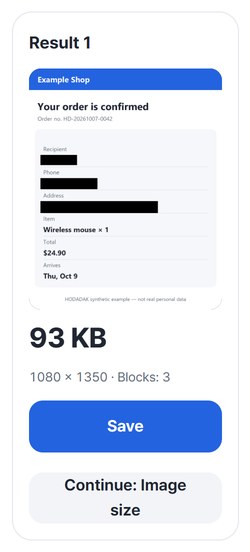
Recipient, phone and address covered in black
Three blocks were added to an order confirmation (1080 × 1350) and saved with “Create reviewed images”. Reopening the saved PNG showed all 75,482 pixels inside the blocks were black (0, 0, 0), and not a single pixel outside them had changed.
Actual result of processing a HODADAK sample screenshot (all names, numbers and addresses are made up) with Cover private details v0.1.0, then reopening the saved PNG to check its pixels.
HOW TO
Three steps and done
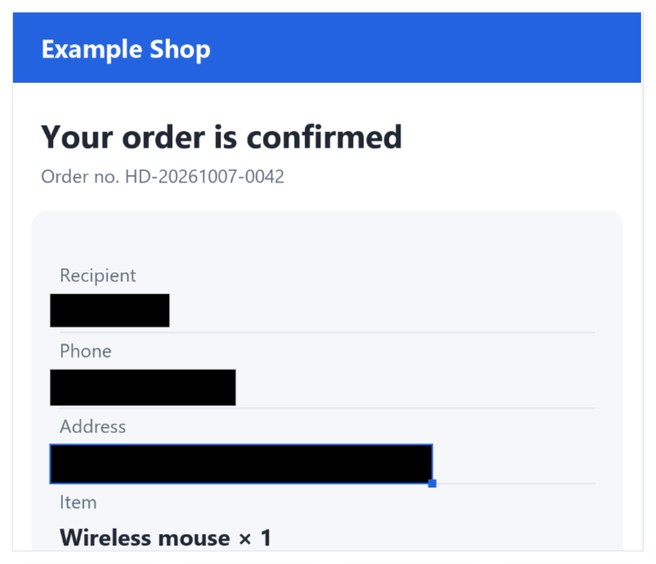
Draw blocks over private details
Drag on the image to draw a block. Use “Select / move” to move it or the bottom-right handle to resize. Choose black or white as the block color.
Fine-tune and mark as reviewed
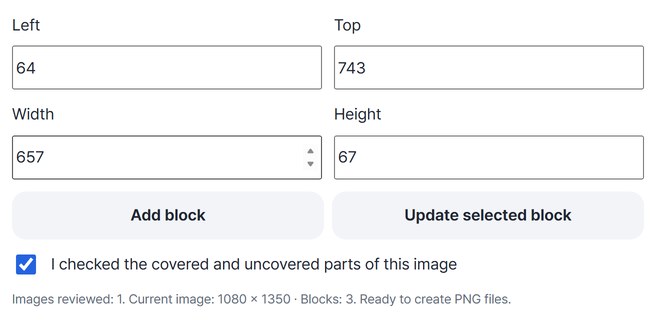
Under “Enter position and size” you can set the position in real image pixels. After checking the whole image, tick the review box — saving needs it.
Save the new PNG
Press “Create reviewed images”, check the result and press “Save”. With several images, save them all as a ZIP or continue to the image size tool.
WHEN
Perfect for
- Sharing a delivery or order screenshot
Hide the recipient’s name, number and address.
- Submitting a photo as proof
Cover only the personal details that aren’t needed.
- The same spot on several images
Copy the block layout to other images.
GOOD TO KNOW
Good to know
- Images you can add: JPG and still PNG, up to 8 images, 20MB each and 80MB in total, 12M pixels each and 24M in total.
- Only what you draw is covered. There is no automatic face or text detection, blur or pixelation. Anything you don’t cover stays visible, so check the result before saving.
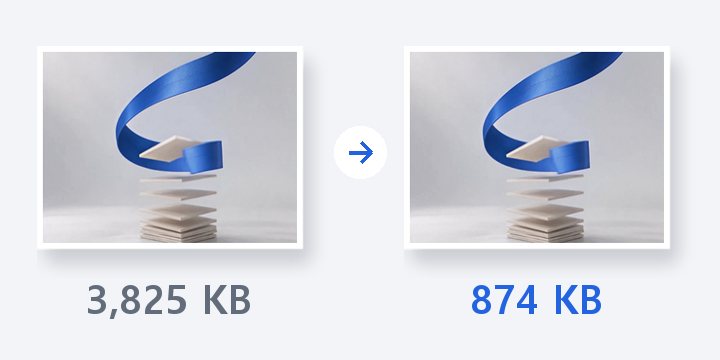
- The result is a new PNG with the blocks drawn into its pixels. The original file is not changed, and JPGs saved as PNG can get larger.
- Copying a layout replaces the blocks on the images you pick and scales them to images of a different size. Copying, editing or rotating clears the review mark, so check each image again.
FAQ
Frequently asked questions
Where do my files get uploaded?
Nowhere. Everything is processed inside this device's browser, and closing the window clears both the files and the results.
Can the covered parts be recovered later?
In the saved PNG, the pixels inside each block are replaced with black (or white). For this page we reopened the saved file and confirmed every pixel inside the blocks was black. Your original file stays as it was, so share the result PNG.
Which devices has it been checked on?
We confirmed it in Edge on Windows. Phones were tested by simulating a phone screen on a PC; Safari-based browsers and real Mac, iPhone and Android devices are still to come.
NEXT
Handy next steps
Draw, review, save a new PNG.
No install, no sign-up. Right now.