
CLEAN SCANNED PDF
Scanned it crooked?
No need to scan it again.
Enter the tilt angle and choose grayscale or black and white, then straighten the page while watching the preview. Rotated pages are scaled to fit, so the corners aren’t cut off.
- No install
- No sign-up
- Files stay on this device
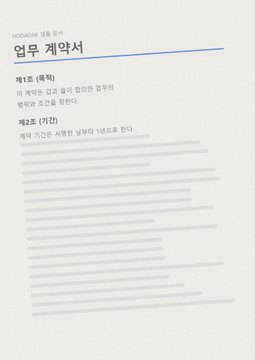
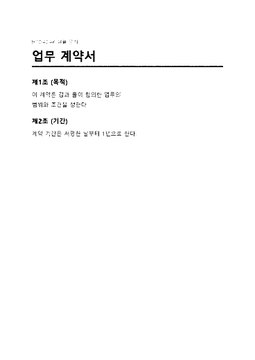
BEFORE → AFTER
A yellowed scan tilted 4°, straightened
We used an angle of 4° and “Black and white.” The background turned white, the page sits straight, and the file went from 100,310 to 14,886 bytes.
The actual result of processing a HODADAK sample file (an example tilted scan) with Clean scanned PDF v0.1.0.
HOW TO
Three steps and done
Add the scan and pick pages
Pick the pages to clean in the thumbnails. Only those pages change.
Set angle and color, then preview
Enter a clockwise angle (−15 to 15°) and choose Grayscale, Black and white, or Keep original color. Tilt isn’t detected automatically, so adjust while watching the preview.
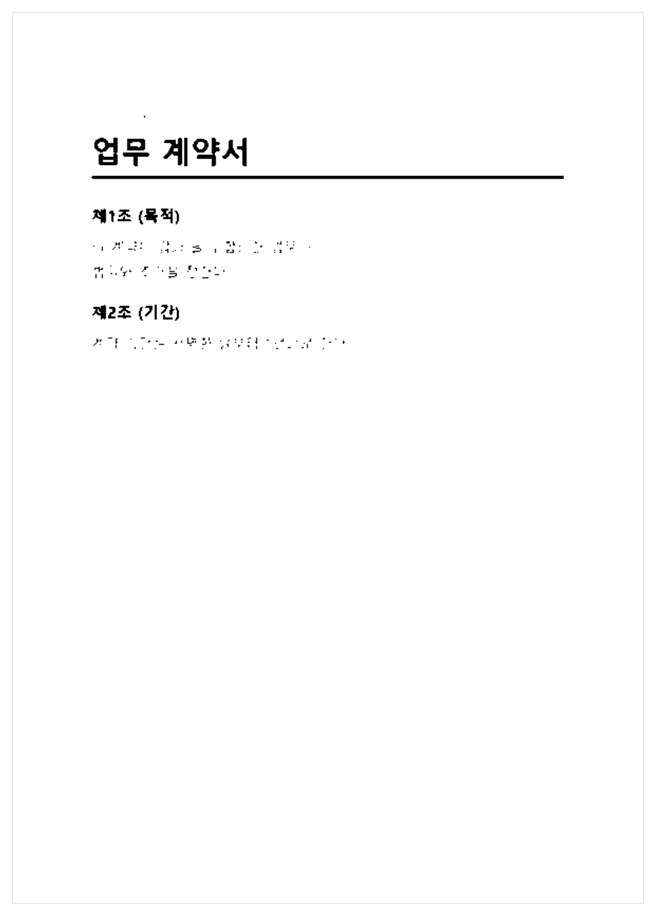
Confirm and save
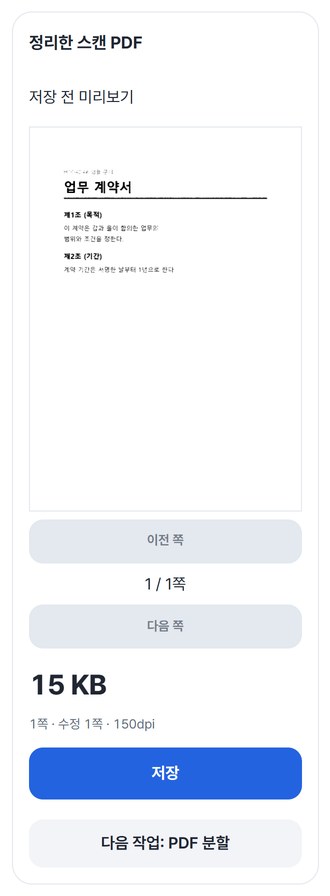
Tick the box confirming that changed pages lose selectable text and links, then “Create cleaned PDF.” Check faint text and corners before saving.
WHEN
Perfect for
- A rushed scan from the office copier
Straighten a slightly tilted page just by entering the angle.
- Old papers with a yellowed background
Black and white turns the background white. A higher threshold (1–254) means more black.
- Only a few pages in the file are off
Pick just those pages and fix them.
GOOD TO KNOW
Good to know
- Selected pages become images. They lose text selection, search, links and annotations, so you need to tick the confirmation box before creating.
- No automatic deskew. You enter the angle yourself (−15 to 15°). No perspective correction, dewarping or text recognition (OCR) either. Rotation scales content down to fit, so text may get slightly smaller.
- One PDF, up to 50MB and 30 pages. Limits are 10MP per page, 60MP in total and 100MB of output — if you hit them, lower the resolution (150, 200 or 300 dpi) or the page count. Encrypted, signed or form PDFs aren’t supported.
- The PDF engine is downloaded once, about 4MB, the first time. It's fetched only after you pick a file, and other PDF tools reuse it.
- Press Try a sample to try it without your own file. The Continue button on a result card carries on in another tool without adding the file again.
FAQ
Frequently asked questions
Where do my files get uploaded?
Nowhere. Everything is processed inside this device's browser, and closing the window clears both the files and the results.
Does it straighten pages automatically?
No, there’s no automatic deskew. Enter the clockwise angle yourself and check it with “Preview current settings.” If the page leans the other way, use a negative value.
Which devices has it been checked on?
We confirmed it in Edge and WebKit (the engine behind Safari) on Windows. Phones were tested by simulating a phone screen on a PC; checks on real Mac, iPhone and Android devices are still to come.
NEXT
Handy next steps
Set the angle, preview, save it straight.
No install, no sign-up. Right now.