
CROP PDF
That wide gray border on scans?
Trim it off.
Drag the area to keep on a large page view, or type margins in mm, and save the trimmed pages as a new PDF.
- No install
- No sign-up
- Files stay on this device
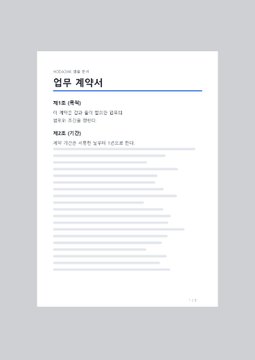
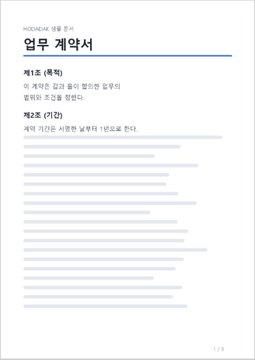
BEFORE → AFTER
A 3-page scan with a wide gray border
With “Same mm margins on every page,” we trimmed 30mm left and right, 42mm top and 43mm bottom.
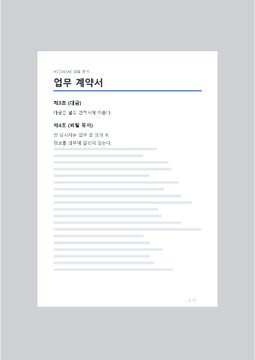
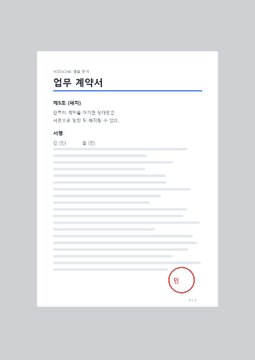
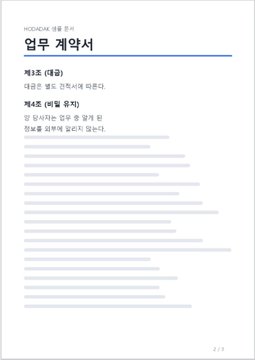
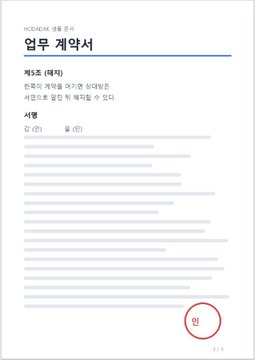
Pages drawn from the actual result of processing a HODADAK sample file with Crop PDF v0.2.1.
HOW TO
Three steps and done
Add your PDF
Tap a thumbnail to see that page large.
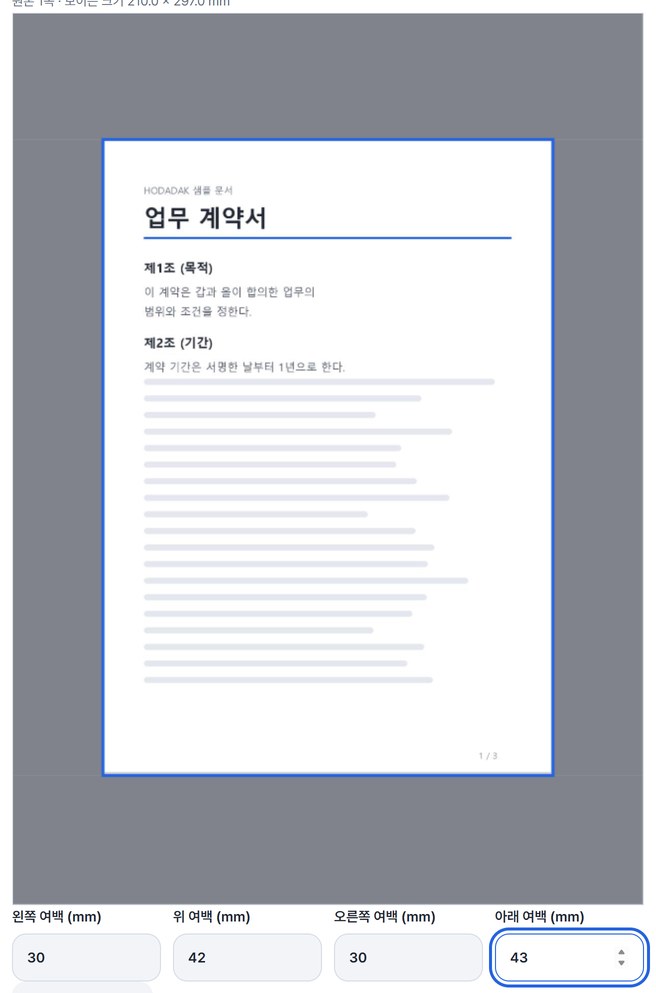
Drag the area or type mm
Drag a rectangle on the large view. Use the same margins on every page, or set each page separately.
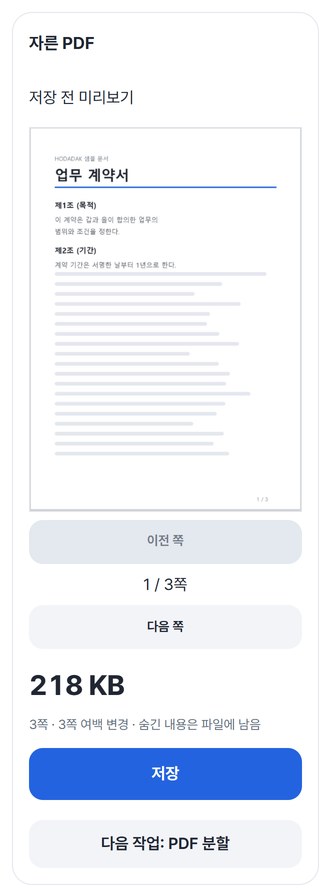
Check and save
After “Create cropped PDF,” flip through and save.
WHEN
Perfect for
- Gray or black edges on scans
Keep only the document.
- Slides with wide margins
Fill the screen better.
- PDFs with print crop marks
Tidy up the visible area.
GOOD TO KNOW
Good to know
- Text and images outside the crop stay inside the PDF. Only the visible area changes, so don’t use this to remove personal information.
- One PDF at a time, up to 50MB and 200 pages.
- PDFs with passwords, digital signatures or form fields aren't supported yet. Bookmarks and attachments aren't carried over.
- The PDF engine is downloaded once, about 4MB, the first time. It's fetched only after you pick a file, and other PDF tools reuse it.
- Press Try a sample to try it without your own file. The Continue button on a result card carries on in another tool without adding the file again.
FAQ
Frequently asked questions
Where do my files get uploaded?
Nowhere. Everything is processed inside this device's browser, and closing the window clears both the files and the results.
Each page has different margins.
Switch “Apply margins” to “Set each page separately,” then tap each page to set its own area.
Which devices has it been checked on?
We confirmed it in Edge and WebKit (the engine behind Safari) on Windows. Phones were tested by simulating a phone screen on a PC; checks on real Mac, iPhone and Android devices are still to come.
NEXT
Handy next steps
Drag, crop, save.
No install, no sign-up. Right now.