
COMPARE PDF
“Just a few small edits”?
Find out exactly where.
Add the old and new versions, and each page is compared by its text and numbers as well as its image. Changes are marked on a difference image.
- No install
- No sign-up
- Files stay on this device
BEFORE → AFTER
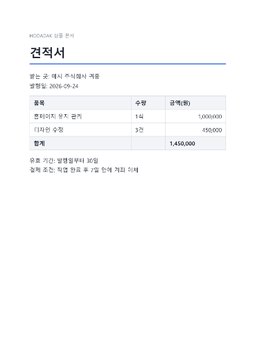
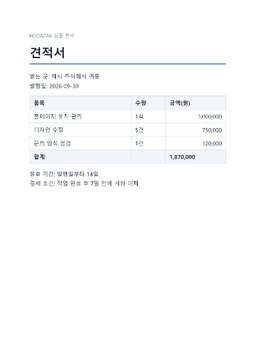
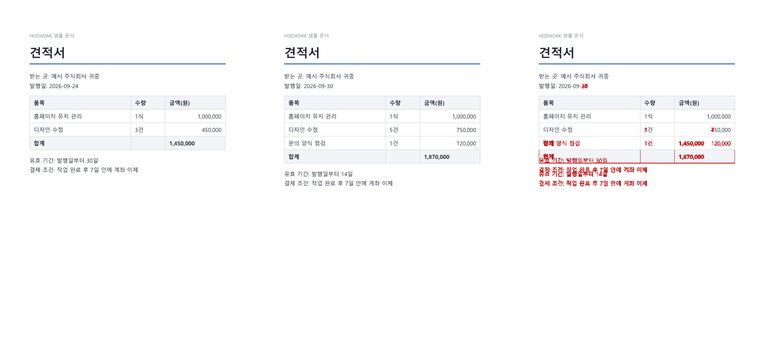
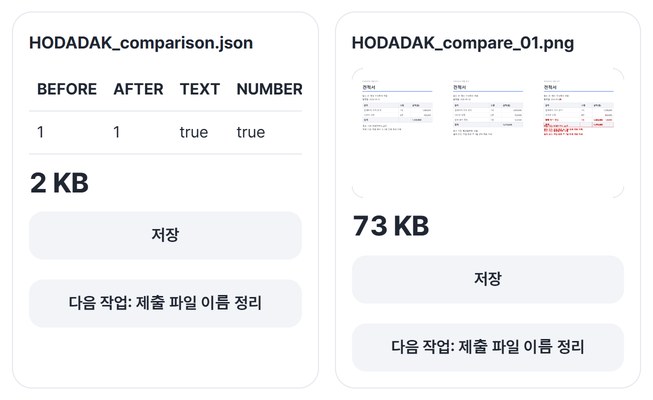
Two versions of a quote, the changes found
Issue date 2026-09-24 → 09-30, design revisions 3 → 5 (450,000 → 750,000), a new line “Contact form check, 1, 120,000,” total 1,450,000 → 1,870,000, and validity 30 days → 14 days. Each of these shows up in the side-by-side before, after and difference image.
The actual result of processing HODADAK sample files (two versions of an example quote) with Compare PDF changes v0.1.1.
HOW TO
Two versions in, three steps
Add the old and new versions
Add two PDFs, up to 20MB and 50 pages each.
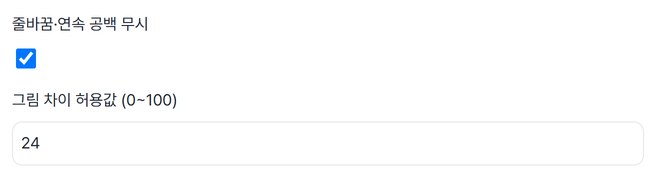
Set how to compare
With “Ignore line breaks and repeated spaces” on, lines that only reflowed don’t count as changes. “Pixel difference tolerance (0–100)” sets how sensitive the image comparison is. A table first shows how the pages are paired.
Review the changes
For each page you get a side-by-side before, after and difference image, plus a comparison JSON noting whether text or numbers changed. Save several files as one ZIP.
WHEN
Perfect for
- A revised quote from a supplier
See whether amounts, dates or terms changed.
- A new version of a contract
Check the changed pages before you sign.
- A last check on your own edits
Compare with the previous version to make sure only what you meant changed.
GOOD TO KNOW
Good to know
- No text recognition (OCR) for scans. If the text exists only as an image, as in a scan, it can’t be compared as text — you only see differences in the page image.
- Two PDFs, up to 20MB and 50 pages each. The original files stay unchanged.
- Inserted or missing pages are found too, and pages without a match are shown as “—” in the table. Pages are paired by how similar their text is, so confirm with the result images.
- The PDF engine is downloaded once, about 4MB, the first time. It's fetched only after you pick a file, and other PDF tools reuse it.
- Press Try a sample to try it without your own file. The Continue button on a result card carries on in another tool without adding the file again.
FAQ
Frequently asked questions
Where do my files get uploaded?
Nowhere. Everything is processed inside this device's browser, and closing the window clears both the files and the results.
Can it compare scanned PDFs?
It can show differences in the page image, but with no OCR it can’t tell you which words or numbers changed. To see text and number changes, compare PDFs that contain real text.
Which devices has it been checked on?
We confirmed it in Edge and WebKit (the engine behind Safari) on Windows. Phones were tested by simulating a phone screen on a PC; checks on real Mac, iPhone and Android devices are still to come.
NEXT
Handy next steps
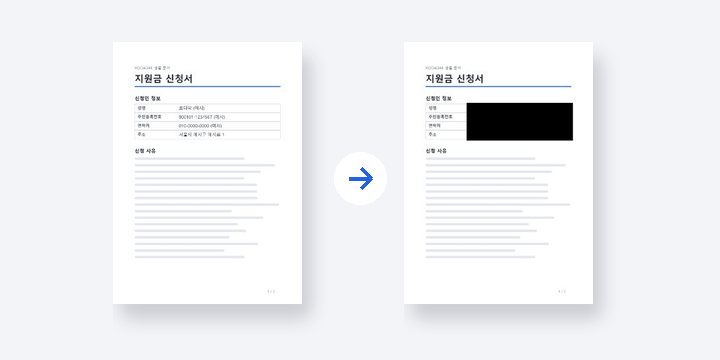 PDFNewPermanently redact PDF
Black out areas and remove the hidden text from the file for good.
Open →How to use
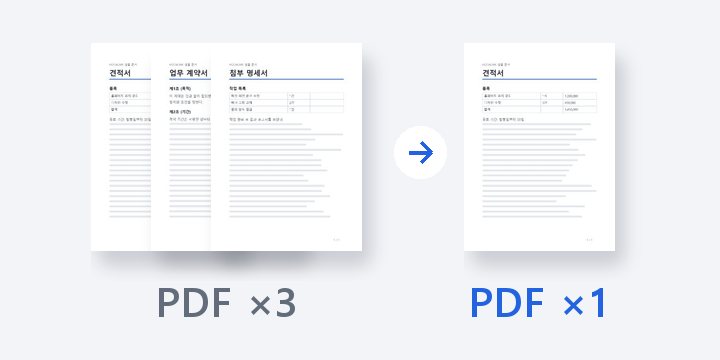
Add both, compare, check only what changed.
No install, no sign-up. Right now.